Life-Changing Shortcuts: Windows Key + Arrow

Multiple screens are a must-have these days. I have just two, and I’m constantly throwing windows back and forth. Windows 7 introduced some nice docking features that make this easy and efficient. I can drag a maximized window by the title bar, and it will un-maximize. If I then “push” it to the top of my other screen, it will re-maximize.

Windows 7 also lets you drag windows to the sides of your screen to half-maximize it; the window will use the entire vertical space but only half of the horizontal space, as if it were docked to the side of the screen to which it was dragged. Great. I love it.

But there’s a problem. There are no edges between my screens. Ugh… I guess I’ll just resize the window to make it half-screen sized, and then manually position it along the crack like a caveman. I mean, there’s no better way to do this, right?

That’s what I might’ve said if this were 2012. I know some things now that I didn’t know then. That’s right, I’m talking about the Windows key + arrow shortcut. Use this amazing shortcut to reposition windows by jumping through the different docking options. Here’s the summary:

Shortcut Description
Windows + ↑ Maximize a normal or left/right-docked window
Windows + ← Left-dock a window; cycle through side-dock positions
Windows + → Right-dock a window; cycle through side-dock positions
Windows + ↓ Un-maximize or un-dock a window; minimize a normal window

Toggling maximize and minimize are no big deal, and neither are dock-left and dock-right. What is useful, however, is that dock-left and dock-right respect the boundary between displays. OMG–life changed! This is easily my favorite new shortcut of 2013. So, you probably won’t use this shortcut to maximize or minimize windows, but remember it for the next time you’re trying to look at four things all at the same time. I bet you’ll fall in love.

Pretty Forms with CSS & jQuery

Let’s say you’re making a web form. You want it to look nice, so you’d like the input controls to line up and be consistently sized. You know that you shouldn’t be using tables for formatting, but how else can you avoid creating an ugly mess of labels smushed-up against their controls?

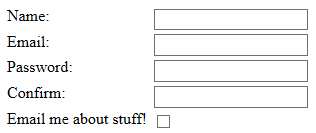
UglyForm

<!DOCTYPE html>

<html xmlns="http://www.w3.org/1999/xhtml">
<head runat="server">
    <title></title>
    <script src="http://ajax.googleapis.com/ajax/libs/jquery/1.10.1/jquery.min.js"></script>
    <script type="text/javascript"></script>
    <style type="text/css"></style>
</head>
<body>
    <div>
        <label for="name">Name:</label><input type="text" name="name"/><br/>
        <label for="email">Email:</label><input type="text" name="email"/><br/>
        <label for="password">Password:</label><input type="password" name="password"/><br/>
        <label for="confirmPassword">Confirm:</label><input type="password" name="confirmPassword"/><br/>
        <label for="newsletter">Email me about stuff!</label><input type="checkbox" name="newsletter"/>
    </div>
</body>
</html>

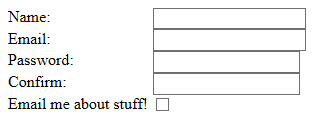
I found a cool trick to fix the spacing of labels and controls using jQuery. The idea is simple: loop through all labels and set their widths equal to the widest. The logic to do this is a typical CS-101 find-the-max loop, but there’s also a not-so-obvious second step. In order for the widened labels to display, they must be floated to the left.

LessUglyForm

<!DOCTYPE html>

<html xmlns="http://www.w3.org/1999/xhtml">
<head runat="server">
    <title></title>
    <script src="http://ajax.googleapis.com/ajax/libs/jquery/1.10.1/jquery.min.js"></script> 
    <script type="text/javascript">
         $(function() {
             var max = 0;
             $("label").each(function () {
                 if ($(this).width() > max)
                     max = $(this).width();
            });
            $("label").width(max + 5);
        });
    </script>
    <style type="text/css">
        label {
            float: left;
        }
    </style>
</head>
<body>
    <div>
        <label for="name">Name:</label><input type="text" name="name"/><br/>
        <label for="email">Email:</label><input type="text" name="email"/><br/>
        <label for="password">Password:</label><input type="password" name="password"/><br/>
        <label for="confirmPassword">Confirm:</label><input type="password" name="confirmPassword"/><br/>
        <label for="newsletter">Email me about stuff!</label><input type="checkbox" name="newsletter"/>
    </div>
</body>
</html>

Fixing the label spacing helps, but it’s still pretty ugly. You don’t want the textboxes rubbing shoulders like that, and why are the password boxes slightly shorter than the textboxes? We can fix both of those items with some simple CSS.

OkayForm

<!DOCTYPE html>

<html xmlns="http://www.w3.org/1999/xhtml">
<head runat="server">
    <title></title>
    <script src="http://ajax.googleapis.com/ajax/libs/jquery/1.10.1/jquery.min.js"></script> 
    <script type="text/javascript">
        $(function() {
            var max = 0;
            $("label").each(function () {
                if ($(this).width() > max)
                    max = $(this).width();
            });
            $("label").width(max + 5);
        });
    </script>
    <style type="text/css">
        label {
            float: left;
        }
        input {
            margin: 2px;
        }
        [type=text], [type=password] {
            width: 150px;
        }
    </style>
</head>
<body>
    <div>
        <label for="name">Name:</label><input type="text" name="name"/><br/>
        <label for="email">Email:</label><input type="text" name="email"/><br/>
        <label for="password">Password:</label><input type="password" name="password"/><br/>
        <label for="confirmPassword">Confirm:</label><input type="password" name="confirmPassword"/><br/>
        <label for="newsletter">Email me about stuff!</label><input type="checkbox" name="newsletter"/>
    </div>
</body>
</html>

Okay, now we’re starting to look like a respectable form! We can make our form a little nicer by adding a fieldset control to house our controls, and we can add a label to controls through the fieldset’s legend. In order to facilitate auto-sizing of the fieldset–it’s 100% width by default–I moved the labels and inputs into a list, and that required another jQuery loop and some CSS. As final step, add more CSS to further improve aesthetics. For this example, I added a custom web font and made the fieldset legend bold and red.

PrettyForm

<!DOCTYPE html>

<html xmlns="http://www.w3.org/1999/xhtml">
<head runat="server">
    <title></title>
    <script src="http://ajax.googleapis.com/ajax/libs/jquery/1.10.1/jquery.min.js"></script> 
    <script type="text/javascript">
        $(function() {
            var max = 0;
            $("label").each(function () {
                if ($(this).width() > max)
                    max = $(this).width();
            });
            $("label").width(max + 5);
            max = 0;
            $("fieldset").each(function() {
                $(this).find("li").each(function () {
                    var w = $(this).find("label").width() + $(this).find("input").width();
                    if (w > max)
                        max = w;
                });
                $(this).width(max + 10);
            });
         });
    </script>
    <link href='http://fonts.googleapis.com/css?family=Unkempt' rel='stylesheet' type='text/css'>
    <style type="text/css">
        body {
            font-family: 'Unkempt', sans-serif;
        }
        fieldset {
            margin: 10px;
            padding: 10px;
        }
            fieldset legend {
                font-weight: bold;
                color: maroon;
            }

            fieldset ul {
                margin: 0;
                padding: 0;
            }

            fieldset li {
                list-style: none;
                padding-bottom: 10px;
            }
        label {
            float: left;
        }
        input {
            margin: 2px;
        }
        [type=text], [type=password] {
            width: 150px;
        }
    </style>
</head>
<body>
    <fieldset>
        <legend>User Info</legend>
            <ul>
                <li><label for="name">Name:</label><input type="text" name="name"/></li>
                <li><label for="email">Email:</label><input type="text" name="email"/></li>
                <li><label for="password">Password:</label><input type="password" name="password"/></li>
                <li><label for="confirmPassword">Confirm:</label><input type="password" name="confirmPassword"/></li>
                <li><label for="newsletter">Email me about stuff!</label><input type="checkbox" name="newsletter"/></li>
            </ul>
    </fieldset>
</body>
</html>

Create Permanent Custom Styles in Outlook

One of my peeves in Outlook is the formatting of code snippets that I send in email. Nine times out of ten, I’m copying and pasting from Visual Studio. That works pretty well; you get keyword highlights and all that fun stuff. Life is good–unless you happen to have a dark background. I like the dark theme for Visual Studio 2012, but I can’t stand that pasted text comes with a black highlight! It’s not that I mind the black background, but the highlighted text looks like a disaster.

DarkBackgroundCodePasteIntoOutlook

At this point, you’ve got three options: go back to a light-background theme in Visual Studio, deal with it, or adjust the formatting in Outlook. It looks too ugly for me to ignore, so option #2 is out. Until know, I’ve been exercising option #1, living in a default-themed world. I decided to go in a different direction today, though. I created a style that I can use to quickly format my pasted code. (An easy solution that I considered using for a while was to use LINQPad as a formatting buffer. I’d copy/paste code from Visual Studio to LINQPad and then re-copy/paste from LINQPad to Outlook. It works.)

The key to making this as painless as possible is getting the style configured correctly. Here are the steps I used to create my new style in Outlook 2013:

  • Choose “Create a Style” from the Styles gallery (FORMAT TEXT > Styles)
  • Change paragraph spacing options
    • After: 0 pt
    • Line Spacing: Single
  • Modify borders and shading
    • Border Setting: Box
    • Border Color: White
    • Border > Options > From text (all sides): 12 pt
    • Shading Fill: Custom Color (RGB: 30, 30, 30)

To ensure the style sticks around for future emails, do the following:

  1. Change Styles > Style Set > Save as a New Style Set…
  2. Change Styles > Style Set > Set as Default
  3. Restart Outlook for the new default style set to take effect

When I paste code from my dark themed Visual Studio, it still looks ugly. I can make it prettier by simply selecting the text and applying my new style. As a final beautification, I select the text and remove the black highlight from the text. (The removal of highlighting wouldn’t be necessary if I were content to use a black background, but I think 30/30/30 gray looks nicer, and so I will remove the highlight.)

DarkBackgroundCodePasteIntoOutlook_Better

It’s definitely a few extra clicks anytime I’m sending code, but the end product looks good!

Posting Data to an ASP.NET Page Method with Knockout

PostingDataToPageMethodWithKnockoutSample

Last time in my Knockout series of posts, I explored how to retrieve and bind data from an ASP.NET page method. That’s only half the battle, though. How can you take data captured and do interesting things with it? I’ve got an idea! How about passing it to an ASP.NET page method!

I’m going to use my example from last time with a few modifications. I added some entry controls to capture the user’s status, and I modified the GetStatus page method to return the user’s last status. The last status values will be displayed as read-only and will only be visible when a value exists. Here’s the ASPX and code-behind. Note that ASPX contains a button bound to a method in the view model that’s not yet implemented, and the code-behind has a UpdateStatus method.

default.aspx:

<%@ Page Language="C#" AutoEventWireup="true" CodeBehind="Default.aspx.cs" Inherits="adamprescott.net.Knockout.Default" %>

<!DOCTYPE html>

<html xmlns="http://www.w3.org/1999/xhtml">
<head runat="server">
    <title></title>
    <script src="Scripts/jquery-2.0.2.min.js"></script>
    <script src="Scripts/knockout-2.2.1.js"></script>
    <script type="text/javascript">
        $(function () {
            var viewModel = {
                wasHappy: ko.observable(),
                lastStatusText: ko.observable(),
                isCurrentlyHappy: ko.observable(),
                currentStatusText: ko.observable(),
                updateStatus: updateStatus,
            };
            ko.applyBindings(viewModel);
            getLastStatus();

            function updateStatus() {
                // todo: post data to page method
            }

            function getLastStatus() {
                $.ajax({
                    type: "POST",
                    url: "Default.aspx/GetStatus",
                    data: "{}",
                    contentType: "application/json; charset=utf-8",
                    dataType: "json",
                    success: function (result) {
                        var data = result.d;
                        if (data == null) {
                            $("#lastTime").hide();
                            return;
                        }
                        $("#lastTime").show();
                        viewModel.wasHappy(data.HappyFlag);
                        viewModel.lastStatusText(data.Text);
                    }
                });
            }
        });
    </script>
</head>
<body>
    <div>
        <strong>How are you feeling?</strong><br/>
        Are you happy? <input data-bind="checked: isCurrentlyHappy" type="checkbox"/><br/>
        Tell me about it: <input data-bind="value: currentStatusText"/><br/>
        <button data-bind="click: updateStatus">Update Status</button>
    </div>
    <div id="lastTime">
        <strong>How you felt last time:</strong><br/>
        Were you happy? <input data-bind="checked: wasHappy" type="checkbox" disabled="true"/><br/>
        What you told me about it: <span data-bind="text: lastStatusText"></span>
    </div>
</body>
</html>

default.aspx.cs:

using System;
using System.Web.Services;

namespace adamprescott.net.Knockout
{
    public class Status
    {
        public bool HappyFlag { get; set; }
        public string Text { get; set; }
    }

    public partial class Default : System.Web.UI.Page
    {
        private static Status lastStatus = null;

        [WebMethod]
        public static Status GetStatus()
        {
            return lastStatus;
        }

        [WebMethod]
        public static void UpdateStatus(Status status)
        {
            lastStatus = status;
        }
    }
}

When the button is pressed, we need to collect values and put them into an object to be passed to our page method. That’s easy–just grab values from the view model:

var data = {};
data.HappyFlag = viewModel.isCurrentlyHappy();
data.Text = viewModel.currentStatusText();

Now that we’ve got our values, we just need to pass them to our page method. Once again, it’s jQuery to the rescue!

$.ajax({
    type: "POST",
    url: "Default.aspx/UpdateStatus",
    data: JSON.stringify({ 'status': data }),
    contentType: "application/json; charset=utf-8",
    dataType: "json",
    success: function () {
        // todo: anything?
    }
});

Bam! We just passed data to the page method in the code-behind. Tutorial accomplished. However, I need to go a little further. Now that I just updated the status, I want my UI to update its view to show the latest status. So, when my call to UpdateStatus finishes successfully, I just need to make another call to GetStatus. Super easy!

Here’s the final ASPX.

<%@ Page Language="C#" AutoEventWireup="true" CodeBehind="Default.aspx.cs" Inherits="adamprescott.net.Knockout.Default" %>

<!DOCTYPE html>

<html xmlns="http://www.w3.org/1999/xhtml">
<head runat="server">
    <title></title>
    <script src="Scripts/jquery-2.0.2.min.js"></script>
    <script src="Scripts/knockout-2.2.1.js"></script>
    <script type="text/javascript">
        $(function () {
            var viewModel = {
                wasHappy: ko.observable(),
                lastStatusText: ko.observable(),
                isCurrentlyHappy: ko.observable(),
                currentStatusText: ko.observable(),
                updateStatus: updateStatus, 
            };
            ko.applyBindings(viewModel);
            getLastStatus();

            function updateStatus() {
                // todo: post data to page method
                return;
                var data = {};
                data.HappyFlag = viewModel.isCurrentlyHappy();
                data.Text = viewModel.currentStatusText();
                $.ajax({
                    type: "POST",
                    url: "Default.aspx/UpdateStatus",
                    data: JSON.stringify({ 'status': data }),
                    contentType: "application/json; charset=utf-8",
                    dataType: "json",
                    success: function () {
                        getLastStatus();
                    }
                });
            }

            function getLastStatus() {
                $.ajax({
                    type: "POST",
                    url: "Default.aspx/GetStatus",
                    data: "{}",
                    contentType: "application/json; charset=utf-8",
                    dataType: "json",
                    success: function (result) {
                        var data = result.d;
                        if (data == null) {
                            $("#lastTime").hide();
                            return;
                        }
                        $("#lastTime").show();
                        viewModel.wasHappy(data.HappyFlag);
                        viewModel.lastStatusText(data.Text);
                    }
                });
            }
        });
    </script>
</head>
<body>
    <div>
        <strong>How are you feeling?</strong><br/>
        Are you happy? <input data-bind="checked: isCurrentlyHappy" type="checkbox"/><br/>
        Tell me about it: <input data-bind="value: currentStatusText"/><br/>
        <button data-bind="click: updateStatus">Update Status</button>
    </div>
    <div id="lastTime">
        <strong>How you felt last time:</strong><br/>
        Were you happy? <input data-bind="checked: wasHappy" type="checkbox" disabled="true"/><br/>
        What you told me about it: <span data-bind="text: lastStatusText"></span>
    </div>
</body>
</html>
“Faux” Multiple Inheritance with Extension Methods

Here was my scenario: I had a project with a bunch of classes that used a common logger. I wanted each of the classes to “tag” logged messages with their type to improve traceability. I created a simple wrapper for my logging methods, like so:

public class Animal
{
    public ILogger Logger { get; set; }

    private void Foo()
    {
        // logs "[Animal] Called from Foo!"
        LogInformation("Called from Foo!");
    }

    private void LogError(string message, params object[] args)
    {
        Log(x => x.LogError(message, args));
    }

    private void LogInformation(string message, params object[] args)
    {
        Log(x => x.LogInformation(message, args));
    }

    private void Log(Action<string> logAction, string message, params object[] args)
    {
        if (Logger == null)
        {
            return;
        }
        var msg = string.Format("[{0}] {1}",
                this.GetType().Name,
                string.Format(message, args));
        logAction(msg);
    }
}

When I log messages from this class, they look like “[Animal] some message,” and I can easily see where they came from. Great, but I wanted this functionality in a few more places and I didn’t want to copy/paste the same code into each class that needed it. (DRY, you know?)

So, instead, I created a new interface and created some extension methods for it.

public interface ILogging
{
    ILogger Logger { get; }
}

public static class LoggingExtensions
{
    public static void LogError(this ILogging instance, string message, params object[] args)
    {
        Log(instance, x => instance.Logger.LogError(x), message, args);
    }
    
    public static void LogInformation(this ILogging instance, string message, params object[] args)
    {
        Log(instance, x => instance.Logger.LogInformation(x), message, args);
    }
    
    private static void Log(this ILogging instance, Action<string> logAction, string message, params object[] args)
    {
        if (instance.Logger == null)
        {
            return;
        }
        var msg = string.Format("[{0}] {1}",
                instance.GetType().Name,
                string.Format(message, args));
        logAction(msg);
    }
}

This isn’t quite as pretty as the original, but it’s a snap to re-use. Here’s a look at the example from above, refactored to implement the new interface and use its extension methods:

public class Animal : ILogging
{
    public ILogger Logger { get; set; }

    private void Foo()
    {
        // logs "[Animal] Called from Foo!"
        this.LogInformation("Called from Foo!");
    }
}

What’s really neat about this is that I get “inheritance behavior” without having to actually derive from a base class. This is valuable since you can only inherit from a single class in C#. You are allowed to implement many interfaces, though, so this technique gives you a “faux multiple inheritance” behavior without inheriting from any classes. Cool!

Databinding from an ASP.NET Page Method with Knockout

Last week, I wrote a brief post about how easy it is to do databinding with Knockout. The article presents a barebones example, but it fails to address an important issue: how to get data into the view model.

I live in a .NET world, and I’m usually working with small ASP.NET application. I’ve found that page methods are an easy and convenient way to get to the data I need. They’re easily accessible via jQuery, too. So let’s see how we can get data from an ASP.NET page method using jQuery and pass it along to our Knockout view model.

First, let’s get to know our page method. I created a simple Status class that will be returned from a page method, GetStatus. Here’s the entire code-behind for my page:

using System;
using System.Web.Services;

namespace adamprescott.net.Knockout
{
    public class Status
    {
        public bool HappyFlag { get; set; }
        public string Text { get; set; }
    }

    public partial class Default : System.Web.UI.Page
    {
        [WebMethod]
        public static Status GetStatus()
        {
            return new Status { HappyFlag = true, Text = "This just a default" };
        }
    }
}

We know what data we’re getting, so we can go ahead and create our view model and UI. Here’s what that looks like:

<%@ Page Language="C#" AutoEventWireup="true" CodeBehind="Default.aspx.cs" Inherits="adamprescott.net.Knockout.Default" %>

<!DOCTYPE html>

<html xmlns="http://www.w3.org/1999/xhtml">
<head runat="server">
    <title></title>
    <script src="Scripts/jquery-2.0.2.min.js"></script>
    <script src="Scripts/knockout-2.2.1.js"></script>
    <script type="text/javascript">
        $(function () {
            var viewModel = {
                isHappy: ko.observable(),
                statusText: ko.observable(),
            };
            ko.applyBindings(viewModel);
            
            // todo: get data from page method
        });
    </script>
</head>
<body>
    <input data-bind="value: statusText" /><br/>
    Happy? <input data-bind="checked: isHappy" type="checkbox" />
</body>
</html>

All that’s left is for us to do is call the page method and update the values in our view model. And, as I said before, jQuery makes it a snap!

$.ajax({
    type: "POST",
    url: "Default.aspx/GetStatus",
    data: "{}",
    contentType: "application/json; charset=utf-8",
    dataType: "json",
    success: function (result) {
        var data = result.d;
        viewModel.isHappy(data.HappyFlag);
        viewModel.statusText(data.Text);
    }
});

With that, we’re done. When the page loads, the view model is created and bound to the UI controls. We then make an asynchronous call to the page method using jQuery and update the values in our view model.

Here’s the complete ASPX file:

<%@ Page Language="C#" AutoEventWireup="true" CodeBehind="Default.aspx.cs" Inherits="adamprescott.net.Knockout.Default" %>

<!DOCTYPE html>

<html xmlns="http://www.w3.org/1999/xhtml">
<head runat="server">
    <title></title>
    <script src="Scripts/jquery-2.0.2.min.js"></script>
    <script src="Scripts/knockout-2.2.1.js"></script>
    <script type="text/javascript">
        $(function () {
            var viewModel = {
                isHappy: ko.observable(),
                statusText: ko.observable(),
            };
            ko.applyBindings(viewModel);
            
            $.ajax({
                type: "POST",
                url: "Default.aspx/GetStatus",
                data: "{}",
                contentType: "application/json; charset=utf-8",
                dataType: "json",
                success: function (result) {
                    var data = result.d;
                    viewModel.isHappy(data.HappyFlag);
                    viewModel.statusText(data.Text);
                }
            });
        });
    </script>
</head>
<body>
    <input data-bind="value: statusText" /><br/>
    Happy? <input data-bind="checked: isHappy" type="checkbox" />
</body>
</html>