Post to Twitter with DotNetOpenAuth

DotNetOpenAuth_TwitterAPI

A few weeks ago, I started looking into using the Twitter API for automatic, event-based status updates in an application. I wanted to understand what was going on, so I didn’t want to simply download Twitterizer or LINQ to Twitter. Learning OAuth has been a challenge, to put it lightly. I’ve learned a lot, but I’m still pretty clumsy with it. Today, I found out about a new open source project that seems like just what I needed: DotNetOpenAuth.

Using DotNetOpenAuth, I was able to create a functional console application that posts to Twitter in about 200 lines of code. This post will walk you through the steps.

The first thing you need to do is create a new Twitter application. Go to dev.twitter.com, sign in (or sign up), and create the application. If you want to post status updates with your application—like we’re doing here—be sure to click to the Settings tab and change the Application Type to Read and Write.

Once you’ve created your application with Twitter, it’s time to create your project in Visual Studio. I’ll be using a console application in an effort to keep it simple. The first thing you’ll want to do after creating the project is install the DotNetOpenAuth NuGet package. (Not sure how to use NuGet? Start here!)

Now it’s time to get down to business. We’re going to start by creating a token manager. Most of the tutorials online seem to use a simple, in-memory token manager, and I’m going to follow suit. In a real application, you’ll want to store the access tokens and access token secrets so that you don’t have to authorize each time the application runs.

namespace adamprescott.net.TweetConsole
{
    using DotNetOpenAuth.OAuth.ChannelElements;
    using DotNetOpenAuth.OAuth.Messages;
    using DotNetOpenAuth.OpenId.Extensions.OAuth;
    using System;
    using System.Collections.Generic;

    public class TokenManager : IConsumerTokenManager
    {
        private static Dictionary<string, string> TokenSecrets = 
            new Dictionary<string, string>();

        public TokenManager(string consumerKey, string consumerSecret)
        {
            ConsumerKey = consumerKey;
            ConsumerSecret = consumerSecret;
        }

        public string ConsumerKey { get; private set; }

        public string ConsumerSecret { get; private set; }

        public string GetTokenSecret(string token)
        {
            return TokenSecrets[token];
        }

        public void StoreNewRequestToken(UnauthorizedTokenRequest request,
            ITokenSecretContainingMessage response)
        {
            TokenSecrets[response.Token] = response.TokenSecret;
        }

        public void ExpireRequestTokenAndStoreNewAccessToken(
            string consumerKey,
            string requestToken,
            string accessToken,
            string accessTokenSecret)
        {
            TokenSecrets.Remove(requestToken);
            TokenSecrets[accessToken] = accessTokenSecret;
        }

        public TokenType GetTokenType(string token)
        {
            throw new NotImplementedException();
        }

        public void StoreOpenIdAuthorizedRequestToken(string consumerKey,
            AuthorizationApprovedResponse authorization)
        {
            TokenSecrets[authorization.RequestToken] = String.Empty;
        }
    }
}

The next thing we need is a consumer wrapper. This wrapper is where we’ll specify the OAuth token URLs and expose three methods that we’ll use from our main application: BeginAuth, CompleteAuth, and PrepareAuthorizedRequest.

namespace adamprescott.net.TweetConsole
{
    using DotNetOpenAuth.Messaging;
    using DotNetOpenAuth.OAuth;
    using DotNetOpenAuth.OAuth.ChannelElements;
    using System.Collections.Generic;
    using System.Net;

    public class TwitterConsumer
    {
        private string _requestToken = string.Empty;

        public DesktopConsumer Consumer { get; set; }
        public string ConsumerKey { get; set; }
        public string ConsumerSecret { get; set; }

        public TwitterConsumer(string consumerKey, string consumerSecret)
        {
            ConsumerKey = consumerKey;
            ConsumerSecret = consumerSecret;

            var providerDescription = new ServiceProviderDescription
            {
                RequestTokenEndpoint = new MessageReceivingEndpoint(
                    "https://api.twitter.com/oauth/request_token",
                    HttpDeliveryMethods.PostRequest),
                UserAuthorizationEndpoint = new MessageReceivingEndpoint(
                    "https://api.twitter.com/oauth/authorize",
                    HttpDeliveryMethods.GetRequest),
                AccessTokenEndpoint = new MessageReceivingEndpoint(
                    "https://api.twitter.com/oauth/access_token", 
                    HttpDeliveryMethods.GetRequest),
                TamperProtectionElements = new ITamperProtectionChannelBindingElement[] 
                {
                    new HmacSha1SigningBindingElement()
                }
            };

            Consumer = new DesktopConsumer(
                providerDescription,
                new TokenManager(ConsumerKey, ConsumerSecret));
            return;
        }

        public string BeginAuth()
        {
            var requestArgs = new Dictionary<string, string>();
            return Consumer
                .RequestUserAuthorization(requestArgs, null, out _requestToken)
                .AbsoluteUri;
        }

        public string CompleteAuth(string verifier)
        {
            var response = Consumer.ProcessUserAuthorization(
                _requestToken, verifier);
            return response.AccessToken;
        }

        public HttpWebRequest PrepareAuthorizedRequest(
            MessageReceivingEndpoint endpoint,
            string accessToken, 
            IEnumerable<MultipartPostPart> parts)
        {
            return Consumer.PrepareAuthorizedRequest(endpoint, accessToken, parts);
        }

        public IConsumerTokenManager TokenManager
        {
            get
            {
                return Consumer.TokenManager;
            }
        }
    }
}

All that’s left to do now is put it all together. The main application needs your Twitter application’s consumer key and consumer secret. (Both of those values can be found on the Details tab of the Twitter application.) Those values are passed to the consumer wrapper which can then produce an authorization URL. We’ll prompt the user for credentials by opening the URL in a web browser. The authorization process will be completed when the user enters their PIN from Twitter into the console application. Once authorized, the application can post to Twitter on behalf of the user. I added a simple loop that prompts the user and tweets their input.

namespace adamprescott.net.TweetConsole
{
    using DotNetOpenAuth.Messaging;
    using System;
    using System.Diagnostics;

    class Program
    {
        const string _consumerKey = "~consumerkey~";
        const string _consumerSecret = "~consumersecret~";
        private TwitterConsumer _twitter;

        static void Main(string[] args)
        {
            var p = new Program();
            p.Run();
        }

        public Program()
        {
            _twitter = new TwitterConsumer(_consumerKey, _consumerSecret);
        }

        void Run()
        {
            var url = _twitter.BeginAuth();
            Process.Start(url);
            Console.Write("Enter PIN: ");
            var pin = Console.ReadLine();
            var accessToken = _twitter.CompleteAuth(pin);

            while (true)
            {
                Console.Write("Tweet ('x' to exit) /> ");
                var tweet = Console.ReadLine();
                if (string.Equals("x", tweet, StringComparison.CurrentCultureIgnoreCase))
                {
                    break;
                }
                Tweet(accessToken, tweet);
            }
        }

        void Tweet(string accessToken, string message)
        {
            var endpoint = new MessageReceivingEndpoint(
                "https://api.twitter.com/1.1/statuses/update.json",
                HttpDeliveryMethods.PostRequest | HttpDeliveryMethods.AuthorizationHeaderRequest);

            var parts = new[]
            {
                MultipartPostPart.CreateFormPart("status", message)
            };

            var request = _twitter.PrepareAuthorizedRequest(endpoint, accessToken, parts);

            var response = request.GetResponse();
        }
    }
}

The full source code for this sample is available on GitHub. Note that you’ll need to provide your application’s consumer key and secret in order to make the sample functional.

Collection Lookups

FindInCollection

Yesterday, I was discussing a method with a co-worker where I suggested we loop through a collection of records and, for each record, do another retrieval-by-ID via LINQ. He brought up that this would probably be done more efficiently by creating a dictionary before the loop and retrieving from the dictionary instead of repeatedly executing the LINQ query. So I decided to do some research.

Firstly, I learned about two new LINQ methods: ToDictionary and ToLookup. Lookups and dictionaries serve a similar purpose, but the primary distinction is that a lookup will allow duplicate keys. Check out this article for a quick comparison of the two structures.

With my new tools in hand, I wanted to compare the performance. I first came up with a test. I created a collection of simple objects that had an ID and then looped through and retrieved each item by ID. Here’s what the test looks like:

void Main()
{
	var iterations = 10000;
	var list = new List<Human>();
	for (int i = 0; i < iterations; i++)
	{
		list.Add(new Human(i));
	}
	
	var timesToAvg = 100;
	
	Console.WriteLine("Avg of .Where search: {0} ms", 
		AverageIt((l, i) => TestWhere(l, i), list, iterations, timesToAvg));
	
	Console.WriteLine("Avg of for-built Dictionary search: {0} ms", 
		AverageIt((l, i) => TestDictionary(l, i), list, iterations, timesToAvg));
		
	Console.WriteLine("Avg of LINQ-built Dictionary search: {0} ms", 
		AverageIt((l, i) => TestToDictionary(l, i), list, iterations, timesToAvg));
		
	Console.WriteLine("Avg of Lookup search: {0} ms", 
		AverageIt((l, i) => TestLookup(l, i), list, iterations, timesToAvg));
}

decimal AverageIt(Action<List<Human>, int> action, List<Human> list, int iterations, int timesToAvg)
{
	var sw = new Stopwatch();
	
	decimal sum = 0;
	for (int i = 0; i < timesToAvg; i++)
	{
		sw.Reset();
		sw.Start();
		action(list, iterations);
		sw.Stop();
		sum += sw.ElapsedMilliseconds;
	}
	return sum / timesToAvg;
}

class Human
{
	public int id;
	
	public Human(int id)
	{
		this.id = id;
	}
}

Then, I wrote a method for each algorithm I wanted to test: using .Where, using a manually-built dictionary, using a ToDictionary-built dictionary, and using a lookup. Here are the methods I wrote for each of the algorithms:

void TestWhere(List<Human> list, int iterations)
{	
	for (int i = 0; i < iterations; i++)
	{
		var h = list.Where(x => x.id == i).FirstOrDefault();
	}
}

void TestDictionary(List<Human> list, int iterations)
{
	var dict = new Dictionary<int, Human>();
	foreach (var h in list)
	{
		dict.Add(h.id, h);
	}
	for (int i = 0; i < iterations; i++)
	{
		var h = dict[i];
	}
}

void TestToDictionary(List<Human> list, int iterations)
{
	var dict = list.ToDictionary(x => x.id);
	for (int i = 0; i < iterations; i++)
	{
		var h = dict[i];
	}
}

void TestLookup(List<Human> list, int iterations)
{
	var lookup = list.ToLookup(
		x => x.id,
		x => x);
	for (int i = 0; i < iterations; i++)
	{
		var h = lookup[i];
	}
}

Here are the results:

Avg of .Where search: 987.89 ms
Avg of for-built Dictionary search: 1.85 ms
Avg of LINQ-built Dictionary search: 1.67 ms
Avg of Lookup search: 2.14 ms

I would say that the results are what I expected in terms of what performed best. I was surprised by just how poorly the .Where queries performed, though–it was awful! One note about the manually-built dictionary versus the one produced by LINQ’s ToDictionary method: in repeated tests, the better performing method was inconsistent, leading me to believe that there is no significant benefit or disadvantage to using one or the other. I’ll likely stick with ToDictionary in the future due to its brevity, though.

These results seem to prove that a dictionary is optimal for lookups when key uniqueness is guaranteed. If the key is not unique or its uniqueness is questionable, a lookup should be used instead. Never do what I wanted to do, though, and use a .Where as an inner-loop lookup retrieval mechanism.

12/10/2012 Update:
A co-worker pointed out that I don’t need to chain Where and FirstOrDefault. Instead, I can just use FirstOrDefault with a lambda. So I added this to the test app to see how it compared. Surprisingly, this seems to consistently run slower than using Where in conjunction with FirstOrDefault!

void TestFirstOrDefault(List<Human> list, int iterations)
{	
	for (int i = 0; i < iterations; i++)
	{
		var h = list.FirstOrDefault(x => x.id == i);
	}
}

We also agreed that there should be a for-each loop as a base comparison, so I added that as well.

void TestForEach(List<Human> list, int iterations)
{
	for (int i = 0; i < iterations; i++)
	{
		foreach (var x in list)
		{
			if (i == x.id)
			{
				break;
			}
		}
	}
}

Here are the full results with the two new algorithms:

Avg of ForEach search: 741.05 ms
Avg of .Where search: 980.13 ms
Avg of .FirstOrDefault search: 1189.01 ms
Avg of for-built Dictionary search: 1.57 ms
Avg of LINQ-built Dictionary search: 1.57 ms
Avg of Lookup search: 1.74 ms

**********
Complete code:

void Main()
{
	var iterations = 10000;
	var list = new List<Human>();
	for (int i = 0; i < iterations; i++)
	{
		list.Add(new Human(i));
	}
	
	var timesToAvg = 100;
	
	Console.WriteLine("Avg of ForEach search: {0} ms", 
		AverageIt((l, i) => TestForEach(l, i), list, iterations, timesToAvg));
	
	Console.WriteLine("Avg of .Where search: {0} ms", 
		AverageIt((l, i) => TestWhere(l, i), list, iterations, timesToAvg));
		
	Console.WriteLine("Avg of .FirstOrDefault search: {0} ms", 
		AverageIt((l, i) => TestFirstOrDefault(l, i), list, iterations, timesToAvg));
	
	Console.WriteLine("Avg of for-built Dictionary search: {0} ms", 
		AverageIt((l, i) => TestDictionary(l, i), list, iterations, timesToAvg));
		
	Console.WriteLine("Avg of LINQ-built Dictionary search: {0} ms", 
		AverageIt((l, i) => TestToDictionary(l, i), list, iterations, timesToAvg));
		
	Console.WriteLine("Avg of Lookup search: {0} ms", 
		AverageIt((l, i) => TestLookup(l, i), list, iterations, timesToAvg));
}

decimal AverageIt(Action<List<Human>, int> action, List<Human> list, int iterations, int timesToAvg)
{
	var sw = new Stopwatch();
	
	decimal sum = 0;
	for (int i = 0; i < timesToAvg; i++)
	{
		sw.Reset();
		sw.Start();
		action(list, iterations);
		sw.Stop();
		sum += sw.ElapsedMilliseconds;
	}
	return sum / timesToAvg;
}

class Human
{
	public int id;
	
	public Human(int id)
	{
		this.id = id;
	}
}

void TestForEach(List<Human> list, int iterations)
{
	for (int i = 0; i < iterations; i++)
	{
		foreach (var x in list)
		{
			if (i == x.id)
			{
				break;
			}
		}
	}
}

void TestWhere(List<Human> list, int iterations)
{	
	for (int i = 0; i < iterations; i++)
	{
		var h = list.Where(x => x.id == i).FirstOrDefault();
	}
}

void TestFirstOrDefault(List<Human> list, int iterations)
{	
	for (int i = 0; i < iterations; i++)
	{
		var h = list.FirstOrDefault(x => x.id == i);
	}
}

void TestDictionary(List<Human> list, int iterations)
{
	var dict = new Dictionary<int, Human>();
	foreach (var h in list)
	{
		dict.Add(h.id, h);
	}
	for (int i = 0; i < iterations; i++)
	{
		var h = dict[i];
	}
}

void TestToDictionary(List<Human> list, int iterations)
{
	var dict = list.ToDictionary(x => x.id);
	for (int i = 0; i < iterations; i++)
	{
		var h = dict[i];
	}
}

void TestLookup(List<Human> list, int iterations)
{
	var lookup = list.ToLookup(
		x => x.id,
		x => x);
	for (int i = 0; i < iterations; i++)
	{
		var h = lookup[i];
	}
}

Creating New Stencils in Visio 2013

I love Visio. It’s a great way to make great-looking diagrams and illustrations very quickly. If you have a number of common shapes that you use from various stencils or some custom shapes that you’ve created yourself, you may want to save them in custom stencil. Visio did a good job of making this not-so-obvious to do in 2013, and so here we are.

Create your new stencil

The real “secret” here is that the stencil creation and editing tools are tucked away on the Developer tab in the ribbon, which is not visible by default. So step one is to make it visible. Go to File > Options > Customize Ribbon, and check the box next to Developer. Once the Developer tab is visible, creating the new stencil is as easy as clicking the New Stencil button.

Visio_Developer_NewStencil

Add shapes to your stencil

The stencil is obviously not going to do you much good without any shapes. The best way I’ve found to add shapes is to simply drag and drop them from the designer. Want a shape from another stencil? Drag it to the designer and then drag it back to your stencil. How about a frequently used image? Add it to the designer via Insert > Pictures, and then drag it into your stencil.

Visio_Stencil_AddShape

When you’re done adding shapes, just click the save button by the stencil header. That’s it!

Accessing your new stencil

When you need to access your stencil, you should find it under More Shapes > My Shapes. (Note that My Shapes looks to the default stencil location, C:\Users\you\Documents\My Shapes.) You can also browse to it using More Shapes > Open Stencil.

That’s it! Now you’re a stencil pro. Create different stencils for the different tasks you need different sets of shapes for. You’ll make diagrams faster and with greater consistency. Everyone will want to be you. Okay, that last part was a lie. People might still like you a little more and appreciate your amazing diagrams, though.

.NET DateTime to W3C Format

Here’s a fun quickie! I needed to translate a C# DateTime into W3C format. Here’s how I did it, courtesy of StackOverflow:

DateTime.Now.ToString("yyyy-MM-ddTHH:mm:ss.fffffffzzz");
// 2012-12-04T17:10:12.5880605-05:00

Shablam!

Learning Cukes

Cucumber

I’ve written [several] [posts] [in] [the] [past] about my team’s adoption of SpecFlow and BDD, and I’m still loving it several months later. The large project that we started with has nearly 10,000 lines of code and 93% code coverage. We’ve gone through several large refactors, and each time we walk away with a high level of confidence that no functionality was lost or affected negatively. It’s been a really great experience.

One of the challenges of adoption was just learning the Cucumber step definition syntax, or rather, how to write cukes. For getting started, I recommend taking a look at this page for a good list of descriptions, scenarios, and examples. If you’re using SpecFlow, you may also want to check out their step definition documentation on GitHub.

Once you’ve got the basic syntax down, the hard part begins. My team hasn’t had much formal discussion about Cucumber best practices, and we’re still learning what works and what doesn’t. If you look around online, you can find a few good articles with helpful suggestions, though.

Here’s a great post that I recommend reading. This article offers advice on just about every aspect of creating and managing your cukes, from feature files to tags to running and refactoring.

I also found this post from EggsOnBread to be very helpful. All of the recommended practices are good. This was one of the first articles I read when I was getting started, and it’s served me well. I’ll be honest, though–many of the points didn’t stick during my initial read. It became much more valuable after spending several months working with Cucumber and then re-reading.

Lean Development Teams

BusFactor

I’ve long been a believer of the idea that having only a single developer on a project is a recipe for disaster. First and foremost, you’ve got a code-red, emergency-level, bus factor of 1. (Very bad.) The next problem is that you have no buffer for the individual’s personal strengths and weaknesses. For example, if the assigned developer happens to test only base cases and doesn’t check any edge cases for abnormal behavior, the application quality is likely to reflect that.

I was the lone developer earlier in my career, and I didn’t like it. I wanted to be part of a team. I went from one extreme to the other, though, by joining one of the largest development teams in the company.

I soon grew to learn that very large teams have pretty much the same problems as teams-of-one. In my case, we had a team that was so large, nobody could keep track of what anybody else was doing. Or rather, nobody cared. It was too much. Sprint planning was–and continues to be–a challenge because team members can’t stay focused and engaged as we discuss 10 projects that aren’t related to them. Stand-ups are the same: give my update and zone-out for the rest. We were a big team, but we were a team of individuals. And with that came all the same lone-wolf issues. Specialized knowledge was retained by certain people. As new team members joined, they would be given their own projects. Everybody else would be too busy with their own projects and not available to give the amount of attention and detail required and warranted by a new teammate. And, perhaps most concerning of all, the quality of a customer’s project was largely dependent on which developer was assigned to work on it.

So how can this be fixed?

We’re in the process of restructuring the team into smaller, virtual teams. At the same time, we’re working on building and maintaining a true, prioritized backlog.

As we begin the transition, developers will bring their individual projects with them as they join the virtual team. Our prioritization effort included all of the currently active projects, so the teams are essentially pre-loaded with their own mini-backlogs. The teams will be responsible for reviewing these backlogs, re-estimating the amount of effort required to achieve project closure, and executing. Teams will be able to plan and hold themselves accountable. When the team backlog is clear, it’s time to get the next item from the greater-team’s backlog.

That’s the plan, at least. Making our big team more agile is something that I’ve been trying to focus on for the past year and a half. We’ve had some successes and some less-than-successes, but we’re committed to improving. I think this will be a welcomed change, and I’m optimistic that it will energize the team. Developers will be able to work closely with each other in a much more collaborative environment. At the same time, knowledge sharing will occur naturally, and individuals’ strengths and weaknesses will offset each other a bit.

To quote a former co-worker, “I’m feeling pretty jacked right now.” This is a change that I’m passionate about, and I really believe it’s going to help take my team to the next level. I’m sure I’ll post again with an update on our progress, but in the meantime, have you been through a similar experience? I’d love to hear lessons-learned, tips, or advice. Do share!

Sync Android Photos to SkyDrive

One of the features I really liked (and miss) on my Windows Phone 7 was the pictures live tile. Any pictures I took on my phone would rotate on my home screen. It was a great way to see and view my pictures without actually opening and browsing through my gallery—something that I’m unlikely to do just because I’m bored.

Windows8_StartScreen_Pictures

So, I was happy to see that this same pictures-live-tile functionality included in Windows 8. By default, the Windows 8 tile goes out to SkyDrive—where all my Windows Phone pictures were synced to—and uses those pictures in its rotation. One problem, though: I’m no longer using Windows Phone. So my Windows 8 live tile only rotates through 300 or so pictures that I took a year ago and doesn’t include anything recent. Bummer.

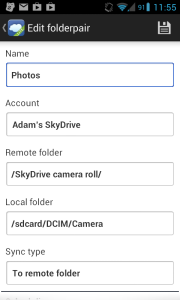
No problem, I figured, I’ll just sync my Android photos to SkyDrive and problem solved. I headed to the Play Store and found an app called FolderSync—which comes in both free and paid versions. FolderSync lets me do exactly what I want: pick a folder on my phone (my camera/pictures directory) and sync it to cloud storage (SkyDrive camera roll). Setup is easy, too. You just configure the application with your account, create a folder pairing, and you’re done.

FolderSync_Settings

Now, any pictures I take will upload to SkyDrive. And then, in Windows 8, they’ll be in rotation in the pictures live tile. The only thing that’s less than ideal about this is that the application won’t upload pictures on a scheduled interval. I’m not sure why. It allows automatic syncing to a local folder but not to a remote one. No big deal; I just have to remember to open the app and sync manually from time to time. Other than that, it’s perfect!

Group Hug: Surface, Office, and SkyDrive

I’ve been using SkyDrive for a while but in a very casual way. My OneNote notebooks are there so I can access and sync them across multiple devices. My phone pictures are there from when I had a Windows Phone. Other than that, I haven’t used it for much.

That changed big-time when I got my Surface, though.

One of the big selling points of Surface was that it was a tablet with Office. In order for me to realize my dreams of never-ending productivity, I need the ability to share documents between my Surface and other computers easily and efficiently. I knew that Office 2013 added integrated SkyDrive support, so this was the obvious sharing solution to me. I wasn’t expecting more than an online repository for my documents that I could access from multiple machines, but Office 2013 and SkyDrive provide a cross-machine experience that am absolutely delighted with.

So what do I like so much about it?

First of all, it’s easy to use. It’s the default save option, much like “My Documents” used to be. I don’t have to install any additional software or worry about services running to synchronize the contents of a folder. I don’t need to remember where a synched directory is, and I don’t have to do any browsing. I click “Save,” and I’m there.


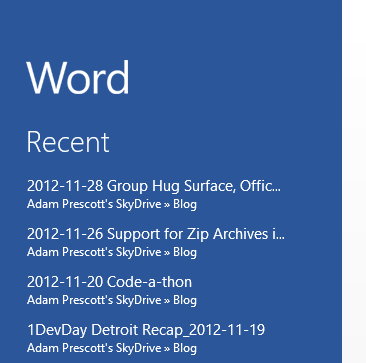
The next reason I’m sold on the Office + SkyDrive solution is that it’s seamless across computers. When I create a new document on my Surface and save it to SkyDrive, that document shows at the top of the recent documents list on my work laptop. How cool is that!? Without doing anything more than using Office and saving to SkyDrive, I can move from computer to computer and pick up exactly where I left off.

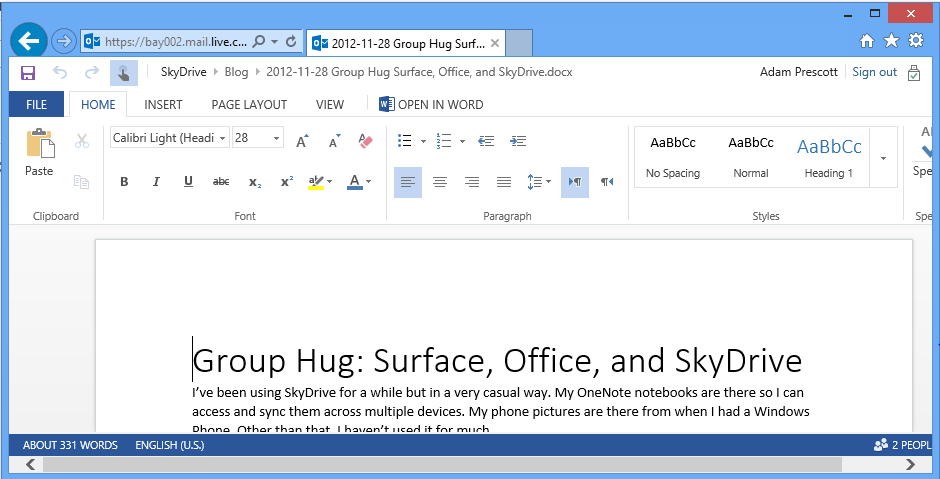
The third reason that I’m sold on this solution is that, in addition to incredible machine-to-machine experience, you can also access your documents from the web. The Office web apps are very impressive; they look and feel just like their desktop counterparts.

I know that there are ways to do all of what I’ve described using other solutions. I’ve been a fan of Google Docs for a long time, and it’s been my go-to resource for personal documents that I need to access from the web. At work, it’s a different story. I can’t get away from Office, and getting the features I’ve described above from other services requires effort and, often times, leads to a more complex process. Office and SkyDrive give you all of this out-of-the-box with no effort. Now throw Surface into the mix, and it feels the holy trinity of mobile productivity.

Support for Zip Archives in .NET 4.5

I was catching up on some MSDN Magazines that have been piled up and collecting dust for a few months, and I found a nice little article titled What’s New in the .NET 4.5 Base Class Library. The biggest news is the simplified asynchronous programming. This is huge, but I’ve had enough of it shoved down my throat since first hearing about it at PDC in 2010. Now, that’s not to say that I’m not excited about it; it’s just old news for “what’s new” to me.

I kept reading, though, and came across a section about new support for zip archives. I don’t do a lot with zip files, but it does come up from time to time. In the past, I’ve always been surprised that this wasn’t something natively supported in .NET. I’ve had to use open-source solutions like SharpZipLib (GPL) and DotNetZip (Ms-PL), but I always felt like I shouldn’t need a 3rd party library. It looks as though Microsoft agreed with that sentiment.

It seemed pretty cool and easy enough to use, so I wanted to check it out immediately. Here are some quick examples of how to take advantage of some of this new functionality in .NET 4.5. I created a WPF application that allows you to do each of the functions listed below. Note that the code samples reference some additional methods that aren’t included here. You can view the complete source on GitHub.

Extract an entire archive

private void OnExtractArchive(object sender, RoutedEventArgs e)
{
    var archive = PromptForOpenFile(
        string.Empty, ".zip", "Zip archives (.zip)|*.zip");
    if (string.IsNullOrEmpty(archive))
        return;

    var destination = PromptForDirectory();

    ZipFile.ExtractToDirectory(archive, destination);
}

Extract a single file

private void OnExtractFile(object sender, RoutedEventArgs e)
{
    var archive = PromptForOpenFile(
        string.Empty, ".zip", "Zip archives (.zip)|*.zip");
    if (string.IsNullOrEmpty(archive))
        return;

    using (ZipArchive zipArchive = ZipFile.Open(archive, ZipArchiveMode.Read))
    {
        var itemToExtract = PromptForArchiveEntry(zipArchive);
        if (itemToExtract == null)
            return;

        var target = PromptForSaveFile(
            itemToExtract.FullName, string.Empty, "All files (.*)|*.*");

        using (var fs = new FileStream(target, FileMode.Create))
        {
            using (var contents = itemToExtract.Open())
            {
                contents.CopyToAsync(fs);
            }
        }
    }
}

Create an archive from a directory

private void OnCreateArchive(object sender, RoutedEventArgs e)
{
    var dir = PromptForDirectory();
    var target = PromptForSaveFile(
        "Archive.zip", ".zip", "Zip archives (.zip)|*.zip");
    ZipFile.CreateFromDirectory(dir, target);
}

Add a single file to an archive

private void OnAddFileToArchive(object sender, RoutedEventArgs e)
{
    var archive = PromptForOpenFile(
        string.Empty, ".zip", "Zip archives (.zip)|*.zip");
    if (string.IsNullOrEmpty(archive))
        return;

    var file = PromptForOpenFile(
        string.Empty, ".*", "All files (.*)|*.*");
    if (string.IsNullOrEmpty(archive))
        return;

    using (ZipArchive zipArchive = ZipFile.Open(archive, ZipArchiveMode.Update))
    {
        var name = Path.GetFileName(file);
        zipArchive.CreateEntryFromFile(file, name);
    }
}

Watch CNN on Surface

I’m bizarrely addicted to watching CNN in the mornings. It’s part of my routine. I can’t function without it. Recently, in an effort to become healthier, I invested in a treadmill. My thought was that all of my CNN time in the morning could just as easily be spent on a treadmill–two birds, one stone, right?

Not so fast, my friend.

The problem I ran into was that I couldn’t hear the TV unless I cranked the volume up to 70. This is a solution, but I don’t like it. I don’t want to keep the volume maxed out on the TV. My next thought was wireless headphones. Good thought, but I don’t have any. I also wasn’t excited about potentially having to switch between audio modes on the TV, having to possibly introduce a stereo receiver, or any other audio shenanigans.

So then I had another good thought: I’ll just stream CNN through their website on my phone! I couldn’t get it to work. Okay, I’ll use my wife’s iPad to do it, then! I couldn’t get it to work. Oh, well. I guess I’ll just watch Netflix on the treadmill.

Several weeks later…

“Oh, yay! My Surface is here! Wait a minute, this thing’s got IE10 and Flash–surely it will be able to stream CNN from their website!!”

Guess what? It didn’t work. Not right away, anyway. With some tinkering, I was able to actually get it working, though! I don’t love the solution because it’s way more than a casual user would ever think to try, but I’m still happy to have it.

There are three things that I did to get it working:

  1. Run IE from Desktop Mode. I’m not sure why this is necessary, but it works in desktop mode and not in tablet mode. If you know the solution to this, I’d love to hear it. But for now, I’ll just flip to Desktop Mode and run a shortcut from the desktop. (Additionally, I wasn’t able to figure out how to access the Trusted Site list from tablet mode, which is needed for the next two items…)
  2. Add cnn.com to the list of trusted sites. This is what I thought would solve the problem. I thought that for sure the issue was just that CNN wasn’t able to save whatever authentication cookies needed to be saved. However, after adding cnn.com to the list, the page got stuck in an authentication loop where the page would just keep refreshing and asking my to choose my provider.
  3. Add adobe.com to the list of trusted sites. This was the key. It appears that the authentication is routed through adobe.com, and a cookie is expected when you get back. The cookie was being blocked, and that’s why I was then asked to authenticate again.

CNN streaming on Surface

There was a fourth thing, but it was a little different. I wasn’t able to scroll the list of available programming. I was able to fix that by zooming out with Ctrl + -. Like the rest of my solution, it wasn’t ideal, but it worked.

So, at the end of the day, I had what I wanted. I can stream CNN live from my Surface, and I can use headphones to hear what’s going on over the wirrr of the treadmill. I guess I need to find a new excuse to avoid working out in the morning.