SqlCommandBuilder.DeriveParameters

One of the first things I learned when getting into .NET was how to access a SQL database. Most of the data access I need to do is stored procedure-based, so I did this by using the Enterprise Library Data Access Block. It was magical, and it worked, so I never asked questions.

The main thing that’s kept me from deviating is the DiscoverParameters method. We use so many stored procedures, and many of them have a large number of parameters. Manually creating parameters in code was just not an option. Today I learned about a fantastic new method that has liberated me, though: SqlCommandBuilder.DeriveParameters.

This handy little method gives me the same benefit of automatically populating a stored procedure command’s SqlParametersCollection. Here’s an example:

var cs = ConfigurationManager.ConnectionStrings["NamedDbConnection"];
using (var conn = new SqlConnection(cs.ConnectionString))
{
	conn.Open();
	using (var cmd = new SqlCommand("SpName", conn))
	{
		cmd.CommandType = CommandType.StoredProcedure;
		SqlCommandBuilder.DeriveParameters(cmd);
		
		cmd.Parameters["@SomeParameter"].Value = someValue;

		using (var reader = cmd.ExecuteReader())
		{
			while (reader.Read())
			{
				var col = reader["SomeColumn"] as string;
			}
		}
	}
}

NuGet-ty Goodness

NuGet has been slowly becoming one of my favorite development tools. There are a number of third party projects that I use pretty regularly. Rhino Mocks, jQuery, SpecFlow, and Enterprise Library, to name a few. In the past, I’ve kept a repository of these DLLs. When I start a new project that needs one of them, I copy the DLL into the new project directory and add a reference.

NuGet takes care of all that for me. It’s an online repository of packages, and I can add references to the packages using the NuGet Package Manager. It’s awesome because now I don’t have to remember where I saved the newest DLLs. I just install the package I need and move on. It’s great!

If you’re new to NuGet, you should definitely try it out. It’s easy and convenient, perfect for big projects and one-shot throwaways, alike. Want to learn more? Read the overview. But really, you should just try it out. I heard about it long ago, but I didn’t really get it until I started using it.

Here’s my ultra-quick-start guide:

  1. Install the Visual Studio Extension
  2. Right-click your project’s References > Manage NuGet Packages
  3. Search for and install packages

That’s it! The package will be installed, relevant files will be created in a packages sub-directory in the solution directory, and references and files will be copied into the project. Try it out; I guarantee you’ll love it!

Microsoft Security Essentials

For as long as I can remember, I’ve been using AVG Free Edition for virus protection on my home PCs and as a recommendation for friends and family. Just today I learned about Microsoft Security Essentials. This is apparently old news, though, as the product was initially launched in 2009. At the time, it was regarded to be quite poor, but it has become better with time.

It sounds like this is now a legitimate option for free anti-virus protection for Windows XP, Vista, and 7. The anti-virus capability of Microsoft Security Essentials has also been baked into Windows Defender for Windows 8.  However, while Microsoft’s anti-virus solution has improved to a respectable level over the years, an article at PC World suggests that AVG is still the best option for free protection. I may consider Windows Defender for friends and family as they go to Windows 8 since it will likely be easier for them to setup and maintain, but I’m sticking with AVG for my PCs.

Sources:

The “Art” of Communication

I’m a drawer. (One who draws, not to be confused with one in a dresser.) Three sentences into any explanation, I start looking around for a whiteboard. I don’t know what I want or am going to draw, I just know that I need to do it.

Sure, I like changing databases into monsters, but that’s not the only reason I draw pictures to supplement many of my discussions. This article at Inc does a good job of identifying several advantages of visual explanations. Here’s the summarized list:

  1. Out of sight is literally out of mind
  2. Visuals allow the brain to take shortcuts
  3. Brains like the familiar
  4. Making hard stuff friendly improves communications

The last point is really the most important for me. If I’m describing a complex system to a peer, it takes a lot of words. It’s really easy to lose track of the pieces. Creating a quick doodle does a better job, and it lets the audience revisit the parts they may not understand by continuously examining the picture. It’s also essential as you communicate ideas to folks at different stages of the Dreyfus model–both higher and lower. A customer might not understand what it means to serialize an object to XML and send it via a socket connection, but they’ll understand what a box labeled “data” with an arrow means.

I like the first point that was made, too: out of sight is literally out of mind. If you diagram the entire system before talking about a change, it’s less likely that you’ll forget about a piece of it when considering the implications of the change. On a note unrelated to visuals, this is also important to keep in mind in any meeting that ends with actionable items. Make sure to document who’s responsible to do what. The verbal agreement is “out of sight” and, therefore, at risk to become “out of mind.”

Have you ever sat through a PowerPoint presentation where each slide has 100 words? It’s not good. You spend more time reading words than listening to the speaker. Even worse is when the speaker goes faster than you can read. You get 3/4 of the way through a slide without hearing a word from the speaker only to be cutoff as they move to the next slide. I really like the example of Jobs as a compelling reason to use visuals as shortcuts. If you show me a slide with a solid block of text, I’m far less likely to retain your message than if you were to show me a slide with a single word, phrase, or image. Keep the message in your slides clear and direct, and speak about the rest.

Output Parameters in Argument Contraints with Rhino Mocks

Today, I was writing tests for a method that had an output parameter in its argument list. With Rhino Mocks, this can be very simple and straightforward. In the cookie-cutter example, you can simply pass in the output parameter the same way you’d pass it to the function.

bool outParam;
var mock = MockRepository.GenerateMock<ISomeInterface>();
mock.Expect(x => x.MethodWithAnOutParam(out outParam));

But, what if you want to use argument constraints? It becomes a little less obvious but still very easy.

var mock = MockRepository.GenerateMock<ISomeInterface>();
bool refParam;
mock.Expect(x => x.MethodWithARefParam(
    Arg<string>.Is.Anything, 
    ref Arg<bool>.Ref(Is.Anything(), true).Dummy));

Note that the value in parentheses is the value that will be assigned to the output parameter passed into the function.

You can use the Ref constraint to similarly deal with ref parameters. Notice that the Ref constraint takes two arguments, though: a Rhino AbstractConstraint and the return value.

var mock = MockRepository.GenerateMock<ISomeInterface>();
bool outParam;
mock.Expect(x => x.MethodWithARefParam(
    Arg<string>.Is.Anything, 
    ref Arg<bool>.Ref(Is.Anything(), true).Dummy));

Listen Slowly, Interview Better


Inc.com has an article by Jeff Haden from earlier this week titled “Best Interview Technique You Never Use” that I thought offered some good advice. The article suggests that you’ll get more information and insight by simply pausing for a 5-count before moving on to the next question. Just as it is natural for you, the interviewer, to want to ask another question to kill the silence, the candidate is likely to do the same by elaborating on their response.

I know I’m definitely guilty of doing the opposite, firing question after question at a candidate immediately once I think they’ve finished their response. My rapid-fire technique results in very fast interviews that only scratch the surface. I’m relatively new to interviewing at this stage in my career, and I don’t think I’ve become particularly adept at it yet. Perhaps part of the problem is that I haven’t been listening slowly enough.

This is definitely a tip that I’m going to keep in mind as I work to become a more effective interviewer.


The AssemblyName Class

The other day, I was reading about the Assembly.FullName property, and I noticed this blurb:

Writing your own code to parse display names is not recommended. Instead, pass the display name to the AssemblyName constructor, which parses it and populates the appropriate fields of the new AssemblyName.

AssemblyName? I never knew about that! I checked it out, and it’s what you might expect: an assembly name parser. Here’s the example from MSDN:

using System;
using System.Reflection;

public class AssemblyNameDemo
{
   public static void Main()
   {
      // Create an AssemblyName, specifying the display name, and then 
      // print the properties.
      AssemblyName myAssemblyName = 
         new AssemblyName("Example, Version=1.0.0.2001, Culture=en-US, PublicKeyToken=null");
      Console.WriteLine("Name: {0}", myAssemblyName.Name);
      Console.WriteLine("Version: {0}", myAssemblyName.Version);
      Console.WriteLine("CultureInfo: {0}", myAssemblyName.CultureInfo);
      Console.WriteLine("FullName: {0}", myAssemblyName.FullName);
   }
}
/* This code example produces output similar to the following:

Name: Example
Version: 1.0.0.2001
CultureInfo: en-US
FullName: Example, Version=1.0.0.2001, Culture=en-US, PublicKeyToken=null
 */

Design-Time Data Binding in WPF

One of the cool things that WPF allows you to do is create sample data that can be bound to controls at design-time. This spiffy little feature allows you to do all kinds of tinkering with your UI without having to run your application. A short feedback loop is essential since WPF provides so much flexibility with what you can do. If you have an application that loads a significant amount of data, and you need to load all that data each time you want to see a UI change, that can lead to a significant amount of wasted time.

When you search for how to do this on the web, the most common method is to create a XAML file with your sample data, and then reference the file in the design data context. Here’s a very short example.

Spartan.cs

namespace adamprescott.net.DesignTimeDataBinding
{
    public class Spartan
    {
        public string Profession { get; set; }
        public byte[] Picture { get; set; }
    }
}

SpartanSampleData.xaml (Be sure to change BuildAction to DesignData!)

<m:Spartan xmlns:m="clr-namespace:adamprescott.net.DesignTimeDataBinding" 
           Profession="HooHooHoo">
</m:Spartan>

MainWindow.xaml

<Window x:Class="adamprescott.net.DesignTimeDataBinding.MainWindow"
        xmlns="http://schemas.microsoft.com/winfx/2006/xaml/presentation"
        xmlns:x="http://schemas.microsoft.com/winfx/2006/xaml"
        xmlns:d="http://schemas.microsoft.com/expression/blend/2008"
        xmlns:mc="http://schemas.openxmlformats.org/markup-compatibility/2006"
        mc:Ignorable="d"
        d:DataContext="{d:DesignData Source=/SpartanSampleData.xaml}"
        Title="MainWindow" Height="350" Width="525">
    <Grid>
        <DockPanel VerticalAlignment="Top">
            <Image Source="{Binding Picture}" Height="50" />
            <TextBlock Text="{Binding Profession}" />
        </DockPanel>
    </Grid>
</Window>
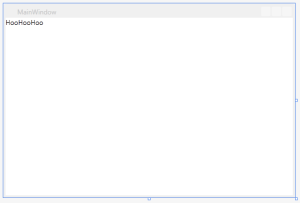
I had a problem with this method, though. My model had a byte array property that stored image data, and I couldn’t come up with a good way to include a sample image in the design data XAML. I learned that you can also accomplish design-time data binding through the use of static classes, and that gave me exactly what I was looking for: the ability to create and define sample data in code! Here’s the same example as above, modified to use a static class.

SpartanSampleDataContext.cs (Note that I also added an image to the project in the root namespace.)

namespace adamprescott.net.DesignTimeDataBinding
{
    using System;
    using System.IO;
    using System.Reflection;
    using System.Windows;

    public static class SpartanSampleDataContext
    {
        public static Spartan SpartanSampleData
        {
            get
            {
                var result = new Spartan
                {
                    Profession = "HooHooHoo",
                    Picture = GetSampleImageBytes()
                };
                return result;
            }
        }

        private static byte[] GetSampleImageBytes()
        {
            var assemblyName = new AssemblyName(
                Assembly.GetExecutingAssembly().FullName);
            var resourceUri = new Uri(
                String.Format("pack://application:,,,/{0};component/leonidas.jpg", 
                assemblyName.Name));
            using (var stream = Application.GetResourceStream(resourceUri).Stream)
            {
                using (var memoryStream = new MemoryStream())
                {
                    stream.CopyTo(memoryStream);
                    return memoryStream.ToArray();
                }
            }
        }
    }
}

MainWindow.xaml

<Window x:Class="adamprescott.net.DesignTimeDataBinding.MainWindow"
        xmlns="http://schemas.microsoft.com/winfx/2006/xaml/presentation"
        xmlns:x="http://schemas.microsoft.com/winfx/2006/xaml"
        xmlns:d="http://schemas.microsoft.com/expression/blend/2008"
        xmlns:mc="http://schemas.openxmlformats.org/markup-compatibility/2006"
        mc:Ignorable="d"
        xmlns:local="clr-namespace:adamprescott.net.DesignTimeDataBinding"
        d:DataContext="{x:Static local:SpartanSampleDataContext.SpartanSampleData}"
        Title="MainWindow" Height="350" Width="525">
    <Grid>
        <DockPanel VerticalAlignment="Top">
            <Image Source="{Binding Picture}" Height="50" />
            <TextBlock Text="{Binding Profession}" />
        </DockPanel>
    </Grid>
</Window>


See What Other Users Have Checked Out in TFS

There are lots of good reasons why you might want to identify which files are checked out by your fellow TFS users. Maybe you’re going to merge a branch and want to make sure everybody’s changes get included. Or perhaps an intern has gone back to school. Regardless of the reason, and whether you’re looking for all users or a specific user, it’s very easy to do!

If you’re a point-and-clickster, and you like working within the friendly confines of the Visual Studio IDE, you’ll be happy to know that there’s a menu option. Note this menu option is installed with the Visual Studio Team Foundation Server Power Tools, available from the Visual Studio Gallery.

  1. File > Source Control > Find in Source Control > Status…
  2. Find

But don’t fret if you’re a command-line purist, either. Microsoft’s got you covered with the tf status command. Here are some sample usages:

c:\tfs\tf status /user:*
c:\tfs\tf status /user:dave
c:\tfs\tf status c:\SomeOtherDir /recursive

Agile Story Points

User stories are one of the core concepts in agile software development. You need to build and maintain a prioritized backlog of estimated stories. Stories are accepted into an iteration from the top of the backlog during iteration planning, and the assigned resource becomes responsible and is held accountable to complete the story within the iteration.

One of the challenges with this process is estimating stories to ensure that they are scoped correctly to safely fit into and be completed within a single iteration. This is where story points enter the equation.

Story points are intended to provide a relative scale of effort for stories, but the unit of a story point is very open to interpretation and seems to vary throughout the community. To me, the most obvious unit for story points is hours. Others have suggested that you use a single, perfect day as the basis, or use a half-day. The problem I have with these suggestions is that there is an implicit conversion that occurs. And what about a story that will only take an hour or two? Days-as-points is too coarse.

Another suggestion I’ve heard is to use the simplest story you can think of as your points baseline. I like this idea. The problem is that I’d estimate the simplest story I can think of to take one hour, and then I’m right back to hours. Alternative units don’t seem to be alternative at all. Instead, I’m just doing extra math to abstract the numbers into something other than hours. At the end of the day, though, everything is still hours-based.

That’s how I felt about story points for a long time. I recently started thinking about story points in a slightly different way, and it’s working for me. Instead of converting to a different unit, I’ve been thinking about story points as an hours-based estimate that is equal parts effort, uncertainty, and complexity.

There are stories that I know will ultimately be fixed by a line or two of code, but they need some figuring-it-out time. The final effort required to complete the story is minimal since it’s probably just going to be a couple of lines. Assigning story points based on minimal effort that’s been adjusted to account for risk due to uncertainty and complexity works great. The story points estimate for this story will be comparable to a high-effort-but-simple, brute-force-type of story.

At the end of the day, the story points scale you and your team uses doesn’t matter as long as it works for you. You want your stories to have a story points estimate that indicates their total required effort, taking into account risk due to uncertainty and complexity. The team should feel good about accepting a story into the iteration and getting it done. You should be able to use the story point estimates from completed stories to determine your team’s velocity and predict future results.

Have you been down a similar path of enlightenment? What have you found that works or doesn’t work?