The Almighty Console Application

When I was learning C++ in college, I couldn’t wait to start developing applications that were more than just a console app. It was the twenty-first century, and “real” applications had forms with stuff you could click with a mouse. Nobody wants an app that you can only interact with by typing. And no graphics? No thanks.

It’s funny how time can change you.

I still believe that, generally, people don’t want a console application. And if I’m writing an application intended to be used by others, I’m probably going to go with Windows Forms, ASP.net, or WPF. I do a significant amount of development that isn’t aimed at end users, though, and that’s where I’ve learned to appreciate the value of the console application.

Your first try will likely be your worst

The first time you try something new, it’s likely to be your worst attempt. So, if you’re experimenting with a new technology or implementing logic that you aren’t familiar with, why would you try in production code? Further, once you’ve got it implemented and functional in your production code, there’s a chance that some unnecessary figuring-it-out code will sneak into the product.

This is where the oft overlooked console application comes into play. For my money, the console app is the fastest way to an isolated, bare-bones sandbox for learning and optimizing a solution. A valid argument can be made that a Windows Forms application is just as fast(er), but you can waste time manipulating controls on a form that really don’t provide any value at the end of the day. Hard-code your input or prompt the user and use Console.ReadLine()–it’s as fast as declaring a variable, and your project doesn’t get any of the extra “fluff” that comes with forms and designers. (It’s also great for blogging since you don’t have to explain what each control is or provide screenshots!)

A personal library

You know how you did that one cool thing for some project a few years ago? Can you send me that code?

A great side-effect of doing your learning and experimenting outside of the application it’s ultimately targeted for is that you build a personal snippet and reference library. If you browse through my Visual Studio projects folder, you’ll see a LOT of folders: EncryptionConsole, ZipConsole, FtpConsole, TfsSdkConsole, SerializationConsole, etc. It’s easy to find a functional, self-contained code sample that you can share with others. Or, if you need to expand on a previous topic with a more advanced technique, you’ve got a foundation already built.

Regular Expression Capture Groups in C#

We all know regular expressions are great for matching patterns and parsing strings, but if you really want to take your Regex game to the next level, spend some time looking at capture groups. Using capture groups–more specifically, named capture groups–makes it easier to manipulate results and replacements, and it also has a fortunate side-effect of improving readability.

To create a named capture group in a .net regular expression, use the syntax “(?<Name>pattern).” The name acts like an inline comment and allows you to reference the group using that name by using “${Name}” in Result and Replace statements.

Let’s look at an example that uses Replace. Social Security numbers are a sensitive piece of information that is often masked when displaying details. Let’s use a regular expression to hide part of the number.

var ssn = "123-45-6789";
var re = new Regex(@"\d{3}-\d{2}-(?<lastFour>\d{4})");
var masked = re.Replace(ssn, "xxx-xx-${lastFour}");
Console.WriteLine("{0} -> {1}", ssn, masked);
123-45-6789 -> xxx-xx-6789

Another common scenario is to extract a piece of data from a string. Here’s another quick example that extracts the month and year from a date string (great for grouping items in a reporting scenario!).

var date = "01/15/2012";
var re = new Regex(@"(?<month>\d{1,2})/(?<day>\d{1,2})/(?<year>\d{4})");
var monthYear = re.Match(date).Result("${year}-${month}");
Console.WriteLine("{0} -> {1}", date, monthYear);
01/15/2012 -> 2012-01

Unit Testing Stored Procedure Calls with Rhino Mocks

Database stored procedure calls are one of the trickiest things to unit test, and there are many different approaches that can be taken. My team has run the gamut: test DBs that rollback with each run, no testing for direct data access functions (!), virtual functions w/ partial mocks (see here).

The latest approach that I’ve been using is much more straightforward and feels like a more natural use of Rhino Mocks. Let’s look at some examples of how to test some common database stored procedure tasks. (Note that these examples assume use of the Microsoft Enterprise Library.)

Create a mockable Database

The primary challenge that I’ve found with testing database code is that Microsoft.Practices.EnterpriseLibrary.Data.Database isn’t mock-friendly. However, the other “pieces” such as DbCommand and DbCommandParameterCollection are very easy to work with. So, we can solve the Database problem by creating a simple wrapper (Important! Note that the methods have the virtual keyword, which will allow them to be overridden.):

public class DatabaseWrapper
{
    private Database _database;
    private Database Database
    {
        get { return _database = _database ?? DatabaseFactory.CreateDatabase(); }
        set { _database = value; }
    }

    public virtual DbCommand GetStoredProcCommand(string storedProcedureName)
    {
        return Database.GetStoredProcCommand(storedProcedureName);
    }

    public virtual void DiscoverParameters(DbCommand command)
    {
        Database.DiscoverParameters(command);
    }
}

Executing a stored procedure

Now that we are able to mock the database object, we can write some useful tests. Let’s say you want to execute a stored procedure named “MyStoredProcedure,” and you want to write a test to verify that your code handles an exception thrown when it’s executed. That’s very easy!

Here’s my class with the function I want to test:

public class MyDataAccess
{
    public DatabaseWrapper Database { get; set; }
    public Thingy GetThingy()
    {
        Thingy thingy = null;
        try
        {
            var dbCommand = Database.GetStoredProcCommand("MyStoredProcedure");
            Database.DiscoverParameters(dbCommand);
            var result = dbCommand.ExecuteNonQuery();
            // populate thingy
        }
        catch (Exception ex)
        {
            // handle exception
        }
        return thingy;
    }
}

And here’s my test that will throw an exception when the stored procedure is executed. I create my DatabaseWrapper as a PartialMock, allowing me to override its methods.

[TestMethod]
public void GetThingyHandlesException()
{
    // Arrange
    var target = new MyDataAccess();
    var mockDatabase = MockRepository.GeneratePartialMock<DatabaseWrapper>();
    target.Database = mockDatabase;

    // mock Database
    const string storedProc = "MyStoredProcedure";
    var mockDbCommand = MockRepository.GenerateMock<DbCommand>();
    mockDatabase.Expect(x => x.GetStoredProcCommand(storedProc))
        .Return(mockDbCommand);
    mockDatabase.Expect(x => x.DiscoverParameters(mockDbCommand));
    
    // mock DbCommand
    var ex = new Exception("Oh noes!");
    mockDbCommand.Expect(x => x.ExecuteNonQuery())
        .Throw(ex);

    // Act
    var actual = target.GetThingy();

    // Assert
    mockDatabase.VerifyAllExpectations();
    mockDbCommand.VerifyAllExpectations();
    Assert.IsNull(actual);
}

Setting input parameters

Need to set some input parameters? No problem!

dbCommand.Parameters["@id"].Value = id;

And, in your test, you add this:

var mockParams = MockRepository.GenerateMock<DbParameterCollection>();
var mockParam = MockRepository.GenerateMock<DbParameter>();

mockDbCommand.Expect(x => x.Parameters).Return(mockParams);

mockParams.Expect(x => x["@id"]).Return(mockParam);

const int id = 123;
mockParam.Expect(x => x.Value = id);

mockParams.VerifyAllExpectations();
mockParam.VerifyAllExpectations();

Reading output parameters

How about output parameters?

thingy.Value = dbCommand.Parameters["@Value"].Value as string;

Add the additional mocks and assertions:

var mockOutParam = MockRepository.GenerateMock<DbParameter>();

mockParams.Expect(x => x["@Value"]).Return(mockOutParam);

const string value = "MyValue";
mockOutParam.Expect(x => x.Value).Return(value);

mockParams.VerifyAllExpectations();
mockOutParam.VerifyAllExpectations();
Assert.AreEqual(value, actual.Value);

Working with sets of parameters

When you have more than a few parameters to work with, the unit test code can get quite lengthy. I like to keep it clean by extracting the duplicated logic into a separate function, like so:

var paramsToVerify = new List<DbParameter>();
mockParams.Expect(x => x["@whammyparammy"])
    .Return(MockParameter<int>(paramsToVerify));

My function allows you to specify and verify the type of each parameter, but you could easily modify it to expect a specific value.

private static DbParameter MockParameter<T>(List<DbParameter> paramsCollection)
{
    // set Expect with Arg<T>.Is.TypeOf to force the specific type
    var mockParam = MockRepository.GenerateMock<DbParameter>();
    mockParam.Expect(x => x.Value = Arg<T>.Is.TypeOf);

    if (paramsCollection != null)
        paramsCollection.Add(mockParam);

    return mockParam;
}

I keep the parameters in a list so I can verify them during my assertions.

paramsToVerify.ForEach(x => x.VerifyAllExpectations());

Custom Shaped Windows Forms From Images

One of the neat things you can do to make an application unique is give it a custom shape, and it’s surprisingly easy to do with windows forms. This article is going to show you how to make a ninja-shaped form in four ridiculously easy steps.

1. Find your image

This step is so simple, it’s almost not worth mentioning. You just need to find or create an image with the shape that you want. For the purposes of this article, I’m going to use this awesome ninja picture.

2. Edit the image

The next step is to edit your image by making undesired sections transparent. You can use Photoshop, Gimp, or any number of other editors to accomplish this. Here’s my transparent ninja image.

I added this image to my project and set its Copy to Output Directory property to Always so that it will be available in step 4. You could definitely compile it as a resource or handle this in a number of different ways if you didn’t want to deploy the image, though.

3. Create a region from your image

The third step is where you’ll actually have to do a little coding. The function below will scan through a provided bitmap pixel by pixel to create a region. (The original function comes from here. I made a slight adjustment to look for transparent pixels instead of a color provided as a parameter.)

private Region GetRegion(Bitmap _img)
{
    var rgn = new Region();
    rgn.MakeEmpty();
    var rc = new Rectangle(0, 0, 0, 0);
    bool inimage = false;
    for (int y = 0; y < _img.Height; y++)
    {
        for (int x = 0; x < _img.Width; x++)
        {
            if (!inimage)
            {
                // if pixel is not transparent
                if (_img.GetPixel(x, y).A != 0)
                {
                    inimage = true;
                    rc.X = x;
                    rc.Y = y;
                    rc.Height = 1;
                }
            }
            else
            {
                // if pixel is transparent
                if (_img.GetPixel(x, y).A == 0)
                {
                    inimage = false;
                    rc.Width = x - rc.X;
                    rgn.Union(rc);
                }
            }
        }
        if (inimage)
        {
            inimage = false;
            rc.Width = _img.Width - rc.X;
            rgn.Union(rc);
        }
    }
    return rgn;
}

4. Change the form’s region

That wasn’t so bad, was it? Now you’re basically done. The final step is simply to assign your newly created region to your form’s Region property.

private void Form1_Load(object sender, EventArgs e)
{
    var bitmap = new Bitmap("ninja.png");
    Region = GetRegion(bitmap);
}

Voila! You’re done, and now you have a sweet ninja form! (For added authenticity, modify the form’s opacity.)

Bonus material!

One of the problems with a custom shaped form is that you lose the title bar, so you can’t easily move it around. This can be remedied by adding some handlers to a few mouse events on the form, like so:

private bool _mouseDown;
private Point _startPoint;

private void Form1_MouseDown(object sender, MouseEventArgs e)
{
    _mouseDown = true;
    _startPoint = new Point(e.X, e.Y);
}

private void Form1_MouseUp(object sender, MouseEventArgs e)
{
    _mouseDown = false;
}

private void Form1_MouseMove(object sender, MouseEventArgs e)
{
    if (_mouseDown)
    {
        var p1 = new Point(e.X, e.Y);
        var p2 = PointToScreen(p1);
        var p3 = new Point(p2.X - _startPoint.X,
                             p2.Y - _startPoint.Y);
        Location = p3;
    }
}

With this code in place, you can click anywhere in the form to move it around.

Parse US Street Addresses with Regular Expression in C#

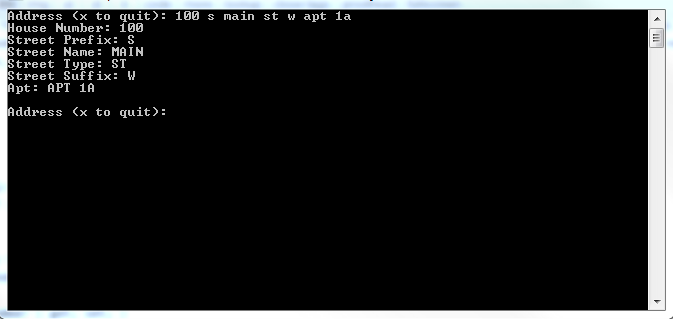
In my business, we do a lot with addresses. Generally, we rely on 3rd party products from companies like ESRI for what we need, but from time to time, we still need to parse an address the old-fashioned way. Something like US Address Parser is exactly what I need, but I can’t use it since it’s GPL’d. I didn’t need an exhaustive, perfect solution, so I thought I’d just whip one up with regular expressions.

Sample input:

  • 100 MAIN
  • 100 MAIN ST
  • 100 S MAIN ST
  • 100 S MAIN ST W
  • 100 S MAIN ST W APT 1A

Create StreetAddress class

The first step was simply to create an address object with the properties I needed:

public class StreetAddress
{
    public string HouseNumber { get; set; }
    public string StreetPrefix { get; set; }
    public string StreetName { get; set; }
    public string StreetType { get; set; }
    public string StreetSuffix { get; set; }
    public string Apt { get; set; }
}

Build regular expression

The next thing I did was get to work on my regular expression. I built my expression with the help of RegExr and did my initial testing. Once I was satisfied, I moved it over to code. Here’s what I came up with:

private static string BuildPattern()
{
    var pattern = "^" +                                                       // beginning of string
                    "(?<HouseNumber>\\d+)" +                                  // 1 or more digits
                    "(?:\\s+(?<StreetPrefix>" + GetStreetPrefixes() + "))?" + // whitespace + valid prefix (optional)
                    "(?:\\s+(?<StreetName>.*?))" +                            // whitespace + anything
                    "(?:" +                                                   // group (optional) {
                    "(?:\\s+(?<StreetType>" + GetStreetTypes() + "))" +       //   whitespace + valid street type
                    "(?:\\s+(?<StreetSuffix>" + GetStreetSuffixes() + "))?" + //   whitespace + valid street suffix (optional)
                    "(?:\\s+(?<Apt>.*))?" +                                   //   whitespace + anything (optional)
                    ")?" +                                                    // }
                    "$";                                                      // end of string

    return pattern;
}

Functions for valid values

Note that there are several functions called while building the regular expression. This is done purely for readability and maintainability. Here are the functions, which each just return a pipe-delimited list of valid values:

private static string GetStreetPrefixes()
{
    return "TE|NW|HW|RD|E|MA|EI|NO|AU|SE|GR|OL|W|MM|OM|SW|ME|HA|JO|OV|S|OH|NE|K|N";
}

private static string GetStreetTypes()
{
    return "TE|STCT|DR|SPGS|PARK|GRV|CRK|XING|BR|PINE|CTS|TRL|VI|RD|PIKE|MA|LO|TER|UN|CIR|WALK|CO|RUN|FRD|LDG|ML|AVE|NO|PA|SQ|BLVD|VLGS|VLY|GR|LN|HOUSE|VLG|OL|STA|CH|ROW|EXT|JC|BLDG|FLD|CT|HTS|MOTEL|PKWY|COOP|ACRES|ESTS|SCH|HL|CORD|ST|CLB|FLDS|PT|STPL|MDWS|APTS|ME|LOOP|SMT|RDG|UNIV|PLZ|MDW|EXPY|WALL|TR|FLS|HBR|TRFY|BCH|CRST|CI|PKY|OV|RNCH|CV|DIV|WA|S|WAY|I|CTR|VIS|PL|ANX|BL|ST TER|DM|STHY|RR|MNR";
}

private static string GetStreetSuffixes()
{
    return "NW|E|SE|W|SW|S|NE|N";
}

Parse the input

At this point, the work is done. All that’s left is to run the regular expression on your address string and deal with the results.

public static StreetAddress Parse(string address)
{
    if (string.IsNullOrEmpty(address))
        return new StreetAddress();
            
    StreetAddress result;
    var input = address.ToUpper();
            
    var re = new Regex(BuildPattern());
    if (re.IsMatch(input))
    {
        var m = re.Match(input);
        result = new StreetAddress
                        {
                            HouseNumber = m.Groups["HouseNumber"].Value,
                            StreetPrefix = m.Groups["StreetPrefix"].Value,
                            StreetName = m.Groups["StreetName"].Value,
                            StreetType = m.Groups["StreetType"].Value,
                            StreetSuffix = m.Groups["StreetSuffix"].Value,
                            Apt = m.Groups["Apt"].Value,
                        };
    }
    else
    {
        result = new StreetAddress
                        {
                            StreetName = input,
                        };
    }
    return result;
}

End product

And, finally, for those of you who love big, gnarly regular expressions, here’s my end product:

^(?<HouseNumber>\\d+)(?:\\s+(?<StreetPrefix>TE|NW|HW|RD|E|MA|EI|NO|AU|SE|GR|OL|W|MM|OM|SW|ME|HA|JO|OV|S|OH|NE|K|N))?(?:\\s+(?<StreetName>.*?))(?:(?:\\s+(?<StreetType>TE|STCT|DR|SPGS|PARK|GRV|CRK|XING|BR|PINE|CTS|TRL|VI|RD|PIKE|MA|LO|TER|UN|CIR|WALK|CO|RUN|FRD|LDG|ML|AVE|NO|PA|SQ|BLVD|VLGS|VLY|GR|LN|HOUSE|VLG|OL|STA|CH|ROW|EXT|JC|BLDG|FLD|CT|HTS|MOTEL|PKWY|COOP|ACRES|ESTS|SCH|HL|CORD|ST|CLB|FLDS|PT|STPL|MDWS|APTS|ME|LOOP|SMT|RDG|UNIV|PLZ|MDW|EXPY|WALL|TR|FLS|HBR|TRFY|BCH|CRST|CI|PKY|OV|RNCH|CV|DIV|WA|S|WAY|I|CTR|VIS|PL|ANX|BL|ST TER|DM|STHY|RR|MNR))(?:\\s+(?<StreetSuffix>NW|E|SE|W|SW|S|NE|N))?(?:\\s+(?<Apt>.*))?)?$

Console Application Proxy

I’m working on a project where it’s necessary to use a client application provided by a third party to query the third party’s system from within my own system. This can be done very easily in .net by simply redirecting standard input and output.

Here is a sample application that demonstrates how:

var p = new Process();
p.StartInfo.UseShellExecute = false;
p.StartInfo.RedirectStandardInput = true;
p.StartInfo.RedirectStandardOutput = true;
p.StartInfo.FileName = @"WorkApp.exe";
p.Start();

string input;
do
{
    // get request from user
    Console.Write("> ");
    input = Console.ReadLine();
    p.StandardInput.WriteLine(input);

    // get response from console
    var output = p.StandardOutput.ReadLine();
    Console.WriteLine(output);
} while (input != "x");

if (!p.HasExited)
{
    p.Kill();
}

TFS SDK: Getting Started

TFS is great, but it simply doesn’t do everything I need it to do. My team has a TFS work-item-driven software development life-cycle that depends on having stories organized with tasks of certain activity types performed in a specific order. It’s a difficult process for new team members to internalize, and it requires discipline for even our veteran team members. One of the things that I’ve decided to do to help my team manage this process successfully is to create a custom tool with built in “queues” that will display their work items as they need attention without relying on the developer to manually run different queries and discover items on their own.

And so that brings us to the TFS SDK. I’m going write a series of short posts detailing how to do some simple tasks that can be combined to do very powerful things. One of the simplest and most powerful things you can do with the TFS SDK is run WIQL queries to query work items using a SQL-like syntax.

The first step you need to do is simply to add the TFS SDK references to your project. These are the three I added to my project:

Microsoft.TeamFoundation.Client
Microsoft.TeamFoundation.Common
Microsoft.TeamFoundation.WorkItemTracking.Client

Once you’ve got that, you can build an execute a query with the following block of code:

var tpc = new TfsTeamProjectCollection(new Uri("http://YourTfsServer:8080/tfs/YourCollection"));
var workItemStore = tpc.GetService(); 
var queryResults = workItemStore.Query(@"
    SELECT [System.Id], [System.WorkItemType], [System.Title], [System.AssignedTo], [System.State] 
    FROM WorkItems 
    WHERE [System.AssignedTo] = @me 
    ORDER BY [System.Id]
    ");
foreach (WorkItem wi in queryResults)
{
    Console.WriteLine("{0} | {1}", wi.Fields["State"].Value, wi.Fields["Title"].Value);
}

Bonus tip: you can construct your WIQL query by building it from Visual Studio’s Team Explorer and saving it to file. For my application, I’m storing the WIQL query in my app.config to allow for quick & easy customization.

Value Extraction with Regular Expressions in C#

Regular expressions are one of my favorite things in programming. Each time I write one, it’s like a challenging little brain teaser. One of the things that I commonly use them for is to extract data out of a string.

In the past, I’ve done this by instantiating a Regex with a pattern, checking for matches, getting a MatchCollection, iterating through its matches, and, finally, pulling my “value” out of the match’s group. That’s a whole lot of work to extract a piece of data, and I’ve always suspected there’s an easier way.

I figured out how to do this elegantly just the other day, and I was thrilled. I was working with an alphanumeric text field that was left-padded with 0s. I needed to strip the 0s, and my mind instantly went to regular expressions. Using the static Result method, you can specify capture groups for the output. So, getting my value could be done in a single operation!

// trim leading 0s 
if (value.StartsWith("0")) 
{ 
    value = Regex.Match(value, "^0+(.*)$").Result("$1"); 
}

For those of you who may not be as regular expression savvy, here’s what’s going on:

  • ^ – the beginning of the string; we use this so that we don’t match on a subset of the string
  • 0+ – one or more 0s
  • (.*) – zero or more characters; the parentheses indicate that this is a capture group
  • $ – the end of the string; we again use this so that we don’t match on a subset of the string
  • $1 – $n can be used to output the value of a capture group

Wonderful!

Manipulating Objects in a Collection with LINQ

I was chatting with a co-worker about using LINQ to replace for-each loops. More specifically, we were discussing how to modify the properties of items in a collection or a subset of the collection. I didn’t know how to do it immediately, but I worked on it a bit and found a pretty cool way to do just that.

My first thought was that you could just put your logic into a Select method, modify the objects, and then return a dummy value that would be ignored. Something like this:

// this does not work!
values.Select(x =>
{
    x.Name = x.Name.ToUpper();
    return true;
});

This did not work, though! I’m not entirely sure why, but I tried a few different approaches and found a way that does work. It feels less hacky, too, since I’m not returning that meaningless dummy value.

Here’s the solution that I came up with:

values.Aggregate(null as Person, (av, e) =>
{
    e.Name = e.Name.ToUpper();
    return av ?? e;
});

If you only want to manipulate a subset of the collection, you can insert a Where method before your aggregate, like this:

values.Where(x => x.Name.Equals("Blah"))
    .Aggregate(null as Person, (av, e) =>
    {
        e.Name = e.Name.ToUpper();
        return av ?? e;
    });

You can read more about the Aggregate method here.

Convert images to a PDF with iTextSharp

I just finished working on a project that required multiple images to be combined into a single PDF document. I used iTextSharp to create the PDF, and I’m pretty happy with the solution that I came up with. There were only two functions required: one that converts an image to a smaller size & lesser quality and one that combines the images into PDF.

Here’s the code:

/// <summary>
/// Takes a collection of BMP files and converts them into a PDF document
/// </summary>
/// <param name="bmpFilePaths"></param>
/// <returns></returns>
private byte[] CreatePdf(string[] bmpFilePaths)
{
    using (var ms = new MemoryStream())
    {
        var document = new iTextSharp.text.Document(iTextSharp.text.PageSize.LETTER.Rotate(), 0, 0, 0, 0);
        iTextSharp.text.pdf.PdfWriter.GetInstance(document, ms).SetFullCompression();
        document.Open();
        foreach (var path in bmpFilePaths)
        {
            var imgStream = GetImageStream(path);
            var image = iTextSharp.text.Image.GetInstance(imgStream);
            image.ScaleToFit(document.PageSize.Width, document.PageSize.Height);
            document.Add(image);
        }
        document.Close();
        return ms.ToArray();
    }
}

/// <summary>
/// Gets the image at the specified path, shrinks it, converts to JPG, and returns as a stream
/// </summary>
/// <param name="imagePath"></param>
/// <returns></returns>
private Stream GetImageStream(string imagePath)
{
    var ms = new MemoryStream();
    using (var img = Image.FromFile(imagePath))
    {
        var jpegCodec = ImageCodecInfo.GetImageEncoders()
            .Where(x => x.MimeType == "image/jpeg")
            .FirstOrDefault();

        var encoderParams = new EncoderParameters(1);
        encoderParams.Param[0] = new EncoderParameter(Encoder.Quality, (long)20);

        int dpi = 175;
        var thumb = img.GetThumbnailImage((int)(11 * dpi), (int)(8.5 * dpi), null, IntPtr.Zero);
        thumb.Save(ms, jpegCodec, encoderParams);
    }
    ms.Seek(0, SeekOrigin.Begin);
    return ms;
}