Sync Android Photos to SkyDrive

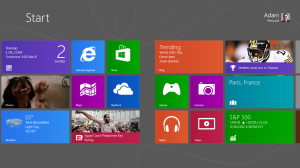
One of the features I really liked (and miss) on my Windows Phone 7 was the pictures live tile. Any pictures I took on my phone would rotate on my home screen. It was a great way to see and view my pictures without actually opening and browsing through my gallery—something that I’m unlikely to do just because I’m bored.
Windows8_StartScreen_Pictures

So, I was happy to see that this same pictures-live-tile functionality included in Windows 8. By default, the Windows 8 tile goes out to SkyDrive—where all my Windows Phone pictures were synced to—and uses those pictures in its rotation. One problem, though: I’m no longer using Windows Phone. So my Windows 8 live tile only rotates through 300 or so pictures that I took a year ago and doesn’t include anything recent. Bummer.

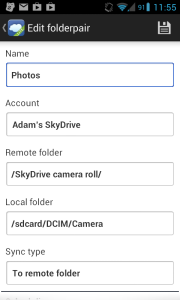
No problem, I figured, I’ll just sync my Android photos to SkyDrive and problem solved. I headed to the Play Store and found an app called FolderSync—which comes in both free and paid versions. FolderSync lets me do exactly what I want: pick a folder on my phone (my camera/pictures directory) and sync it to cloud storage (SkyDrive camera roll). Setup is easy, too. You just configure the application with your account, create a folder pairing, and you’re done.
FolderSync_Settings

Now, any pictures I take will upload to SkyDrive. And then, in Windows 8, they’ll be in rotation in the pictures live tile. The only thing that’s less than ideal about this is that the application won’t upload pictures on a scheduled interval. I’m not sure why. It allows automatic syncing to a local folder but not to a remote one. No big deal; I just have to remember to open the app and sync manually from time to time. Other than that, it’s perfect!

Group Hug: Surface, Office, and SkyDrive

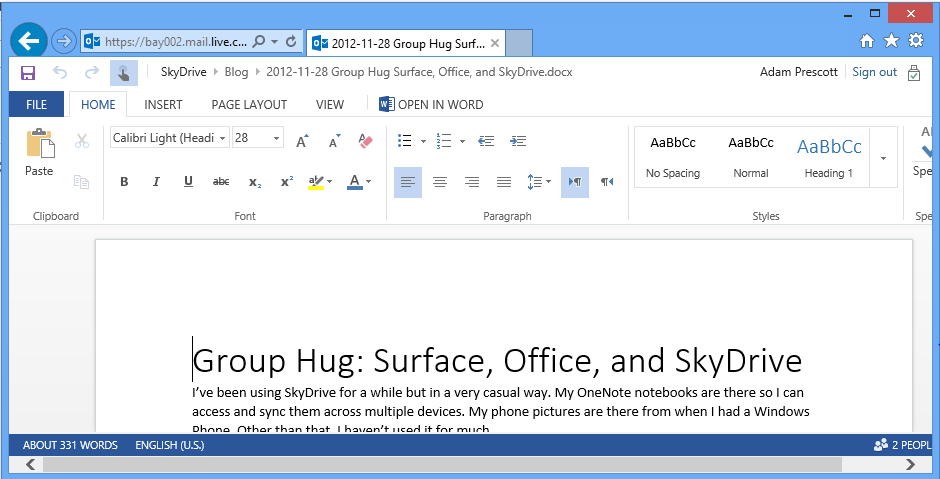
I’ve been using SkyDrive for a while but in a very casual way. My OneNote notebooks are there so I can access and sync them across multiple devices. My phone pictures are there from when I had a Windows Phone. Other than that, I haven’t used it for much.

That changed big-time when I got my Surface, though.

One of the big selling points of Surface was that it was a tablet with Office. In order for me to realize my dreams of never-ending productivity, I need the ability to share documents between my Surface and other computers easily and efficiently. I knew that Office 2013 added integrated SkyDrive support, so this was the obvious sharing solution to me. I wasn’t expecting more than an online repository for my documents that I could access from multiple machines, but Office 2013 and SkyDrive provide a cross-machine experience that am absolutely delighted with.

So what do I like so much about it?

First of all, it’s easy to use. It’s the default save option, much like “My Documents” used to be. I don’t have to install any additional software or worry about services running to synchronize the contents of a folder. I don’t need to remember where a synched directory is, and I don’t have to do any browsing. I click “Save,” and I’m there.


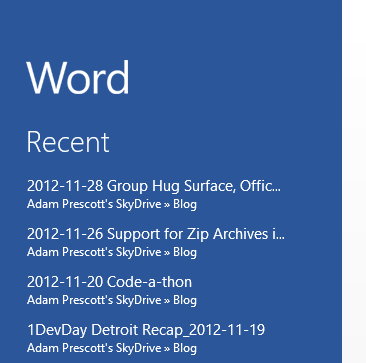
The next reason I’m sold on the Office + SkyDrive solution is that it’s seamless across computers. When I create a new document on my Surface and save it to SkyDrive, that document shows at the top of the recent documents list on my work laptop. How cool is that!? Without doing anything more than using Office and saving to SkyDrive, I can move from computer to computer and pick up exactly where I left off.

The third reason that I’m sold on this solution is that, in addition to incredible machine-to-machine experience, you can also access your documents from the web. The Office web apps are very impressive; they look and feel just like their desktop counterparts.

I know that there are ways to do all of what I’ve described using other solutions. I’ve been a fan of Google Docs for a long time, and it’s been my go-to resource for personal documents that I need to access from the web. At work, it’s a different story. I can’t get away from Office, and getting the features I’ve described above from other services requires effort and, often times, leads to a more complex process. Office and SkyDrive give you all of this out-of-the-box with no effort. Now throw Surface into the mix, and it feels the holy trinity of mobile productivity.

Watch CNN on Surface

I’m bizarrely addicted to watching CNN in the mornings. It’s part of my routine. I can’t function without it. Recently, in an effort to become healthier, I invested in a treadmill. My thought was that all of my CNN time in the morning could just as easily be spent on a treadmill–two birds, one stone, right?

Not so fast, my friend.

The problem I ran into was that I couldn’t hear the TV unless I cranked the volume up to 70. This is a solution, but I don’t like it. I don’t want to keep the volume maxed out on the TV. My next thought was wireless headphones. Good thought, but I don’t have any. I also wasn’t excited about potentially having to switch between audio modes on the TV, having to possibly introduce a stereo receiver, or any other audio shenanigans.

So then I had another good thought: I’ll just stream CNN through their website on my phone! I couldn’t get it to work. Okay, I’ll use my wife’s iPad to do it, then! I couldn’t get it to work. Oh, well. I guess I’ll just watch Netflix on the treadmill.

Several weeks later…

“Oh, yay! My Surface is here! Wait a minute, this thing’s got IE10 and Flash–surely it will be able to stream CNN from their website!!”

Guess what? It didn’t work. Not right away, anyway. With some tinkering, I was able to actually get it working, though! I don’t love the solution because it’s way more than a casual user would ever think to try, but I’m still happy to have it.

There are three things that I did to get it working:

  1. Run IE from Desktop Mode. I’m not sure why this is necessary, but it works in desktop mode and not in tablet mode. If you know the solution to this, I’d love to hear it. But for now, I’ll just flip to Desktop Mode and run a shortcut from the desktop. (Additionally, I wasn’t able to figure out how to access the Trusted Site list from tablet mode, which is needed for the next two items…)
  2. Add cnn.com to the list of trusted sites. This is what I thought would solve the problem. I thought that for sure the issue was just that CNN wasn’t able to save whatever authentication cookies needed to be saved. However, after adding cnn.com to the list, the page got stuck in an authentication loop where the page would just keep refreshing and asking my to choose my provider.
  3. Add adobe.com to the list of trusted sites. This was the key. It appears that the authentication is routed through adobe.com, and a cookie is expected when you get back. The cookie was being blocked, and that’s why I was then asked to authenticate again.

CNN streaming on Surface

There was a fourth thing, but it was a little different. I wasn’t able to scroll the list of available programming. I was able to fix that by zooming out with Ctrl + -. Like the rest of my solution, it wasn’t ideal, but it worked.

So, at the end of the day, I had what I wanted. I can stream CNN live from my Surface, and I can use headphones to hear what’s going on over the wirrr of the treadmill. I guess I need to find a new excuse to avoid working out in the morning.

Where the F are the F Keys?

One of the not-so-obvious-to-solve things that I’ve run into while using my Surface over the past few weeks is that neither the Touch Cover keyboard nor the on-screen keyboard have any F keys. This isn’t something that I use a ton, but there are a few things that I do use them for. I really missed them when I needed to do those things.

As an example, I wanted to spell check a Word document. F7? Nope. I had to hunt around in the ribbon until I found it. Later, I wanted to rename a file on the desktop. F2? Bah! Guess I’ll just right-click and rename like the old days.

“Maybe they built it into the Fn key… Fn+1 = F1, right?” I thought. No dice. “What about the Windows key?” Nothing.

Today, I finally broke down and did some Googling. I found this article that revealed the secret. The F keys are Fn options on the top row of keys: mute, volume down, volume up, etc. I tried it out by going to Desktop Mode, selecting an icon, and pressing Fn + Volume Down (F2). Sure enough, it worked. It’s annoying to count out the keys since I don’t them memorized (and I’m not smart enough to read the number keys just below them…), but I’m happy to have them back.

Now I just need to relearn spell check as Fn + Devices. *shrug*

First Impressions: Surface RT

I broke down and ordered a Surface RT last weekend. After what felt like the longest week ever, I finally got it today. The thing that I was most looking forward to was the Touch Cover keyboard, so I figured what better way to try it out than by writing a quick blog post!

The honeymoon is just beginning, so you won’t catch me saying anything negative here. I’m not sure what I expected from the Touch Cover, but it’s definitely cool. The buttons have a fabric-y texture to them. There’s definitely a learning curve, but my ability seems to be improving by the sentence. The trick seems to be in figuring out how hard to “punch” the buttons so they register. Touch too lightly, and it won’t go. But, the more I use it, the faster I’m able to go and the more I like it.

The keyboard/kickstand combo works surprisingly well for lap-computing, too. I’d read mixed reviews about that. Some said it was completely inadequate. Others said that it was sturdy enough but not idea. I’m finding that it’s perfectly acceptable. I’m currently typing with the kickstand balancing on my thighs, and, aside from the screen bouncing a bit as I type, it seems perfectly fine. I’ve also used the keyboard with no kickstand, propping the screen up on my crossed leg. That worked fine, too.

I haven’t gotten into the software much, yet. It’s mostly been installing apps that I already know like Netflix. I checked out Office, and that was really cool. It definitely gives a desktop experience, even switching into “desktop mode” and displaying the taskbar.

I’m looking forward to getting more familiar with my new friend over the coming days and weeks. I’ll be giving it a conference trial tomorrow at 1DevDay Detroit, too.

A Gripe About Skype

I haven’t really ever been interested in Skype. I can’t explain why, because that’s usually the kind of thing that I’m into, but I just wasn’t. With out-of-town parents and a baby on the way, things have changed, though. Skype seems like the perfect solution for helping grandma and grandpa maintain a visible presence long distance.

So my dad was visiting, and he brought his laptop and wanted me help him get it set up. “No problem,” I thought to myself, “Tons of people use Skype, and it’s gotta be super easy.”

I headed over to Skype.com, clicked their “join” link, and was presented with some options: create a new Skype account or join with Facebook or a Microsoft Account. Well, Microsoft recently acquired Skype, so I figured I’d use my trusty Live ID. I signed in and signed up. I had my dad do the same with his Hotmail account. (Hotmail? C’mon, Dad.) We did a test call and everything worked great.

Until…

I wanted to install Skype on my phone. I popped open the Play Store, downloaded, and installed the app. I opened it and was presented with a login prompt that wanted my Skype Name and password.

Skype Name? I signed up with my Microsoft Account, so it’s probably my email address, right? Nope.

It probably created a Skype Name for me when I signed up. I thought that, surely, I could log in to Skype.com to find it. Yep, there it was: “live:prescott.adam.” That’s my Skype Name. Let me log… in… with… that–didn’t work. “Unrecognized Skype Name,” it says.

But wait! They have a Skype Name recovery tool; I’ll give that a shot. Clicked the link, entered my email address, got an email. Super. Let me just click… the… link… and–didn’t work. “Unrecognized token.” But there’s a prompt, and the email had a token. I copied/pasted the token: same result.

Blurg. I figured I’d check the forums to see if others had run into this. I found nothing. “I guess I’ll email support.” But, guess what? I couldn’t submit my question, presumably because of my “invalid” Skype Name. I finally decided to email contactus@skype.com, and I got a response. They gave me directions on how to change the password on my Microsoft Account. “Thanks, guys.”

That was this morning. I still don’t know what to do about this, and I’m really annoyed by it. If the right path is to sign up with Skype and then merge accounts, then don’t give me an option to join with another account. As of now, I feel like I have a handicapped account because of how I signed up. That just seems wrong.

Has anybody else run into this? Does anybody have a solution?

11/21/2012 Update:

An updated version of the app was released yesterday, and it now provides an option for logging on using a Microsoft account. I’m happy for the solution, but I’m disappointed that support couldn’t have told me that this was a known issue to be resolved in a soon-to-be-released update.

Co-Branded Employees

Last week, the Wall Street Journal posted an article titled “Your Employee Is an Online Celebrity. Now What Do You Do?” The article is about the pros and cons of “co-branded employees:” employees that actively build and maintain their own personal brand outside of work. The goal of the article is to shed light on this type of employee and present some of the potential advantages and disadvantages.

The article begins with the following statement: “meet your newest management headache: the co-branded employee.”

That’s a pretty harsh introduction, but the rest of the article isn’t quite so negative. It’s actually part cautionary and part risk assessment. Several valid concerns are brought forth, such as How much time during the workday should be allocated or permitted? andWho owns the content? There’s also a “balance sheet” that compares several advantages and disadvantages.

Advantages:

  • Prestige – The company can claim the top-ranked employee as their own
  • Leads – By engaging publicly, the employee is potentially attracting new customers
  • Free media – A large following can equate to free or inexpensive publicity for the company
  • Recruitment – The employee will attract other, aspiring minds

Disadvantages:

  • Prima donnas – Popularity can lead to inflated egos and expectations
  • Distraction – The employee may dedicate a wrongly proportional amount of time to their extra-curricular activity
  • Leaks – Internal details may be deliberately or accidentally become “less internal”
  • Resentment – The employee’s popularity or reputation could negatively affect the team

These potential risks and rewards are part of a short list that could clearly be much longer. I started blogging to track things that I’ve learned and figured out, and it’s evolved into a hobby that doubles as a profession-growth mechanism.

Does it take time out of my day? Sure. A lot of things that I learn and write about are directly related to what I’m doing at work. There’s probably an argument to be made that tasks take me longer to complete because of my blogging. After all, I’d be done sooner if I didn’t have to scrub out customer-related info and write several paragraphs about why I was doing something and how I ultimately accomplished it.

The flip-side to that is that the quality of my solutions is improved by the additional diligence that comes along with my desire to write. I don’t stop when it works. I go deeper; I want to understand why it works, what’s necessary, and what’s not. Then, I take all of that information, condense and simplify it into a blog post. That post becomes my own, searchable repository of lessons learned. If somebody on my team is faced with a similar task, I can send ’em a link. They get an abbreviated version of the journey with a (hopefully) clean, concise  solution.

I can only speak in terms of my own experience, but I’d certainly argue that activities like this are a win-win. My online presence, and the desire to grow it, result in an expansion of my horizons. I get personal satisfaction from learning and exploring new topics. The knowledge gained through these exercises allows me to think outside the box when solutions are needed. I’m more well-rounded because of it, and I’m more capable of supporting and providing guidance to my team on solutions old and new, alike.

Office 2013 RTM

I’d been using Office 2013 Preview since August, and, while there have been hiccups here and there, I’ve been very happy with it. Last week, the RTM version was released to MSDN subscribers. (I think it will not reach general availability until Q1 2013.) I was excited to get my hands on it, so I downloaded and upgraded right away.

My only disappointment in the upgrade experience is that I couldn’t go directly from Preview to RTM, but that wasn’t completely unexpected. I uninstalled and installed the new version. Everything went smoothly.

I’ve been using it for a week now. I haven’t noticed any new features in the RTM version that weren’t in Preview, but there are a few “quirks” that have been fixed. The biggest bug that I’d been dealing with in Preview was in Excel: when you clicked a drop-down in a cell, the options would display in the upper-left corner instead of at the cell. This has been fixed in RTM. Another gripe I had in Preview was about the read-only, “Preview Mode” version of Word that opens when you open a Word document attachment from an email. This is still there, but pushing the ESC key takes it out of Preview Mode and back into the standard, edit view. So that’s good!

Everything else has felt really polished and very slick, and I haven’t seen anything that I’ve perceived as a bug, flaw, or unintentional.

I’m definitely loving the new version!

GitHubbin’

GitHub is a “social coding” service that offers web-based source control using the Git revision system. One of the appealing features is that you can host unlimited public repositories with a free account, which is perfect for my needs. I’ve wanted to look into it for a while as a way to host and share code that I write for many of the various projects that I write.

Getting Started

So I was finally ready to start using GitHub. I went to github.com, created a new free account, and created a new repository. It was all intuitive and seemingly very easy. But then I got stuck. I was looking all over for some sort of “upload code” link that would let me pick some files to be uploaded to the new repository. It didn’t exist. I was stuck.

The problem is that I didn’t take time to understand exactly what GitHub is or how it worked. I was trying to work through the bootcamp tutorial, and most of the steps were entering commands into a Unix-like prompt. That’s the point when I started to read more carefully and found that I needed to install Git locally, create a local repository, and then commit changes to the web repository. I was still just blindly entering commands into the prompt, not really understanding what I was doing, though.

I was struggling, but I somehow managed to stumble upon GitHub’s own Windows offering: GitHub for Windows. It got a lot easier at that point. GitHub for Windows is a polished, intuitive application. Using it, I was able to create my local repository, push it to GitHub, commit changes locally, and sync to the web. It was incredibly easy!

Tutorial

Using GitHub is really easy once you know what you’re doing, but it wasn’t quite as intuitive to figure out as I would’ve expected. Now that I have it (somewhat) figured out, I wanted to create a straightforward, barebones tutorial to help guide the masses. Note that this tutorial is based on my own experience in Windows.

  1. Create a new GitHub account at github.com
  2. Download and install GitHub for Windows from windows.github.com
  3. Start GitHub for Windows
  4. Create a new local repository
      Note the “Push to GitHub” option. If you select this, the repository will be created using the credentials you provide. If you don’t select this option, you can push it to GitHub later by clicking a button on the repository details page.
  5. Put some files in your local repository
      Just copy files into the local repository directory!
  6. Commit changes locally
      Double-click the local repository or click the arrow next to the repository to open it
  7. Add a commit message and click COMMIT
  8. Publish changes to the server
    • When you click the Publish button, your files will be uploaded to the web repository
    • After the initial publish, the button will change to “Sync” which can be used to upload additional local changes or retrieve changes made by others

That’s all there is to it. After your changes have been published, the code will be accessible through GitHub at https://github.com/%5Busername%5D/%5Brepositoryname%5D. You can get to your repository from GitHub for Windows by right-clicking the repository and choosing “view on github.”

My Foray into Jelly Bean

I’ve been a happy Android (Epic 4G Touch/Galaxy SII) user ever since I made the switch from WP7 (Samsung Focus). Since that time, my wife has switched to an iPhone. I was secretly jealous of features like Siri. Whenever we needed to remember to do something, I’d tell me wife to have Siri set up a reminder because it was so easy and convenient. I was still dedicated to Android because of the free mobile hotspot and turn-by-turn navigation, but I was feeling like my next phone should be an iPhone.

That all changed yesterday when I upgraded to Jelly Bean.

This was only the second time I’ve installed a custom ROM, and I was admittedly nervous. Part of the reason for my initial switch to Android was to get onto a custom ROM to unlock the free mobile hotspot. I stumbled through that, and hadn’t had problems since. I was nervous to do it again because of the satisfaction achieved in my first attempt.

I ran into some bumps along the way. Most significantly, I ran into the error described here when flashing the ROM. The solution offered by one of the replies got me over the hump, though, and it was smooth sailing from there. I’m now up and running on CM10 Alpha 5.3, which can be found here. It’s great!

Everything about Jelly Bean feels new and clean. The visuals and animations look and feel crisp and smooth. The every features like messaging, alerts, and email look better. I haven’t noticed any feature changes with those, but I also haven’t done more exploration.

What I’m most excited about is Google Now, Google’s answer to Siri. I can now ask my phone to set reminders, look-up directions, and send text messages. One of the features that Now boasts is “no digging required.” It’s supposed to learn what information I need and present it to me without asking. I’m very curious to see how this works. But for now, I’m happy with the voice search and command capabilities offered by Now. I can also hold the search button to initiate a voice command from within any screen–very Siri-like.

My allegiance and excitement have been renewed, and my gravitation toward iPhone has been killed. Sorry, Apple.