Parse Camel Case into Words

I was working on a small project that had a list of camel case strings that I wanted to display to users. Displaying values as camel case feels dirty, though, so I wanted to pretty it up by parsing the strings into words. Sounds like a job for regular expressions!

After a few tries, this is what I settled on:

var x = Regex.Replace(value, @"([A-Z][^A-Z])", " $1");
x = Regex.Replace(x, "([a-z])([A-Z])", "$1 $2");
x = x.Trim();

Here are my test cases and the results:

Input:
  HelloWorld
  SuperMB
  SMBros
  OneTWOThree

Results:
  Hello World
  Super MB
  SM Bros
  One TWO Three

Ahh, just what I was hoping for. Thanks again, regular expressions!

Speaking Skills in Engineering Careers

I recently visited a local high school to speak with a teacher friend’s speech class. She’s trying to show her students that the skills they’re learning in her speech class are valuable in most careers. She gets a lot of pushback from her future engineers who believe they’ll be relying predominantly on their technical skills, not giving speeches.

I’m entering my tenth year of developing software. I use the presentation skills and techniques learned from my high school speech class almost every day. To an extent, I agree with my friend’s students: you can get by without these skills, but not having them will surely prove to be a significant career growth inhibitor. You might be an incredible [insert engineering career here], but in order to be fully effective, you must be able to communicate your ideas to others, compare and contrast options, and convince your audience–whether it’s your peers, boss(es), or customers–what’s best. This is where those skills come into play.

When I talked to the class, I gave several examples of how I use speaking skills everyday. I gave examples, starting with the most formal, speech-like events and moving to more common, everyday things.

The biggest and best example I have is presenting at my company’s annual customer conference. Customers pay to come to the conference and spend three days attending sessions presented by all sorts of different people, including developers like myself. This is a formal presentation and a direct application of skills taught in a speech class. Preparation is key. We’re required to submit outlines of our presentations months ahead of the event that are refined and built out as the conference draws nearer. At the conference, I’ll be behind a podium at the front of a room, possibly on a stage, giving a presentation or demo to an audience of 20 to 100+ attendees. I’m letting them know what’s new or how they can use my company’s products better. If I do a good job, customer’s get value from the conference. Their opinion of the company and it’s products improve, and maybe they purchase more software. If I do a poor job, the worst case is that a customer begins to question their decisions.

The conference is a wonderful example, but it only happens once a year. A more common scenario occurs when I have a good idea. I need to socialize that idea with my boss and peers, and that requires lots of small communication. I need to make them understand the value of my idea. If I do a good job, they might talk to others. At some point, I might get a call. “Hey, Adam. Remember that idea you were telling me about? I’ve got some people with me that want to hear more. Can you come talk to us?” That’s all the notice I get. I need to walk into a room with an audience that I don’t know and sell them on my idea. If I can talk about the idea enthusiastically and confidently, I might convince people that it’s worth doing and get it onto a project plan. If I don’t have good energy, or the audience doesn’t believe that I have what it takes to see it to fruition, the idea might die there.

A more common (and less dramatic) situation involves my peers. There could be a team working on a problem, and they need my input. Once I understand what they’re trying to accomplish, I use my technical skills to determine options and decide which will be best. From there, it becomes an ad-hoc presentation. I need to present options with their advantages and disadvantages to help my teammates understand what I’m suggesting and get them to buy into my recommendation. If my message isn’t clear, it could result in a bad solution or the need for rework.

And let’s not forget customers. When we create new products, it’s not uncommon to demo them to customers to get feedback. Good presentation skills help the customer understand the value that you’re delivering, and it gets them excited. Bad presentation skills destroy their confidence in you and the company. The same applies to training and conference calls. When you’re able to “speak their language,” customers will like you more and believe in you. I’ve been on calls with other software vendors that aren’t able to articulate their plans and ideas, and it can be really frustrating for all sides.

I certainly couldn’t do my job without the technical skills that I have, but a large percentage of every day is spent communicating with others. I couldn’t be as effective as I am without strong speaking and presentation skills. Those skills have given me growth and leadership opportunities that I wouldn’t have had without them. Standing in front of your classmates, telling them how to care for your dog may not seem like it’s going to be applicable to your career, but being able to explain a complex process to a group of your technical peers is an invaluable ability!

Events with Return Values

I was working with a team on an interface project that allowed for the transferring of records between N different systems. Once the record was transferred, updates can flow in both directions. I suggested that we use events to begin transactions from source systems, and the event arguments would contain the necessary routing information to help get the data to the correct destination.

Great plan, but we ran into a problem because one of the systems involved uses asynchronous operations for its transactions and another uses synchronous operations. No problem, though. We can get around this with the creative use of callbacks and wait handles.

Let’s look at an example. In the code below, the application calls a method that raises an event. The method needs to return a response, and the event handler produces a response, but there is no way to return the response from the event handler to the method.

class Program
{
    static event EventHandler<SampleEventArgs> Sample;

    static void Main(string[] args)
    {
        Sample += SampleEventHandler;
        var response = RaiseAnEvent();
        Console.WriteLine("Response: {0}", response);
        Console.ReadLine();
    }

    static string RaiseAnEvent()
    {
        if (Sample != null)
        {
            var args = new SampleEventArgs();
            Sample(null, args);
        }
        return null; // need the response!
    }

    static void SampleEventHandler(object sender, SampleEventArgs e)
    {
        string response = "foo";
    }
}

public class SampleEventArgs : EventArgs
{
}

When program runs, the following output is produced:

Response: 

The first problem we need to deal with is that the event handler needs a way to provide its response to the calling code. This could be accomplished by adding a response property to the event argument OR by adding a callback to the event argument. I prefer the latter because the former will require me to know when it is safe to retrieve the value from the event argument whereas the callback is more like a “push.” So, let’s add a callback!

public class SampleEventArgs : EventArgs
{
    public Action<string> SampleCompleted { get; set; }
}

Now that we have the ability to specify a callback to capture the response, guess what the next step is. That’s, right: create the callback method! This is also our opportunity to block execution while we wait for a response. I’ll use a ManualResetEvent to block execution, and I’ll set it in the callback. Perfect, and lambdas make the whole thing a breeze!

static string RaiseAnEvent()
{
    string response = null;
    if (Sample != null)
    {
        var args = new SampleEventArgs();
        var manualResetEvent = new ManualResetEvent(false);
        args.SampleCompleted = r =>
            {
                response = r;
                manualResetEvent.Set();
            };
        Sample(null, args);

        if (!manualResetEvent.WaitOne(1000))
        {
            // timeout waiting for response
        }
    }
    return response;
}

Now that we’ve got our callback created and defined, we just need the event handler to invoke it.

static void SampleEventHandler(object sender, SampleEventArgs e)
{
    string response = "foo";
    if (e.SampleCompleted != null)
    {
        e.SampleCompleted(response);
    }
}

And with that, we’re done! We run the application, and we get the expected output.

Response: foo

Complete sample:

namespace EventsWithReturnValues
{
    using System;
    using System.Threading;

    class Program
    {
        static event EventHandler<SampleEventArgs> Sample;

        static void Main(string[] args)
        {
            Sample += SampleEventHandler;
            var response = RaiseAnEvent();
            Console.WriteLine("Response: {0}", response);
            Console.ReadLine();
        }

        static string RaiseAnEvent()
        {
            string response = null;
            if (Sample != null)
            {
                var args = new SampleEventArgs();
                var manualResetEvent = new ManualResetEvent(false);
                args.SampleCompleted = r =>
                    {
                        response = r;
                        manualResetEvent.Set();
                    };
                Sample(null, args);

                if (!manualResetEvent.WaitOne(1000))
                {
                    // timeout waiting for response
                }
            }
            return response;
        }

        static void SampleEventHandler(object sender, SampleEventArgs e)
        {
            string response = "foo";
            if (e.SampleCompleted != null)
            {
                e.SampleCompleted(response);
            }
        }
    }

    public class SampleEventArgs : EventArgs
    {
        public Action<string> SampleCompleted { get; set; }
    }
}

Group Strings Using LINQ and Regular Expressions

I was working on a problem yesterday where I needed to combine strings that were the same except for one part. Here’s a simplified version of the problem:

Input Array:
"Adam likes apples."
"Adam likes bananas."

Desired Output:
"Adam likes apples and bananas."

It was a no-brainer to use regular expressions to do the matching and parsing, but I couldn’t figure out immediately how to use them in to accomplish my goal. I decided to use LINQ’s ToLookup method to create groups of matching items, and then loop through the groups to implement my combine logic.

The first step is to define a regular expression that lets me do two things. It needs to let me create a group “key,” and it needs to let me extract the data part that I’m ultimately trying to combine. For the simple example above, I can use the following pattern:

^(Adam likes )(.*)\.$

I can create the lookup using the regular expression like so:

var input = new[] 
    {
        "Adam likes apples.",
        "Adam likes bananas.",
    };
var regex = new Regex(@"^(Adam likes )(.*)\.$");
var lookup = input.ToLookup(x => regex.Replace(x, "$1"), x => x);

The final step is to loop through the lookup’s keys and do processing on the groups:

foreach (var key in lookup.Select(x => x.Key).ToList())
{
    if (lookup[key].Count() > 1)
    {
        var items = string.Join(
            " and ",
            lookup[key].Select(x => regex.Replace(x, "$2")).ToArray());
        
        var output = regex.Replace(
            lookup[key].First(),
            string.Format("$1{0}.", items));
        Console.WriteLine(output);
    }
    else
    {
        Console.WriteLine(lookup[key].First());
    }
}

Here’s another example to illustrate how this might be useful:

static void Main(string[] args)
{
    var input = new[] 
        {
            "Adam ate 3 apples.",
            "Adam ate 1 apple.",
            "Adam ate 1 banana.",
            "Adam ate 1 banana.",
            "Adam ate 1 orange.",
        };
    var regex = new Regex(@"^(Adam ate)\s+(\d+)\s+(.*?)s?\.$");
    var lookup = input.ToLookup(x => regex.Replace(x, "$1$3"), x => x);
    foreach (var key in lookup.Select(x => x.Key).ToList())
    {
        if (lookup[key].Count() > 1)
        {
            int sum = 0;
            foreach (var item in lookup[key])
            {
                sum += int.Parse(regex.Replace(item, "$2"));
            }

            var target = regex.Replace(lookup[key].First(), "$3");
            if (sum > 1)
            {
                target += "s";
            }
            var output = regex.Replace(
                lookup[key].First(),
                string.Format("$1 {0} {1}.", sum, target));
            Console.WriteLine(output);
        }
        else
        {
            Console.WriteLine(lookup[key].First());
        }
    }
    Console.ReadLine();
}

// Output:
//   Adam ate 4 apples.
//   Adam ate 2 bananas.
//   Adam ate 1 orange.

Loggin’ Like Bunyan: An NLog Tutorial

Enterprise Library has been my go-to for logging for the past few years. This is largely because I’ve worked on a project that was using it, and it did what I needed. It was relatively easy to use, and I didn’t really have a reason to look elsewhere.

However, I was working on a new project that needed some logging, and I decided to explore some other options on a whim. Another team in the company was using NLog, so that’s where I went first. I gotta say, it seems a lot lighter weight and easier to use than Enterprise Library. It’s all available through NuGet, so adding it to any new project is a breeze.

Adding support for NLog to your application requires just two things: a reference to NLog.dll and an NLog.config file. Here’s how you can go from zero to logging in three steps.

  1. Install the “NLog Configuration” package from NuGet. This gives your project a reference to NLog.dll, the NLog schema (for Intellisense when editing NLog.config), and an empty NLog.config.
  2. Edit NLog.config to have a target and a rule. Here’s a very basic log-to-file config:
    <?xml version="1.0" encoding="utf-8" ?>
    <nlog xmlns="http://www.nlog-project.org/schemas/NLog.xsd"
          xmlns:xsi="http://www.w3.org/2001/XMLSchema-instance">
      <targets>
        <target name="logfile" xsi:type="File" fileName="log.txt" />
      </targets>
      <rules>
        <logger name="*" minlevel="Info" writeTo="logfile" />
      </rules>
    </nlog>
    
  3. Get to loggin’! Create a Logger and use it.
    var logger = LogManager.GetCurrentClassLogger();
    logger.Info("Loggin' like Bunyan!");
    

It’s really that simple. The above config and logging code produce the following log entries:

2013-10-29 10:18:53.7819|INFO|NLogSample.Program|Loggin' like Bunyan!

Create a Shortcut to Open a Website in a Non-Default Browser

In a perfect world, you’d be able to use your preferred browser to visit all your websites and browser-based applications. However, there are a number of applications–mostly intranet web applications–that do and don’t work with certain browsers. And unfortunately for me, my company has applications that require Internet Explorer and ones that require anything-but-Internet-Explorer.

Historically, I’ve kept track of various intranet sites by using bookmarks in my browser of choice. The fact that I’m forced to use different browsers to visit different sites throws a wrinkle in the plan, though. So what to do!?

The first step is to create a shortcut for the browser-specific website. The trick is to create a shortcut to the browser executable and pass the URL as a parameter. Follow these steps to create the shortcut:

  1. Right-click on your desktop or in a folder in WIndows Explorer and choose New > Shortcut
  2. For the “location of the item,” enter the path to your browser’s executable followed by the URL. Example: “C:\Program Files\Internet Explorer\iexplore.exe” http://www.msn.com

Using this technique, I can create shortcuts that launch different browsers and keep them in a folder on my desktop. By putting them into a common folder, I can keep all my shortcuts in one place. Of course, the annoying part of doing this is that I’ll have some work to do as browsers and applications evolve. I’ll need to manually update shortcuts if an install path changes or an application no longer needs the specific browser. But hey–it’s an imperfect solution to solve a problem caused by imperfect application.

Multiple Google Calendars

Using multiple Google calendars is a terrific way to share and maintain separate schedules for different groups of people. It’s easy to create them, and you can share them by specifying a list of people, providing a link, or simply making the calendar public/searchable. In this post, I’ll walk you through the steps necessary to create a new public calendar, retrieve its URL, and create events for your subscribers.

Create a New Calendar

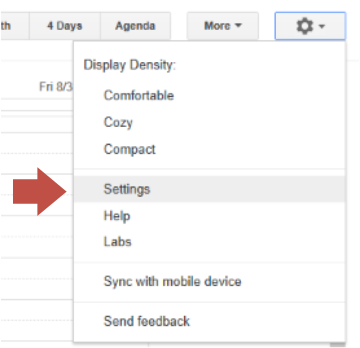
All of your calendar management needs can be found in Google Calendar Settings. Calendar Settings are accessed by clicking the gear drop-down and selecting Settings. Then, go to the Calendars tab and click the Create new calendar button to create a new calendar.

GoogleCalendar_Settings

There are a few important settings related to sharing when creating a new calendar. The first is whether you’d like the calendar to be public. Public calendars are visible to everyone and can be found by searching, so you shouldn’t use a public calendar for anything you don’t want to be public. (Duh.) Note, however, that there is a sub-option to hide the event details on your public calendar. This allows you to publicly share your availability without letting the world know exactly what you’re up to. You can also list specific people you wish to share your calendar with and specify what permissions they have. If you have a large group, this can be cumbersome, but it’s your bet for sharing a non-public calendar.

Share Your Public Calendar

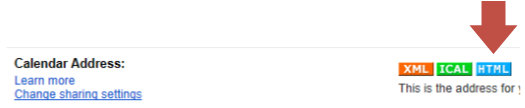
So, you’ve created your public calendar, and you want to share it with the world. Your easiest option is to provide people with the URL. Getting the URL is simple but not so obvious. Head back to the Calendars tab in Calendar Settings, and click your public calendar to edit its details. Toward the bottom, you’ll see a section labeled Calendar Address with colored buttons for XML, ICAL, and HTML. Each button is a link to the calendar in a different format.

GoogleCalendar_Url

Click the desired link, and you’ll get a pop-up with the URL for you to distribute. If you’re sharing with other Google Calendar users, I suggest using the HTML link. When users browse to the calendar, there’s a little + Google Calendar button in the bottom-right corner. Clicking the button will prompt them to add the calendar to their own Google Calendar.

GoogleCalendar_AddToCalendars

(Pro tip! Use a URL shortener like bit.ly or goo.gl to make your gnarly calendar link more palatable.)

Create Events

You’ve got the calendar. You’ve got subscribers. What’s left? How ’bout some events!?

Adding an event to one of your many calendars is as easy as you’d hope: click the drop-down indicator next to the calendar and choose Create event on this calendar. Enter the event details and save. Boom. Done.

GoogleCalendar_AddEvent

Animated Add & Remove with jQuery and Knockout

I’ve been doing so many cool things with jQuery and Knockout lately that have my developer soul bursting with glee. One of the things that I did most recently was to implement a small search application that allows a user to execute multiple searches and display the results as a collection of results. (That’s a little confusing. What I mean is that when you do one search, you get a box with the results. If you do another search, you get another box with another set of results.)

I wanted the interface to feel really fluid, and I figured the best way to do this would be to animate the appearance of the search results. I was using Knockout to databind results to the page, but this caused a problem: the results would appear on the page as soon as they were added to the collection.

Let’s look at an example of what I’m talking about so far:

var gcounter = 0;

var viewModel = function () {
    var self = this;
    self.items = ko.observableArray();
    
    self.add = function () {
        self.items.push(new itemViewModel("item " + ++gcounter));
    }
    
    self.remove = function (item) {
        self.items.remove(item);
    };
};

var itemViewModel = function(data) {
    var self = this;
    self.text = ko.observable(data);
};

ko.applyBindings(new viewModel());
<script src="//ajax.googleapis.com/ajax/libs/jquery/1.10.2/jquery.min.js"></script>

<div class="inline clickable" data-bind="click: add">
    <span class="ui-icon ui-icon-plus inline"></span>
    <span>Add</span>
</div>
<div data-bind="foreach: items">
    <div class="bigredbox clickable" data-bind="click: $parent.remove">
        <span class="ui-icon ui-icon-minus inline"></span>
        <span data-bind="text: text"></span>
    </div>
</div>

This example allows you to click ‘Add’ to add items, and remove items by clicking them. It’s very responsive, but it lacks a certain je ne sais quoi since items simply appear and disappear instantly. My first thought on addressing this was to make items fade into existence as they are added. We can do this in two steps. First, change the template for the data item to be hidden by default. Then, use jQuery to fade-in after the item is added to the collection. (Note that my hidden class contains just display: none and is defined in my css.)

var gcounter = 0;

var viewModel = function () {
    var self = this;
    self.items = ko.observableArray();
    
    self.add = function () {
        self.items.push(new itemViewModel("item " + ++gcounter));
        $(".bigredbox.hidden").fadeIn();
    }
    
    self.remove = function (item) {
        self.items.remove(item);
    };
};

var itemViewModel = function(data) {
    var self = this;
    self.text = ko.observable(data);
};

ko.applyBindings(new viewModel());
<script src="//ajax.googleapis.com/ajax/libs/jquery/1.10.2/jquery.min.js"></script>

<div class="inline clickable" data-bind="click: add">
    <span class="ui-icon ui-icon-plus inline"></span>
    <span>Add</span>
</div>
<div data-bind="foreach: items">
    <div class="bigredbox clickable hidden" data-bind="click: $parent.remove">
        <span class="ui-icon ui-icon-minus inline"></span>
        <span data-bind="text: text"></span>
    </div>
</div>

Ooh, that feels nice now, doesn’t it? But removing items still feels kinda lame. It would be really cool if items would fade away when they were removed! We can do that similarly to how we added the item. We need to employ a few tricks to make this happen, though. The click event’s second argument contains the control that was clicked in its target property. So, we can use event.target along with jQuery’s closest function to find the control we need to fade out. jQuery’s fadeOut method allows you to specify a callback to execute once it’s complete, so we’ll fade-out the selected item and remove it from the collection once the fade completes. That’s all we need to do, though; no HTML changes are needed.

var gcounter = 0;

var viewModel = function () {
    var self = this;
    self.items = ko.observableArray();
    
    self.add = function () {
        self.items.push(new itemViewModel("item " + ++gcounter));
        $(".bigredbox.hidden").fadeIn();
    }
    
    self.remove = function (item, event) {
        $(event.target).closest(".bigredbox").fadeOut(null, function() {
            self.items.remove(item);
        });
    };
};

var itemViewModel = function(data) {
    var self = this;
    self.text = ko.observable(data);
};

ko.applyBindings(new viewModel());

So that’s working great, but I still have a problem. When an item is removed, it fades away nicely, but then the results just flash together once the item disappears. It’d be nicer if that was also animated. jQuery’s slideUp method seems like it’d be perfect for this, so let’s just chain it together with fadeOut! Once again, there’s a little trick to this: you need to specify that the animations shouldn’t be queued. Luckily, that’s accomplished easily by specifying the correct option. Once again, this is a javascript-only change.

var gcounter = 0;

var viewModel = function () {
    var self = this;
    self.items = ko.observableArray();
    
    self.add = function () {
        self.items.push(new itemViewModel("item " + ++gcounter));
        $(".bigredbox.hidden").fadeIn();
    }
    
    self.remove = function (item, event) {
        $(event.target).closest(".bigredbox")
            .slideUp({queue: false})
            .fadeOut(null, function() {
                self.items.remove(item);
        });
    };
};

var itemViewModel = function(data) {
    var self = this;
    self.text = ko.observable(data);
};

ko.applyBindings(new viewModel());

Wooo, doggy! Now things are feeling very fluid. When we add an item, it fades into existence. Removing an item slides up and fades out. Everything feels really smooth and slick. Be sure to check out the jsfiddle for a working example!

Writing Maintainable Regular Expressions

If you’ve worked with regular expressions at all, you know it’s easy for them to become quite unruly. It can be hard to decipher a regular expression as you’re working on it, when you know everything you’re trying to accomplish. Imagine how hard it will be for the poor guy who has to do maintenance on that thing later!

There are a few things you can do to make it better for everybody in the long run.

Write Unit Tests

Unit tests are PERFECT for any code that uses regular expressions because you can write a test for each different scenario that you’re trying to match. You don’t have to worry about accidentally breaking something that you had working previously because the tests will regression test everything as you go.

Include Samples

I like to include samples in the code to make it as obvious as possibly what’s going on to anybody looking at the code. I don’t want developers to have to mentally process a regular expression unless they’re there to work on the regular expression itself. I like to provide simple examples like this:

// matches a field and value in quotes
// matches
//   foo = "bar"
//   foo="bar"
// doesn't match
//   foo = bar
//   foo : "bar"
var pattern = @"((\w+)\s*=\s*("".*?"")";

Include Comments in the Pattern

Another trick you can do is to include comments in the regular expression itself by using #. This can be a helpful development tool, too, because it allows you to write out what you’re trying to match in isolated chunks. Note that you’ll need to use the IgnorePatternWhitespace option for this technique to work.

var pattern = @"(
    (?:"".*?"") # anything between quotes (?: -> not-captured)
    |           # or
    \S+         # one or more non-whitespace characters
)"; 
Regex re = new Regex(pattern, RegexOptions.IgnorePatternWhitespace);

I really, really like regular expressions, but they can definitely be maintenance land mines. So, when you use them, do future developers a solid and use tips like these to make them as maintainable as possible.

Convert JSON to XML in .NET

I was working on a project where we were receiving data in a JSON-like format, and we needed the ability to extract values by field name. After doing just a bit of research, I found that the .NET Framework has a JsonReaderWriterFactory class that allows you to create an XmlDictionaryReader that processes JSON data.

Converting JSON to XML is perfect for my needs because it allows me to use LINQ to XML to query and retrieve the values I’m looking for. So, I wrote a few regular expressions to transform the JSON-like format into actual JSON. Then I used the JsonReaderWriterFactory to do the conversion and loaded the resulting XML into an XDocument.

Here’s an example.

const string json = @"{
    ""foo"":""bar"",
    ""complexFoo"": {
        ""subFoo"":""subBar""
    }
}";
byte[] bytes = Encoding.ASCII.GetBytes(json);
using (var stream = new MemoryStream(bytes))
{
    var quotas = new XmlDictionaryReaderQuotas();
    var jsonReader = JsonReaderWriterFactory.CreateJsonReader(stream, quotas);
    var xml = XDocument.Load(jsonReader);
    Console.WriteLine(xml);
}

/*--------
 Output:
 <root type="object">
   <foo type="string">bar</foo>
   <complexFoo type="object">
     <subFoo type="string">subBar</subFoo>
   </complexFoo>
 </root>
--------*/