Submit a Knockout-Bound jQuery Dialog when Enter is Pressed

There I was, happily coding an awesome logon prompt using the technique previously discussed here, when I ran into a problem: my form wasn’t submitting when I pressed the ‘enter’ key. That’s annoying. No self-respecting logon prompt should require you to move the mouse to a button and click!

So what to do?! Step one: don’t panic. Okay, good. Now you can use a few easy tricks to force the dialog to submit when enter is pressed.

Let’s look at the example that doesn’t work. I have a simple Knockout view model hooked up to a jQuery dialog. When I click the dialog’s “Login” button, it calls a login function. If I press the enter key, though, nothing happens. I take that back; one thing happens: you become annoyed that nothing happened.

var loginViewModel = function() {
    var self = this;
    self.password = ko.observable();
    self.username = ko.observable();
};

$("#loginDialog").dialog({
    buttons: {
        "Login": login
    }
});

function login() {
    // login stuff
}
<div id="loginDialog" title="Login">
    <form id="loginForm">
        <fieldset>
            <label for="user">Username</label>
            <input type="text" id="user" data-bind="value: username" />
            <label for="password">Password</label>
            <input type="password" id="password" data-bind="value: password" />
        </fieldset>
    </form>
</div>

The first thing we need to do is to bind our form to our view model using Knockout’s submit binding. With the submit binding in place, we can use jQuery to submit the form.

var loginViewModel = function() {
    var self = this;
    self.password = ko.observable();
    self.username = ko.observable();
    self.login = function() {
        // login stuff
    };
};

$("#loginDialog").dialog({
    buttons: {
        "Login": function () {
            $("#loginForm").submit();
        }
    }
});
<div id="loginDialog" title="Login">
    <form id="loginForm" data-bind="submit: login">
        <fieldset>
            <label for="user">Username</label>
            <input type="text" id="user" data-bind="value: username" />
            <label for="password">Password</label>
            <input type="password" id="password" data-bind="value: password" />
        </fieldset>
    </form>
</div>

Now we’re equipped to handle the enter keypress. So let’s do that…

var loginViewModel = function() {
    var self = this;
    self.password = ko.observable();
    self.username = ko.observable();
    self.login = function() {
        // login stuff
    };
};

$("#loginDialog").dialog({
    buttons: {
        "Login": function () {
            $("#loginForm").submit();
        }
    }
});
$("#loginDialog").keypress(function(event) {
    if (event.which == 13) {
        event.preventDefault();
        $("#loginForm").submit();
    }
});

That might seem like that should be it, but it’s not quite working. It seems to submit just fine, but login only succeeds when the button is pressed. What gives!? It’s a subtle thing that took me a little bit of time to realize. Databound values are only updated by default when focus leaves the control. So, if you enter a username, press tab, enter a password, then press enter, the password value in the view model hasn’t been updated yet! Argh!

No problem, though. We can change the value to update with each keypress.

<div id="loginDialog" title="Login">
    <form id="loginForm" data-bind="submit: login">
        <fieldset>
            <label for="user">Username</label>
            <input type="text" id="user" data-bind="value: username, valueUpdate: 'afterkeydown'" />
            <label for="password">Password</label>
            <input type="password" id="password" data-bind="value: password, valueUpdate: 'afterkeydown'" />
        </fieldset>
    </form>
</div>

Now we’re in business! The login works great whether you press the button or use the enter key.

Databinding Collections with Knockout

I’ve written a few articles about databinding using Knockout (here, here, and here), but I haven’t touched on collections yet. Collections have proved to be a little more challening and require a bit more work, but they still follow the same pattern.

In this post, I’ll work through a short example to demonstrate how to do two-way databinding with collection objects.

Create Your View Models

I’ve found that getting a collection to bind properly requires multiple view models. The applications that I’ve written have required a main, page-level view model and separate models for each item in the collection.

Let’s say we want to write an page that will manage a classroom roster. The primary model will be called rosterViewModel, and we’ll create another model to represent students, studentViewModel. When the page is initialized, we’ll create a new instance of rosterViewModel and bind it to the page using Knockout.

var rosterViewModel = function() {
    var self = this;
    self.students = ko.observableArray();
};

var studentViewModel = function() {
    var self = this;
    self.firstName = ko.observable();
    self.lastName = ko.observable();
};

ko.applyBindings(new rosterViewModel());

Allow Items to be Added

Adding new items to the databound collection is as easy as creating a new instance of the sub-item’s view model and adding it to the collection. This should be done in an event handler of the parent model. So, in our example, we’ll add an addStudent event that will add a new instance of studentViewModel to the students collection.

var rosterViewModel = function() {
    var self = this;
    self.students = ko.observableArray();
    self.addStudent = function() {
        self.students.push(new studentViewModel());
    };
};

Allow Items to be Removed

Removing items from the collection works the same way as adding. When the event is invoked from the item to be removed, you simply remove it from the collection. We create another event, removeStudent, that does this.

var rosterViewModel = function() {
    var self = this;
    self.students = ko.observableArray();
    self.addStudent = function() {
        self.students.push(new studentViewModel());
    };
    self.removeStudent = function(student) {
        self.students.remove(student);
    };
};

Populating the Collection

Populating the collection might seem like a no-brainer. You’ve got some data, just pass it to Knockout and let it do its job, right? That actually works okay if you’re not modifying the data. The problem is that the source data isn’t rigged for Knockout with ko.observables and ko.observableArrays. The result is that data populates, but changes aren’t detected.

What I’ve done to get around this is to loop through the source collection, instantiate the appropriate view model object, and add it to the parent model’s collection. To make things easier, I modify the view model to accept the source data as an input and populate properties when it’s provided.

var rosterViewModel = function(data) {
    var self = this;
    self.students = ko.observableArray();
    self.addStudent = function() {
        self.students.push(new studentViewModel());
    };
    self.removeStudent = function(student) {
        self.students.remove(student);
    };
    
    if (data != null) {
        var s = data.students;
        for (var i in s) {
            self.students.push(new studentViewModel(s[i]));
        }
    }
};

var studentViewModel = function(data) {
    var self = this;
    self.firstName = ko.observable();
    self.lastName = ko.observable();
    
    if (data != null) {
        self.firstName(data.firstName);
        self.lastName(data.lastName);
    }
};

var sourceData = {
    students: [{ firstName: "Adam", lastName: "Prescott" }]
};

ko.applyBindings(new rosterViewModel(sourceData));

Retrieving the Collection

If you need to retrieve your collection for processing, I suggest doing the opposite of what was done to populate the collection: loop through the view model and extract the data. What you do with the data is up to you. You can package it into another object to be sent to another service or method, or format it for display elsewhere on the page. To demonstrate, I created a computed property that creates an HTML list of students entered.

self.roster = ko.computed(function() {
    var result = "Students:<br/>";
    var s = self.students();
    for (var i in s) {
        var f = s[i].firstName() ? s[i].firstName() : "&lt;unknown&gt;";
        var l = s[i].lastName() ? s[i].lastName() : "&lt;unknown&gt;";
        result += l + ", " + f + "<br/>";
    }
    return result;
});

You can see the complete working example here.

Smart Sizing for Remote Desktop Connections

I just stumbled across another life-changing morsel of knowledge: how to enable smart sizing for remote desktop connections. It sounds like this is something that’s been around since Windows XP, but it’s relatively unknown and completely undiscoverable.

Here’s the secret: you need to create a .rdp shortcut for your connection and add the following line using your favorite text editor:

smart sizing:i:1

That’s it. With this miracle-line in your file, the remote desktop will scale as you resize the window. Want to know more? Go here.

Spruce-Up Word Documents with Attractive Info Boxes

You know what I don’t love in a Word document? When it’s just a huge wall of black text. It’s not pretty to look at, and it can be difficult to know what’s important and what’s not. I’ve recently started utilizing shaded info boxes to overcome these challenges.

InfoBox

The info boxes accomplish a few things for me. In addition to giving the document a much-needed splash of color and adding some visual appeal, it gives me a way to highlight information that I think is most important for my readers. I was surprised by the number of steps it took me to create a nice looking info box. It’s not hard; it’s just a lot of steps. And that’s why I’m writing this post–to break it down and (hopefully) make it simple for you.

Here are the features you get with the info box we’re about to create:

  • Small icon to indicate the nature of the information
  • Text aligned to the right of the icon
  • Shaded background

Shouldn’t be too bad, right? So let’s get started.

Step 1: Add a one-cell table

Add a 1×1 table from the INSERT tab in the ribbon. This should create a box that spans the width of the page–just what we want–but the cell margins need to be adjusted. With your cursor in the table, click the Cell Margins button on the TABLE TOOLS – LAYOUT tab in the ribbon. Change the default cell margins to be 0.08″ on all sides.

InfoBox_Table_CellMargins

Step 2: Adjust the border and shading

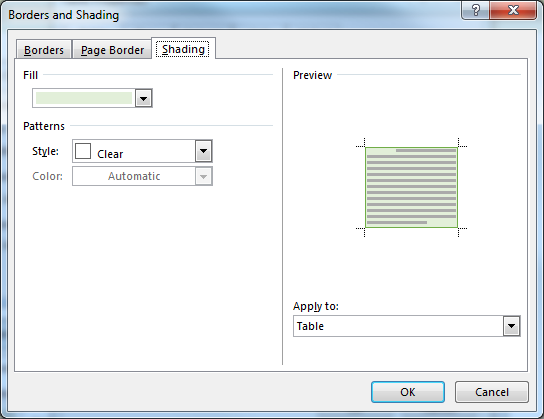
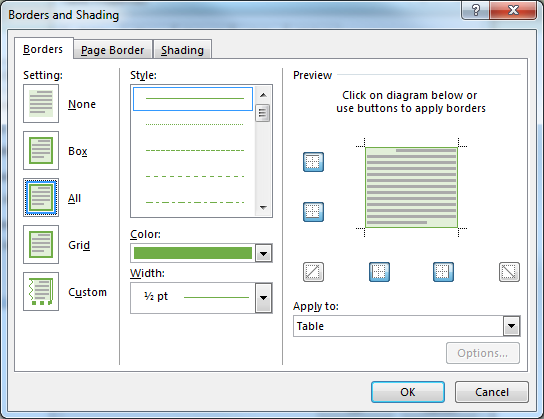
Right-click the table, select Table Properties, then click the Borders and Shading… button. Change the background color of the table by selecting a fill color on the Shading tab. Choose a coordinating border color on the Border tab. I try to use a light color for the fill and a darker color from the same family as the border, but you can obviously do whatever you want.

InfoBox_BordersAndShading_Shading

InfoBox_BordersAndShading_Borders

Step 3: Add an icon

Insert an image into your table to use as the info box icon. For a quick & dirty image, search clipart for “button” or “icon.” You could also copy/paste from the internet or pick an image from your computer. For best results, make sure the image has a transparent background or the same background color as the table shading.

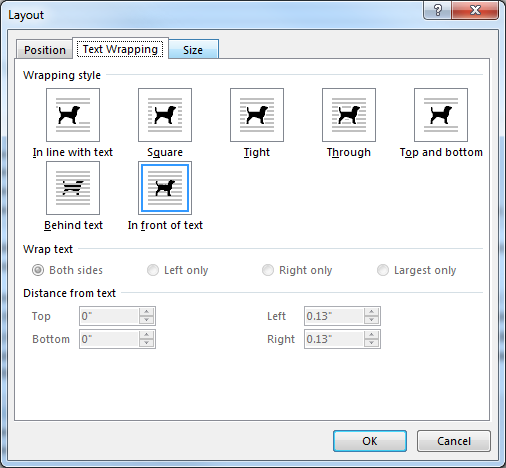
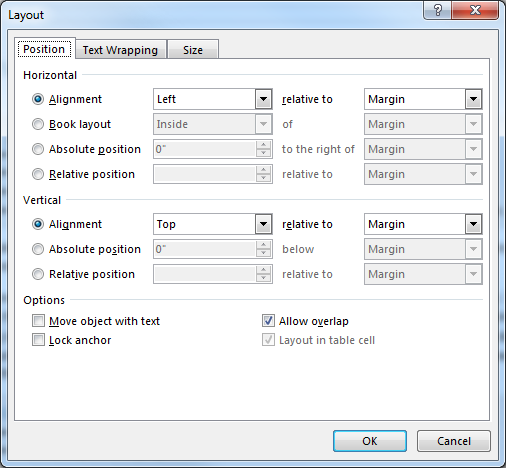
With the image in place, right-click it and choose Size and Position… to access its layout properties. On the Size tab, change the width to 0.35″. (The height should auto-adjust as long as the Lock aspect ratio option is enabled, which it is by default.) On the Text Wrapping tab,
select In front of text. And, finally, on the Position tab, change the horizontal and vertical positions to Alignment, Left and Top (respectively), and relative to Margin.

InfoBox_Image_Size

InfoBox_Image_TextWrapping

InfoBox_Image_Position

Step 4: Adjust paragraph settings

In order to have the text display to the right of the icon, you need to modify the paragraph properties to have a left indent. I use 0.5″.

InfoBox_Paragraph

Step 5: Add your text

Now you’re ready to add text. Do this by typing words. (Duh!) I typically give my info box a title that has a different color and slightly bigger font, but this is, of course, optional.

Step 6: Adjust the paragraph spacing after the box

This last step is an annoying one. For some reason, there is no spacing following a table. If you add another paragraph, it’s a little too much extra space. I fix this by modifying the paragraph following my info box so that it has space before equal to its space after.

But that’s all there is to it. It’s admittedly a lot of steps, but I don’t think any of them are too crazy. Once you have one box formatted the way you like, you can copy/paste it to other places in your document, too. So you only have to pay that setup and configuration cost once.

Access SharePoint Document Libraries from Windows Explorer

SharePoint is a great way to share documents across a team. You can upload documents, track version history, and control access via checkouts. The document libraries on the website have a few shortcomings, though. You can’t move a file, for example. Copying the file to another location is painful, too.

You can make things better by accessing the document library through Windows Explorer. It can be accessed as a UNC path. To get the UNC path, just convert the URL like so:

SharePoint document library URL UNC path
http://mysharepoint/foo/documents \\mysharepoint\foo\documents

Using this little trick, you get all of the Windows functionality you’re used to with none of the restrictions of the SharePoint website. You can rename, drag & drop, and copy/paste just like you would with any network share. Using the SharePoint site isn’t bad, but this provides a better experience.

Real-time Validation with Knockout

Knockout gives you a slick way to do real-time validation on your data with its built-in extenders. At first glance, it may not seem like an entirely intuitive process, but it’s actually pretty clever. When you use an extender, you’re extending the property to have additional sub-properties and behaviors. Makes sense, right?

Let’s look at a simple example: validating a date value.

We begin by creating a simple view model and UI.

var viewModel = function () {
    var self = this;
    this.dateValue = ko.observable();
};
ko.applyBindings(new viewModel());
<div>
    <input data-bind="value: dateValue" />
</div>

Now we can create our extender. We introduce a new hasError property that we’ll bind to the UI and use to show & hide validation messages. There’s a validate function that contains the validation logic. The validate method is called to perform the initial validation, and subscribe is called so that validate will be called when the value changes. Note that we also add valueUpdate: ‘afterkeydown’ to the input data-binding. This allows the validation to perform after each keystroke.

var viewModel = function () {
    var self = this;
    this.dateValue = ko.observable().extend({
        validDate: true
    });
};

ko.extenders.validDate = function (target) {
    target.hasError = ko.observable();

    function validate(value) {
        var invalid = isNaN(Date.parse(value));
        target.hasError(invalid);
    }

    validate(target());
    target.subscribe(validate);
    return target;
};

ko.applyBindings(new viewModel());
<div>
    <input data-bind="value: dateValue, valueUpdate: 'afterkeydown'" />
    <span data-bind="visible: dateValue.hasError">Invalid!</span>
</div>

That’s it for the hard stuff. All that’s left is to figure out what should be shown or hidden when the value is invalid or valid. I chose to show an alert icon and added some CSS to make the input box red.

.invalid input {
    border: 1px solid red;
}
.ui-icon {
    display: inline-block;
    vertical-align: middle;
}
<div data-bind="css: { invalid: dateValue.hasError }">
    <input data-bind="value: dateValue, valueUpdate: 'afterkeydown'" />
    <span class="ui-icon ui-icon-alert" title="Invalid value" data-bind="visible: dateValue.hasError"></span>
</div>

Check out this Fiddle for the working example.

Keep Your Open Source Licenses Straight

It’s hard to keep track of the ins and outs of the various open source licenses. I was putzing around online earlier today and came across a site that makes it easy to see the differences between them, though: choosealicense.com. The site is brought to you by GitHub, and it’s intended to help you pick an open source license for your open source project. What I like about it, though, is the list of open source licenses.

For each open source license, it shows you three categories of information: requirements, permitted, and forbidden. I’m nearly always working on closed source, commercial projects. In order to use open source software in my projects, they need to be permitted for commercial use and not have the requirement to disclose source code. Choosealicense.com’s list makes it easy to see which licenses do and don’t meet this criteria.

Of course, the list is not a complete one, so it doesn’t answer all open source license questions that you may run into, but it’s a nice resource, nonetheless. (Now it’s time for some good, common-sense legal advice! I’m not sure if there are lawyer’s reviewing the information at choosealicense.com, and I do not know how correct any of the information truly is. I am not a lawyer. Make sure you do adequate research before making use of any open source projects in the software that you develop.)

Breathtaking Animations with jQuery UI Easings

I was building a small web application for a customer, and I wanted to display a login prompt in a modal dialog box when the user isn’t authenticated. jQuery gives me an easy way to do that with its dialog command, so no problem there. The core functionality I’m looking for is done with one line of javascript.

// simple dialog
$("#dialog").dialog();

The dialog shows and hides just fine, but I thought I’d add some visual flair by slapping an animation on it. An easy way to do this would be to use jQuery UI’s effect methods. There are a number of basic effects to choose from: fadeIn/fadeOut, slideUp/slideDown, or even just hide/show with a delay.

// basic animations
$("#dialog").dialog({
    hide: function () {
        $(this).fadeOut();
    },
    show:  function () {
        $(this).fadeIn();
    }
});

On their own, these are okay, ho-hum animations. If you really want to snazz it up, give jQuery UI’s easings a look. Easings can be used to control the animation progression to create interesting visual effects. So, I wanted my dialog box to spring open and quickly snap into place, then do the opposite when closing. The easeOutBack and easeInBack easings combined with the scale effect are exactly what I wanted.

// animations with easings
$("#dialog").dialog({
    hide: {
        effect: "scale",
        easing: "easeInBack",
    },
    show: {
        effect: "scale",
        easing: "easeOutBack",
    }
});

I created this Fiddle as a working example. Breathtaking, right?

Re-Format Strings to Title Case in C#

I was just working on a small project that was importing data into one system from another. The data in the source system was formatted using all-caps, but the data entry practice for the destination system was to enter values using mixed or title case.

No problem, right? Reformatting the string values seems like a reasonably simple task. Make the whole thing lowercase, then capitalize the first letter. Improve the solution by using regular expressions to capitalize letters that follow spaces and hyphens.

But hold on a sec! It turns out it’s even easier than that. The .NET Framework has a culture-based TextInfo class that has a ToTitleCase method. Nice–way to have exactly what I need, Microsoft!

var textInfo = CultureInfo.CurrentCulture.TextInfo;
return textInfo.ToTitleCase(value);

ToTitleCase will format each word in a string to title case, with the first letter uppercase and subsequent letters lowercase. It respects whitespace as a word boundary as well as certain punctuation, such as commas, periods, question marks, and exclamation points. It’s not title case in the strictest sense since all words–including prepositions, articles, and conjunctions–will be capitalized, but it’s definitely good enough to satisfy my needs. The algorithm assumes words in all-caps are abbreviations or acronyms and ignores them, but you can get around that by using string‘s ToLower method.

Here are a few example uses:

Console.WriteLine(textInfo.ToTitleCase("hello, world!"));
Console.WriteLine(textInfo.ToTitleCase("this and that"));
Console.WriteLine(textInfo.ToTitleCase("words.with.periods"));
Console.WriteLine(textInfo.ToTitleCase("WORDS WITH ALL CAPS"));
Console.WriteLine(textInfo.ToTitleCase("WORDS WITH ALL CAPS (TOLOWER EDITION)".ToLower()));

// Output:
//    Hello, World!
//    This And That
//    Words.With.Periods
//    WORDS WITH ALL CAPS
//    Words With All Caps (Tolower Edition)