Peer Review Early, Peer Review Often

Another one of my never-ending flow of initiatives from the past year or so has been encouraging and promoting peer code reviews. This started as an extremely bare-bones process. Before committing a change to source control, a developer would grab a peer and simply walk them through their changes. My thought here was to get a second set of eyes on the code to catch obvious problems and force the developer to review their changes to avoid silly mistakes (e.g., Oops, I left my email address hard-coded in there!)

The next phase of this agenda would be to introduce a more formal code review. Grab a conference room and a peer or two, and walk them through the solution. As a reviewer, it’s hard to understand what’s going on by looking at a single file in a single changeset. You get no context about what’s trying to be accomplished. I can tell you if you miss a null check, but I’m less likely to notice if you’ve violated design principles without knowing much about the bigger picture. I’m still working on how to make this part of the process work, but that’s not what I’m writing about today.

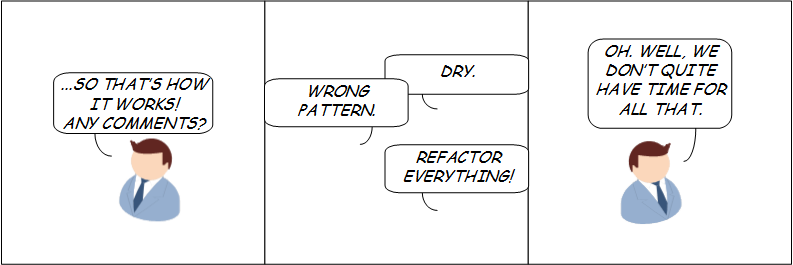
I was watching a webcast about peer review, and it opened my eyes to a huge flaw with both of the processes introduced above: they occur after development is complete. We all know that the earlier a problem is identified, the less costly it is to fix. By waiting until the end of development to do a peer review, we’re ensuring that problems identified by peers will be as costly as possible. Peer reviews can also identify optimizations that could save development time. Refactor that function into a common place so that each class isn’t re-implementing it the same way. Boom, you just saved all the time that would’ve been spent re-implementing that function in subsequent classes. Peer reviews often result in a list of items that need refactoring. If you wait until the end, you’ll have a bigger list that takes more time that is ultimately less likely to be completed.
PeerReview

In addition to the time-saving opportunities, there’s also a human element that comes into play. When I think I’m done with a project, the last thing I want to hear from my peers is everything that’s wrong with what I came up with. In that scenario, I’m more likely to be resistant and defensive to suggestions. You think I should take all this stuff out of those TWENTY classes and move it into a base class? We’re deploying next week–there’s no way we can do that!

Additionally, the presenter in the webcast, Karl Wiegers, pointed out that peer review isn’t–and shouldn’t be–limited to code. The earlier you catch an error, the less costly it is to fix. So why not spend time peer reviewing the requirements document? A missed requirement that comes up late in the development process is usually a mess. Utilizing peer review on the requirements document might save some headaches later. As a bonus, you also introduce the requirements writing process to your peers, potentially adding depth to the team. This helps strengthen the team’s bench because even junior members can become familiar with the process of defining requirements before it becomes necessary for them to do so. The team also benefits from being more familiar with what’s in the pipe, which makes starting new development less of a telephone game.

The final message that I want to leave you with is exactly what the title suggests: peer review early and often. Review requirements documents and they’ll become more consistent, better defined, and knowledge will be shared between team members. Peer review code before it’s done to identify optimizations that can save development time and reduce the need for refactoring later. Peer review designs and test plans to improve quality and grow the team.
Resolutions for 2013!

Ahh, New Year’s Day—life’s sprint planning. We reflect on the year behind and set goals for the year ahead. I’ve not been much of a resolution person in the past. Sure, I’ve made a resolution here and there, but I’ve never written it down or tracked my progress.

I’m going to do it different this year, though. I’ve got the perfect mechanism for documenting and following-up on my resolutions: my trusty blog. I’ll jot down my goals here and follow-up on them next year. Sounds like a recipe for success, eh?

So, without further ado, here’s what I’m resolving to accomplish in 2013.

Personal Goal: Be Healthier

I consider myself to be in “okay” shape. Like most people, I’ve got a few extra pounds to shed, and my eating habits are probably a bit sub-standard. (I can’t help it—I love Whoppers. The Burger King kind.) My goal for this year is to exercise more, make better food choices, and end the year 15 pounds lighter than I am currently.

Resolutions:

  • Run 3 miles each week
  • Manage restaurant portions

Professional Goal: Reform Agile Practices at Work

For years, I’ve felt like we haven’t been doing agile “the right way.” I could point out things here and there that didn’t agree with my vision for how things should work, but I also didn’t have a plan or vision for how to fix it. In the past month or so, I’ve done a lot of agile soul-searching, and I’m committed to making changes that I think need to be made to get us firing on all cylinders. I’m going to create a lean, mean, agile-software-developin’ machine!

Resolutions:

  • Improve the team’s velocity each quarter
  • Maintain a prioritized backlog for the team

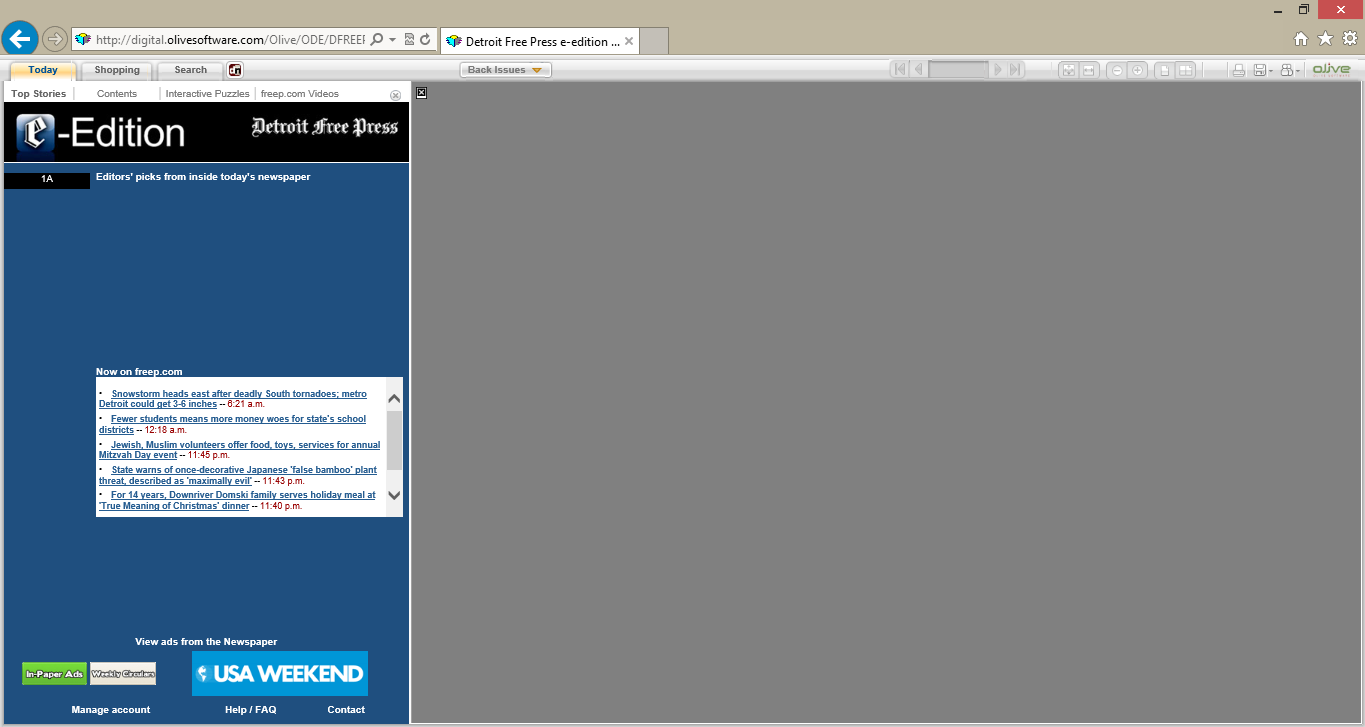
Olive Software e-Editions on Surface RT

Freep_eEdition

I decided to sign up for the newspaper this year, and I’ve really been enjoying it. I’ve said before that I’m a CNN junkie, but you really don’t get a lot of news from CNN. In the mornings, they tend to repeat the same 5-10 minutes worth of stories over and over again–presumably catering to the morning rushers that flip on the TV for a few minutes while they’re getting ready. The newspaper gives you SO MUCH MORE information. It’s really great. If you’re like me and haven’t (hadn’t?) picked up a paper in the last decade, maybe it’s time to give it another shot. But I digress…

Along with the physical paper that comes 3 times a week, I also have access to the paper daily via the e-Edition. But there’s a problem: it doesn’t work on my Surface.

The reason it doesn’t work is because it’s Flash-based. IE10 on Windows RT supports Flash, but sites must be whitelisted. So, my the e-Edition will work fine, but the e-Edition’s vendor, Olive Software, needs to provide code to Microsoft to get themselves on the whitelist. That seems like the easiest solution for Olive, but what I’d really like to see is a Detroit Free Press app in the Windows Store. I’d love to have something similar to the New York Times app with my local, Detroit news.

Surface RT Mutes Itself

While typing on my Surface yesterday, I noticed something unusual: the volume kept muting itself. I’d noticed this before, but I figured I just accidentally hit a button. Yesterday was different, though. The volume muted 3 times in a 15-minute span!

The first thing I did was hit the ‘net. Has anybody else experienced this? Yes, there are a lot of forum posts. People seemed to be pointing the finger at Touch Cover and suggesting that you contact Microsoft for a replacement.

I contacted Microsoft support and was told that replacing the cover was not found to fix the issue. I’m hoping it’s a software issue that can be resolved and pushed out in a hotfix, but I’m skeptical. It does seem to occur primarily when I interact with the keyboard.

It’s not a huge issue since the workaround is to simply unmute it, but it is annoying. If anybody hears about a solution, I’d love to hear!


Triage Android Battery Drain with BetterBatteryStats

I’ve really been digging JellyBean on my Galaxy S2, but the battery life has been a dagger. With my previous Gingerbread ROM, I was easily getting about 1.5-2 days of normal-use on a single charge. Since upgrading to CyanogenMod 10 (Beta 2), I’ve only been getting 8-10 hours, and most of that is standby! I’m never away from a convenient charging location for more than a few hours, so this is more of an annoyance than a deal-breaker, but I’d still like to get it fixed.

I thought that maybe the battery drain had to do with CM10, so I switched to AOKP over the weekend. The good news is that I like it just as much as CM10, but I didn’t really see any improvement in battery life. Using the standard battery details in Android settings, I was able to see that the vast majority of my battery—70 to 80%–was being used by Android OS, but that’s as much detail as you get. That’s not very helpful, and so I turned to BetterBatteryStats.

BetterBatteryStats

Looking at the screenshots, I wasn’t sure how useful the app was going to be. It was also $3, which is pricey fare for the app store. The app was recommended on many-a-forum, though, and I decided to take the plunge. I’m happy I did.

It’s easy to see what’s eating up your battery by looking at the Partial Wakelocks. Right away, I could see that NetworkLocationService was a major culprit. After just a few minutes of googling, I found that this service was linked to the Wi-Fi & Mobile network location setting in Settings > Location Access. I had originally linked this setting just to wi-fi. I knew I should keep wi-fi turned off when I wasn’t using it to conserve battery life, and I (incorrectly) assumed that the location service would be disabled-by-proxy when wi-fi was off. Upon re-reading the setting, it was using mobile data to update my location. Battery life is a much bigger priority to me than location-based services, so I turned off the setting and improved battery life significantly.

A few hours later, I decided to check the battery stats again. This time, it was the GPS. Like wi-fi, I knew that I was supposed to keep GPS turned off to conserve battery life. I got tricked by the fact that the GPS icon in the status bar was only visible for certain apps, though. I turned it off and boom–more battery life.

If you’re experiencing battery woes, I’d give BetterBatteryStats a look. It was well worth the $3 investment for me. In a day of monitoring and tweaking, I’ve gone from under 10 hours to over 20.

Renumber Enums with Regular Expressions

We had a widely-used assembly with an enumeration that did not have explicitly assigned values that was being released from multiple branches and causing problems. In an effort to keep the enumerations synchronized across projects, explicit values were added. The problem is that the values started at 1, whereas the implicit counter starts at 0. The solution is simple: renumber ’em to start at 0. Sounds like a job for regular expressions!

I was really hoping that I could do this using regular expressions in VS2012’s find & replace, but I just couldn’t find a way to implement the necessary arithmetic. After floundering for 15 minutes or so, I decided to just write a simple script in LINQPad. Here’s what I came up with, and it works fantastically.

var filename = @"C:\source\MehType.cs";

var contents = string.Empty;
using (var fs = new FileStream(filename, FileMode.Open))
{
    using (var sr = new StreamReader(fs))
    {
        contents = sr.ReadToEnd();
    }
}

var regex = new Regex(@"(.*?= )(\d+)");
foreach (Match match in regex.Matches(contents))
{
    var num = int.Parse(match.Groups[2].Value);
    contents = contents.Replace(
        match.Value, match.Result("${1}" + --num));
}

using (var fs = new FileStream(filename, FileMode.Create))
{
    using (var sw = new StreamWriter(fs))
    {
        sw.Write(contents);
        sw.Flush();
    }
}

The result is that this…

public enum MehType
{
    Erhmm = 1,
    Glurgh = 2,
    Mfhh = 3
}

…becomes this…

public enum MehType
{
    Erhmm = 0,
    Glurgh = 1,
    Mfhh = 2
}

SkyDrive Desktop App

WelcomeToSkyDrive

Now that I’m all-in on the Surface-Office-SkyDrive solution, I need better access to SkyDrive from my PCs. No problem, there’s a SkyDrive desktop application. Get it here.

It’s everything you want and expect. Installation’s a breeze—just enter your credentials and pick a folder to sync to. Within seconds, the contents of my SkyDrive account was available locally. I can save to the folder, and it uploads automagically. (PS—I just learned that Word recognizes “automagically” as a correctly spelled word. Nice.)

There’s also an option to make any file on the computer available through SkyDrive. I didn’t enable it because I was surprised and got scared, but I might go back and check it out later.

Naming and Capitalization Conventions

CodeSmellz_001_Capitalization

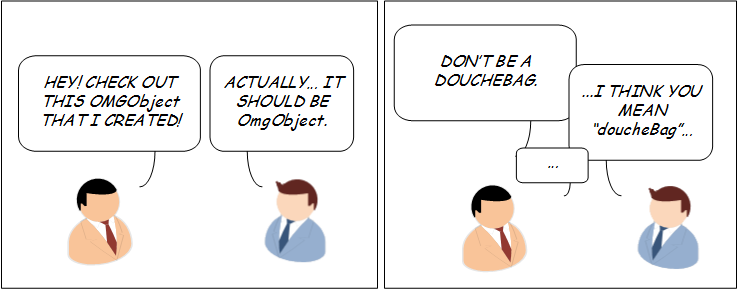
A small group of us were doing a code review, and the topic of capitalization and naming conventions came up. I’m very rigid in my ways, and super anal about making sure everything is correct and consistent. Unfortunately, at work we don’t have any official standards documentation to define the style we use. There are some general patterns that are followed, but some of the more controversial topics–like use of var–are left to the preference of the developer. I knew that MSDN had published naming guidelines, so I dug them up to present to the group. Now when we review code, we can nitpick names and capitalization using the argument that “our standard is to follow Microsoft’s guidance.” That’s good with me!

The specific topic that got us started down this path was capitalization for acronyms, and Microsoft offers three rules for dealing with them:

  1. Do capitalize both characters of two-character acronyms, except the first word of a camel-cased identifier. (e.g., DBRate, ioChannel)
  2. Do capitalize only the first character of acronyms with three or more characters, except the first word of a camel-cased identifier. (e.g., XmlWriter, htmlReader)
  3. Do not capitalize any of the characters of any acronyms, whatever their length, at the beginning of a camel-cased identifier. (e.g., xmlStream, dbServerName)

Ahh, just how I like it.

An additional distinction is made for abbreviations. It advises that, generally, abbreviations should not be used in library names. Two exceptions are noted, though: ID and OK. These are acceptable to use in an identifier name and should follow the same casing rules as regular words. In other words, Id and Ok for Pascal-case and id and ok for camel-case.

While we’re on the topic of capitalization, here’s a list of conventions that I follow in terms of Pascal-case versus camel-case. Violating these rules is a good way to irritate me

  • Class: Pascal
  • Property: Pascal
  • Parameter: Camel
  • Private instance field: Camel, prefixed with “_” (no official guidance; I’m flexible on this one)
  • Public/internal/protected instance field: N/A (use Property instead; read more)
  • Event: Pascal
  • Local variable: Camel
  • Enum types and values: Pascal

What to read more? (I know; I love this stuff, too!) Check out the complete guidance here.

Performance Profiling for Unit Tests

When I first got my hands on Visual Studio 2012, I was trying out every feature I could, new and old alike. I love the new Test Explorer. Code coverage is SO much better than it was before. Code analysis for code clones is a terrific, too. The only thing I wasn’t happy about was performance analysis.

The reason I wasn’t happy with performance analysis is that I couldn’t use it on unit tests. Luckily, Microsoft fixed that with the release of Visual Studio 2012 Update 1. Now you can right-click a test and choose Profile Test to run performance analysis on a single unit test, and it is awesome!

ProfileTest_ContextMenu

When you choose to profile a test, the test runs as usual followed by the analysis. When analysis completes, you’re presented with a summary view that shows you CPU usage over time, the “hot path” call tree—a tree of the most active function calls where most of the work was performed—and a list of functions responsible for doing the most individual work.

ProfileTest_SummaryView

You can find out more and investigate resource spikes by selecting a time range on the graph and filtering. That’s all good and well, but what really blew me away was that you can click on the functions with the most individual work to drill into them. Drill into them? Yea—you’re taken to a view that shows you the selected function, its callers, and the methods it calls. There are percentages that show how much time was taken in each of the three areas (callers, current method, and callees), and you can click into any of the methods displayed to navigate up or down the call stack. The actual code for the current method is also displayed. The only thing that seemed sub-optimal is that I couldn’t edit the code directly; there’s a link to the actual file, though, so you’re only a click away from the editable code file.

ProfileTest_FunctionDetails

There are other, sortable views you can look at, too. You can view a call tree or breakdown by module, and you can get to the same function details view described above from each of those views. It’s a really useful, powerful experience.

Here’s where it gets really nuts, though: add SpecFlow to the mix. SpecFlow lets you write feature-based scenarios that are capable of serving as automated integration tests. The scenarios run like normal unit tests. You can right-click them in the Test Explorer to run performance analysis on them. This means that you can do targeted performance analysis on specific features of your application! To test this out, I sorted my unit tests by execution duration and analyzed the slowest. I was able to find a bottleneck with a caching algorithm used by nearly all of the other modules in the application. Execution time of the 350 unit tests in the project went from 50 seconds to 20. That’s a HUGE improvement from fixing one flaw found from running analysis on one function picked only because it was the most time-consuming in the slowest test.

Good tests are supposed to run quickly, and performance analysis is an invaluable tool to help you triage valuable-but-poor-performing tests. Also, since you’ve got automated tests, you can refactor and optimize the performance of your application with high confidence. If you haven’t used performance analysis before—more specifically, performance analysis for unit tests—give it a shot; I’d be blown away if you didn’t find incredible value.

The Office Apps Store

One of the things that is disappointing about being an early adopter of Windows RT is that the Windows App Store is a bit sparse. This really isn’t any different from what I went through with Windows Phone 7, and I’m not surprised by it. I know the apps are coming—I just want to know when!
So, in an effort to find out when more apps were coming, I was poking around online. I didn’t find what I was looking for, but I did find interesting that might eventually turn into something useful: the Office Apps Store. I say “eventually” because I didn’t see anything that seemed particularly useful right now, but it is a fun idea with lots of possibilities.

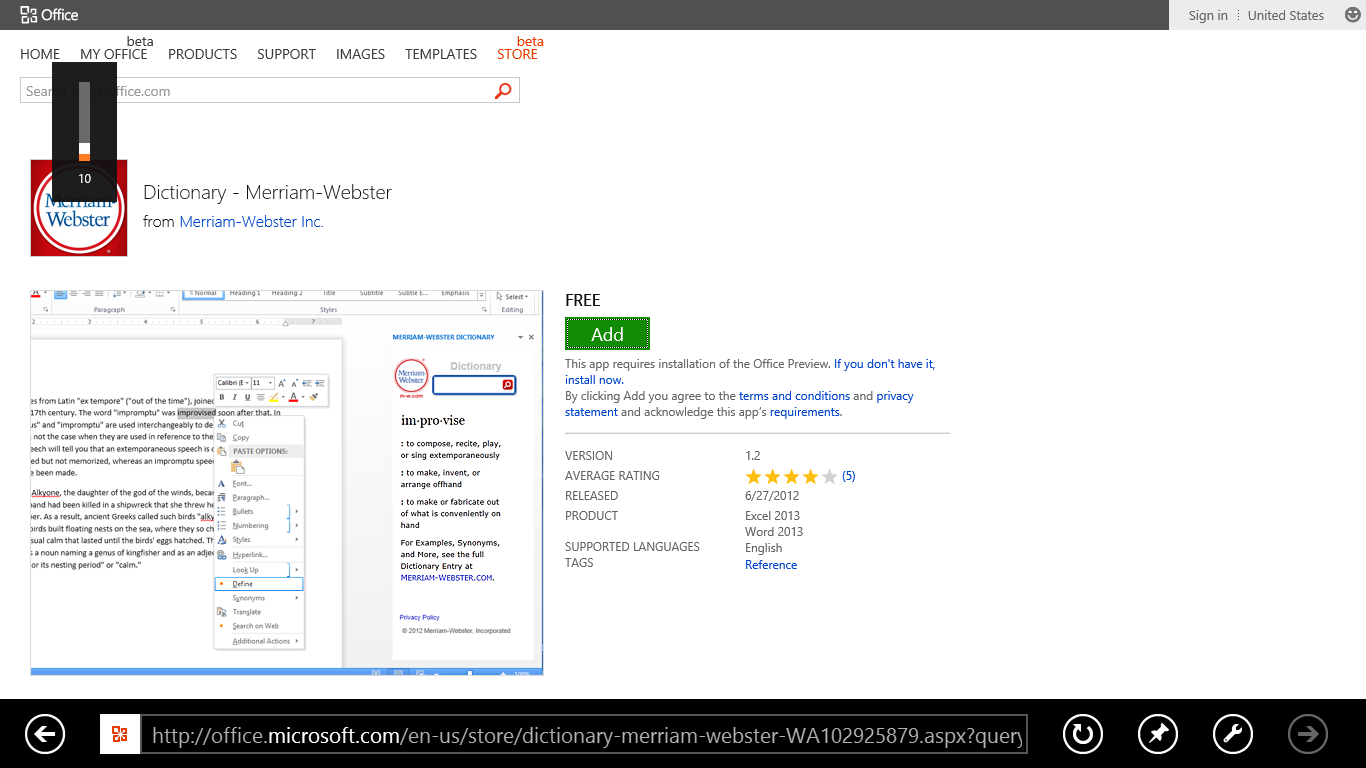
OfficeAppStore_1

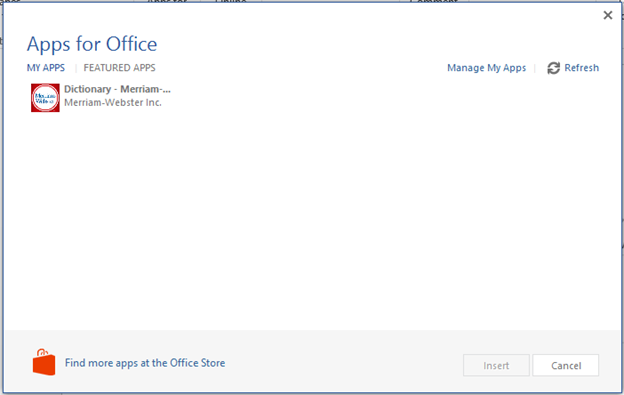
Just to try it out, I installed the Merriam-Webster Dictionary app. Installation is reasonably simple: just click the link from the store, and you’re done. The app is then accessible from the corresponding Office app’s ribbon.

OfficeAppStore_2

There’s nothing revolutionary about the app. It’s a dictionary. You can look up words. But, it works like it should, and I’m happy to have it. I was pleased to find that right-clicking a word and selecting Define looks up the word in the app—that was nice.

OfficeApps_Ribbon

OfficeApps_Dialog

That’s all for now. I’ll be keeping an eye on the store, checking in from time to time. Maybe something cool will turn up! Do you know about a cool Office app? Please share!