Software Developer Advice: Be Reputable!

If you want to have a successful career in software development, I have one very good piece of advice to offer: put your reputation above all else. I imagine this advice translates to other industries, but it’s certainly true in the world of software development. Here are some tips that you can use to help build and maintain a strong reputation as a developer.

Think like a user

Thinking like a user is a wonderful ability for a developer. When you add a piece of functionality, think to yourself, “How would I like this as a user?” Would you want to type in a file path? Probably not. You’d rather have some sort of browse capability that let’s you click through directories to find a file. Would you like browsing to an install directory, opening a config file, and editing XML to change a setting? Doubtful. You want to click a button or pick a menu option in the application to change settings.

I like to say that I “create software that works like software should,” and it’s all about thinking like a user. Users don’t want complicated, unintuitive solutions. They want something that is easy to use, does what it’s supposed to, and looks good. Think like a user, and create great products. Nothing will produce a better reputation than consistently producing great products!

Have higher standards than everybody else

Let’s say you–a customer–have low standards, and I–a developer–have “normal” standards. I give you an application that meets my normal standards. It has some minor bugs, but it’s generally functional. Since you have low standards, you’re probably happy with it, and we have good product satisfaction.

Now let’s say you have higher standards than me. I give you my same, normal-quality application. The previous flaws are now less acceptable, and satisfaction decreases. We get into a situation where satisfaction is mediocre. Easy-to-please customers like it, hard-to-please customers don’t.

If you hold yourself to a higher standard than everybody else, though, it’s likely that you’ll delight users more often than not. When a solution isn’t up to snuff, you need the courage and discipline to put the brakes on. Make sure it meets your standards before handing it off to others, and that brings me to my next point…

Ask for more time

Never, NEVER say development is done before you believe it is. I’ve had discussions with co-workers over the years that go like this: “Managers only care about closing projects. They don’t care about quality or doing it right.” It’s definitely true that managers care about closing projects, and rightfully so–you should, too! I don’t believe they want it happen at the expense of quality, though. If they do, they’re a bad manager, and you need to figure out how to make sure their bad managing doesn’t bring you down. I’d venture to say that 99.99% of managers and customers in the world will prefer a complete/good solution 2 weeks late over a partial/bad one delivered on time. So, when you need more time, you should ask for it.

There are some tricks to asking for more time, though. First and foremost, try to ask before you’ve actually run out of time. Everybody will be annoyed with you if they’re expecting a product on Monday and you tell them on Friday that it won’t be done. On the other hand, if you come to them two weeks before the deadline to request an extra week, it will likely be more well-received. And so comes the next trick: know how much time you need. You won’t be doing yourself favors by extending the deadline, and then extending it again, and then again. When you know you’re not going to finish on time, evaluate the work that needs to be done and estimate how much effort will be required. This will help in your explanation of why you need more time while simultaneously helping to ensure you ask for a sufficient amount of time.

Have integrity

I’m telling you that your reputation is the most important thing you have, but you should never try to protect or improve it by sacrificing honesty or integrity. If you make a mistake, own up to it, and grow from it. In fact, the bigger the mistake, the more important this becomes. Let’s say you introduce a bug that cripples your customers.  Clearly, it would be better to take action, letting everybody know about the critical issue and working to resolve it, rather than letting it be discovered on its own and inevitably traced back to you! Acknowledge that you made a mistake, and do whatever you can to help make it right.

Being open and honest will earn you the respect of your peers, your managers, and your customers. Treat others as you wish to be treated. When I’m asked a question, I answer to the best of my ability, providing accurate information–good or bad–along with relevant supporting details. I respond that way because that’s the type of response I hope to get when I ask a question. If you don’t provide accurate information, you’ll soon find that people don’t care what you have to say.

Closeable Tabs in WPF Made Easy

There are a number of good articles out there about creating closeable tabs in WPF, but they’re very complicated. It shouldn’t be that hard! So, I’m going to try to break it down and make it easy for you.

Here’s what we’re going to do:

  1. Create a new user control for the tab close button
  2. Create a new class that inherits from TabItem
  3. Try it out!

Create a new user control for the tab close button

Add a new UserControl to your project. Since it’s a full-blown UserControl, you can easily style the button however you’d like and add whatever additional code-behind logic you need. The important thing about the control is that it raises a “Close” event that can be handled in our custom TabItem control. You can get fancy with your button, but I wanted to keep it simple for this example so I just used a red button with a white X drawn on it.

XAML:

<UserControl x:Class="adamprescott.net.TabbedDocuments.TabCloseButton"
             xmlns="http://schemas.microsoft.com/winfx/2006/xaml/presentation"
             xmlns:x="http://schemas.microsoft.com/winfx/2006/xaml"
             xmlns:mc="http://schemas.openxmlformats.org/markup-compatibility/2006" 
             xmlns:d="http://schemas.microsoft.com/expression/blend/2008" 
             mc:Ignorable="d" 
             d:DesignHeight="300" d:DesignWidth="300">

    <Button Click="OnClick" Background="Red">
        <Path Data="M1,9 L9,1 M1,1 L9,9" Stroke="White" StrokeThickness="2" />
    </Button>
    
</UserControl>

Code-behind:

namespace adamprescott.net.TabbedDocuments
{
    using System;
    using System.Windows;
    using System.Windows.Controls;

    public partial class TabCloseButton : UserControl
    {
        public event EventHandler Click;

        public TabCloseButton()
        {
            InitializeComponent();
        }

        private void OnClick(object sender, RoutedEventArgs e)
        {
            if (Click != null)
            {
                Click(sender, e);
            }
        }
    }
}

Create a new class that inherits from TabItem

Add a new class to your project that derives from TabItem. My class has a single method, SetHeader. This method accepts the desired header content as an argument and adds it to a collection with our custom close button.

namespace adamprescott.net.TabbedDocuments
{
    using System.Windows;
    using System.Windows.Controls;

    public class CloseableTabItem : TabItem
    {
        public void SetHeader(UIElement header)
        {
            // Container for header controls
            var dockPanel = new DockPanel();
            dockPanel.Children.Add(header);

            // Close button to remove the tab
            var closeButton = new TabCloseButton();
            closeButton.Click +=
                (sender, e) =>
                {
                    var tabControl = Parent as ItemsControl;
                    tabControl.Items.Remove(this);
                };
            dockPanel.Children.Add(closeButton);

            // Set the header
            Header = dockPanel;
        }
    }
}

Try it out!

Now that all the hard stuff is done, let’s make a sample application to test it out. I have a simple Window with a Button and a TabControl. When the button is clicked, a tab is added with a TextBlock header and a TextBlock content. Each tab can be closed by clicking its close button.

XAML:

<Window x:Class="adamprescott.net.TabbedDocuments.MainWindow"
        xmlns="http://schemas.microsoft.com/winfx/2006/xaml/presentation"
        xmlns:x="http://schemas.microsoft.com/winfx/2006/xaml"
        Title="MainWindow" Height="350" Width="525">
    
    <DockPanel>
        <Button DockPanel.Dock="Top" Click="OnPlusTabClick">+Tab</Button>
        <TabControl Name="uxTabs">
        </TabControl>
    </DockPanel>
    
</Window>

Code-behind:

namespace adamprescott.net.TabbedDocuments
{
    using System.Windows;
    using System.Windows.Controls;

    public partial class MainWindow : Window
    {
        public MainWindow()
        {
            InitializeComponent();
        }

        private void OnPlusTabClick(object sender, RoutedEventArgs e)
        {
            // Create the header
            var header = new TextBlock { Text = "Tab!" };
            
            // Create the content
            var content = new TextBlock
            {
                Text = string.Format("Tab numero {0}-o", 
                    uxTabs.Items.Count + 1)
            };

            // Create the tab
            var tab = new CloseableTabItem();
            tab.SetHeader(header);
            tab.Content = content;

            // Add to TabControl
            uxTabs.Items.Add(tab);
        }
    }
}

See? It didn’t have to be that hard!

Create a Button That Doesn’t Look Like a Button With WPF

One of my favorite things about WPF is that you can make controls look like anything you want. You want a button with text? <Button><TextBlock /></Button> You want a button with an image? <Button><Image /></Button>

So, when I was adding closeable tab functionality to my application, I figured it would be a breeze. When I added the button to the tab header, though, something undesirable happened: it looked like a button. I wanted a close button that just looked like an “X,” not the usual 3D Windows button. Luckily, this is easily accomplished through the use of control templates.

Creating a custom button is a two-step process:

  1. Create a ControlTemplate
  2. Apply the template

Here’s a short example of what I did to create a simple “X” close button:

<Window.Resources>
    <ControlTemplate x:Key="buttonTemplate" TargetType="Button">
        <Path Data="M0,0 L8,8 M8,0 L0,8" Margin="5,5,0,0" Stroke="Black" StrokeThickness="3" />
    </ControlTemplate>
</Window.Resources>

<Button Template="{StaticResource ResourceKey=buttonTemplate}" />

This works just fine, but I’ve created a usability problem. When the user sees or interacts with the button, there are no visual indicators that the item is clickable or anything happens when it’s clicked. No problems, though; we can fix these problems with a pair of style triggers.

<Window.Resources>
    <ControlTemplate x:Key="buttonTemplate" TargetType="Button">
        <Path Data="M0,0 L8,8 M8,0 L0,8" Margin="5,5,0,0" StrokeThickness="3">
            <Path.Style>
                <Style TargetType="{x:Type Path}">
                    <Style.Triggers>
                        <Trigger Property="IsMouseOver" Value="False">
                            <Setter Property="Stroke" Value="LightGray" />
                        </Trigger>
                        <Trigger Property="IsMouseOver" Value="True">
                            <Setter Property="Stroke" Value="Red" />
                        </Trigger>
                    </Style.Triggers>
                </Style>
            </Path.Style>
        </Path>
    </ControlTemplate>
</Window.Resources>

<Button Template="{StaticResource ResourceKey=buttonTemplate}" />

Now when you hover over the button, the X turns red. This is the perfect button for my closeable tab.

Unit Test Private Methods in Abstract Classes

I was sharing what I’d learned about unit testing private methods with some co-workers, and the idea of testing a private method of an abstract class was presented.

PrivateObject deals with this handily by allowing you to specify the type being tested in one of its constructors.

Here’s a simple example. Consider we have an abstract class, Mammal, and a derived class, Human.

public abstract class Mammal
{
    private void SecretMammalStuff()
    {
    }
}

public class Human : Mammal
{
}

We can test Mammal’s private method by doing the following:

var human = new Human();
var po = new PrivateObject(human, new PrivateType(typeof(Mammal)));
po.Invoke("SecretMammalStuff");

If we don’t specify the PrivateType argument in the PrivateObject constructor, we’re not able to access the base class’s private methods. This is the key to testing private methods in an abstract class.

Retrieve Active Directory User Photos in C#

Newer versions of Office (2010+) use Active Directory to retrieve and display user photos. It’s a useful feature that also adds visual interest. I can look quickly at the thumbnails at the bottom of an email or meeting request in Outlook to see who’s invited; this is much faster than reading through the semi-colon delimited list of email addresses.

I’m working on a TFS application that has some custom views. I thought it would be cool to display the user as a thumbnail instead of simply using their name. Doing this will add some pizzazz and, ultimately, result in a cleaner UI since vertical space is more abundant in my layout–it is less costly for me to show a 50×50 thumbnail than to display a 20×100 textbox.

So how do we do it? Like many tasks, the .NET Framework makes it relatively easy for us once we know what we’re doing. Here are the steps:

  1. Bind to a node in Active Directory Domain Services with the DirectoryEntry class
  2. Use the DirectorySearcher class to specify a search filter and find the desired user
  3. Extract the image bytes from the user properties
  4. Convert the bytes to a usable format

The method below accepts a username parameter, looks it up in AD, and binds the thumbnail to an Image. (Note that this is a WPF application, which is why I convert to the BitmapImage class. You may want to convert to a different type, like System.Drawing.Bitmap.)

private void GetUserPicture(string userName)
{
    var directoryEntry = new DirectoryEntry("LDAP://YourDomain");
    var directorySearcher = new DirectorySearcher(directoryEntry);
    directorySearcher.Filter = string.Format("(&(SAMAccountName={0}))", userName);
    var user = directorySearcher.FindOne();

    var bytes = user.Properties["thumbnailPhoto"][0] as byte[];

    using (var ms = new MemoryStream(bytes))
    {
        var imageSource = new BitmapImage();
        imageSource.BeginInit();
        imageSource.StreamSource = ms;
        imageSource.EndInit();

        uxPhoto.Source = imageSource;
    }
}

Rotate an Image in WPF Using Just XAML

One of the things that came along with WPF was the ability to create animations declaratively in XAML. I wanted to create a working-in-the-background spinner for a WPF application I was working on, and I thought that it would be a breeze with such powerful capability. However, I had a surprisingly difficult time finding a nice, simple example on the internet!

After a lot of looking and a bit of tinkering, I was able to come up with a solution that I’m mostly satisfied with. It’s a little more verbose than I was hoping for, but it’s still a XAML-only solution, which is what I was ultimately seeking.

Some notes about the solution:

  • The CenterX and CenterY properties of the RotateTransform element must be half of the image to make it rotate around the center of the image. My image is 24×24, so the X and Y centers are 12 and 12, respectively.
  • The DoubleAnimation will run on an infinite loop from angle 0 to 360 over a 1 second duration.
  • The storyboard will be active while the image’s IsEnabled property is set to True.
<Image Source="gear_24x24.png" Height="24">
    <Image.RenderTransform>
        <RotateTransform CenterX="12" CenterY="12" />
    </Image.RenderTransform>
    <Image.Style>
        <Style>
            <Style.Triggers>
                <Trigger Property="Image.IsEnabled" Value="True">
                    <Trigger.EnterActions>
                        <BeginStoryboard>
                            <Storyboard>
                                <DoubleAnimation
                                    Storyboard.TargetProperty="RenderTransform.Angle"
                                    From="0"
                                    To="360"
                                    Duration="0:0:1"
                                    RepeatBehavior="Forever" />
                            </Storyboard>
                        </BeginStoryboard>
                    </Trigger.EnterActions>
                </Trigger>
            </Style.Triggers>
        </Style>
    </Image.Style>
</Image>

You could also extract the animation code away into a resource. This will improve reusability and keep your XAML cleaner if you have multiple spinners, but it’s more of a preference when dealing with a single spinner.

<Window.Resources>
    <Style x:Key="Spinner" TargetType="Image">
        <Setter Property="Height" Value="24" />
        <Setter Property="Image.RenderTransform">
            <Setter.Value>
                <RotateTransform CenterX="12" CenterY="12" />
            </Setter.Value>
        </Setter>
        <Style.Triggers>
            <Trigger Property="IsEnabled" Value="True">
                <Trigger.EnterActions>
                    <BeginStoryboard>
                        <Storyboard>
                            <DoubleAnimation 
                                        Storyboard.TargetProperty="RenderTransform.Angle" 
                                        From="0" 
                                        To="360" 
                                        Duration="0:0:1" 
                                        RepeatBehavior="Forever" />
                        </Storyboard>
                    </BeginStoryboard>
                </Trigger.EnterActions>
            </Trigger>
        </Style.Triggers>
    </Style>
</Window.Resources>

<Grid>
    <Image Source="gear_24x24.png" Style="{StaticResource Spinner}" />
</Grid>

This solution is based on this post.

Unit Testing and Private Methods

So you’re a TDD developer.  You code along merrily, writing failing unit tests, implementing them to a point of success, and then you refactor. But then, with no notice–WHAM–a private method. Now what!?

There are different schools of thought for this scenario. One camp says that if it’s not publicly exposed, you shouldn’t be testing it. I think that’s valid, but it’s equally valid to write test code for private methods. Just because a method’s private doesn’t mean it doesn’t deserve the same special attention. And just because I want to test a method that happens to be private doesn’t mean I want to expose it to the rest of the world! Let’s not worry about the debate for now. I’m going to show you how you can override private methods with Microsoft Fakes and how call private methods with Microsoft.VisualStudio.TestTools.UnitTesting.PrivateObject.

Override private methods

Problem: You have a private method with behavior that’s disruptive to unit testing. Regardless of the cause of the disruption, you want to provide an alternate implementation.

Solution: Use Microsoft Fakes to shim the private method. (Need to know more about Fakes? Check out my tutorial!)

Here’s how you can do it:

  1. Create an instance of your class
  2. Create a shim from  your class
  3. Override the private method on the shim
  4. Invoke the test method

Here’s a code example:

[TestMethod]
public void SecretMethod_FunctionalityIsOverridden()
{
    using (ShimsContext.Create())
    {
        var target = new FileReader("foo");
        var shim = new ShimFileReader(target);

        bool calledShimMethod = false;
        shim.SecretMethod = () => 
        {
            calledShimMethod = true;
            return "bar";
        };

        target.Read();

        Assert.IsTrue(calledShimMethod);
    }
}

Call private methods

Problem: You want to test a private method, but you can’t because it’s private.

Solution: Use Microsoft Test Framework’s included PrivateObject class.

The only thing I don’t like about PrivateObject is that it (presumably) uses reflection for method names, which means method names will be coded as strings with no compile-time checks. It’s very easy to use, though, and if you need to invoke a private method, I haven’t seen a better way to do it!

Here are the steps:

  1. Create an instance of your class
  2. Create a PrivateObject from your class
  3. Use the PrivateObject‘s Invoke method

And here’s the code:

[TestMethod]
public void SecretMethod_ReturnsHumorousMessage()
{
    var target = new FileReader("foo");
    var privateObject = new PrivateObject(target);
    var actual = privateObject.Invoke("SecretMethod");

    Assert.IsNotNull(actual);
}

Putting it all together (useless, but fun!)

I was able to verify both of these capabilities by writing a single unit test that overrides the private method, then calls the private method. Check it out:

[TestMethod]
public void SecretMethod_FunctionalityIsOverridden()
{
    using (ShimsContext.Create())
    {
        var target = new FileReader("foo");
        var shim = new ShimFileReader(target);

        // override the private method
        bool calledShimMethod = false;
        shim.SecretMethod = () => 
        {
            calledShimMethod = true;
            return "bar";
        };

        // call the private method
        var privateObject = new PrivateObject(target);
        var actual = privateObject.Invoke("SecretMethod");

        // assert that calling the private method
        // used the overridden implementation
        Assert.IsTrue(calledShimMethod);
    }
}

Get Work Item Hyperlinks from the TFS SDK

So you’ve created an awesome application that uses the TFS SDK to do all kinds of amazing and interesting data access, but it sure would be nice if you could click on a work item and open it in Team Web Access. You’d think this would be easily accomplished by appending “id=123” to the end of a query string. It’s not quite that straightforward, but the TFS SDK makes it pretty simple.

Here’s what you need to do:

  1. Add the appropriate TFS SDK references
    • Microsoft.TeamFoundation.Client
    • Microsoft.TeamFoundation.Common
    • Microsoft.TeamFoundation.WorkItemTracking.Client
  2. Instantiate a TfsTeamProjectCollection
  3. Retrieve the hyperlink service from the team project collection object
  4. Retrieve the hyperlink from the hyperlink service by providing a work item ID

Here’s what the code will look like:

var tpc = new TfsTeamProjectCollection(
    new Uri("http://OurTfsServer:8080/tfs/OurCollection"));
var linkService = tpc.GetService();
var uri = linkService.GetWorkItemEditorUrl(workItemId);

Regular Expression Searching in Visual Studio 2012

One of the recurring themes throughout the enhancements made in Visual Studio 2012 is improved searching. There are search boxes everywhere: in the title bar, in Solution Explorer, in Test Explorer… Everywhere!

In addition to making searches more accessible, they’ve also improved and simplified support for regular expressions. Regular expression searching is something that seemed like it existed in earlier version of Visual Studio, but they used their own, custom syntax which made it difficult and unintuitive to use.

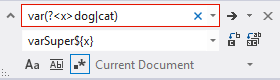
In Visual Studio 2012, regular expression searching is extremely easy–relatively speaking–to use and very intuitive. When you press CTRL+F to bring up the search window, there’s a regular expression toggle button. Click the button, and your search criteria will be interpreted as a regular expression.

That’s all good and well, but what’s really cool is that you can use capture groups for finding and replacing. How many times have you had to go through a file making the same change based on a pattern over and over again?

Here’s an example of finding/replacing with regular expressions and capture groups:

Find:    var(?<x>dog|cat)
Replace: varSuper${x}

Will replace "vardog", "varcat", "varDOG"
With "varSuperdog", "varSupercat", "varSuperDOG"
But not replace "var dog" or "dog"

How cool is that!?

Read more about using regular expressions in Visual Studio here.


BDD in .NET with SpecFlow

Yesterday, I was invited to sit in on a demo/discussion about behavior-driven development (BDD) with SpecFlow. As a self-proclaimed unit test enthusiast, I was excited right away.

I’ve been doing my own, made-up version of BDD for a while. For example, I would have a function that calls several sub-methods. I’d mock the sub-methods and write tests to verify that the sub-methods were called. Then I’d move to the next “layer” by implementing the sub-methods in a similar fashion, repeating until I hit the bottom layer, where the actual work happens.

The problem with that approach is that all tested behaviors relate to the code and not business requirements or real-world scenarios. SpecFlow fixes that by using a Gherkin parser, allowing you to write test scenarios using business-readable, domain-specific language instead of code.

Here’s how you can get started with SpecFlow and Visual Studio. This tutorial is basically a modified version of the Project Setup Guide on the SpecFlow site. I ran into a couple issues with their tutorial, though, and their tutorial also doesn’t get much into implementing the application logic to fix unit tests once they’re generated.

Installing SpecFlow

SpecFlow is included in the Visual Studio Extensions Gallery, so installing it is a breeze.

  1. Open Visual Studio, and go to Tools > Extensions and Updates (Extension Manager in VS2010)
  2. Select the Online gallery
  3. Search for “SpecFlow”
  4. Install it!

Nice, now you’re ready to create your first test project.

Creating your first test project

SpecFlow tests are defined as “features” that have multiple scenarios. There is a small amount of project setup that needs to be done, but it’s not too bad and you can be up and running in just a few minutes.

  1. In Visual Studio, create a new Unit Test Project
  2. Install SpecFlow via NuGet
    • PM> Install-Package SpecFlow
    • I had to manually add the unit test provider to my app.config:
      <?xml version="1.0" encoding="utf-8"?>
      <configuration>
        <configSections>
          <section name="specFlow" type="TechTalk.SpecFlow.Configuration.ConfigurationSectionHandler, TechTalk.SpecFlow" />
        </configSections>
        <specFlow>
          <unitTestProvider name="MsTest" />
        </specFlow>
      </configuration>
      
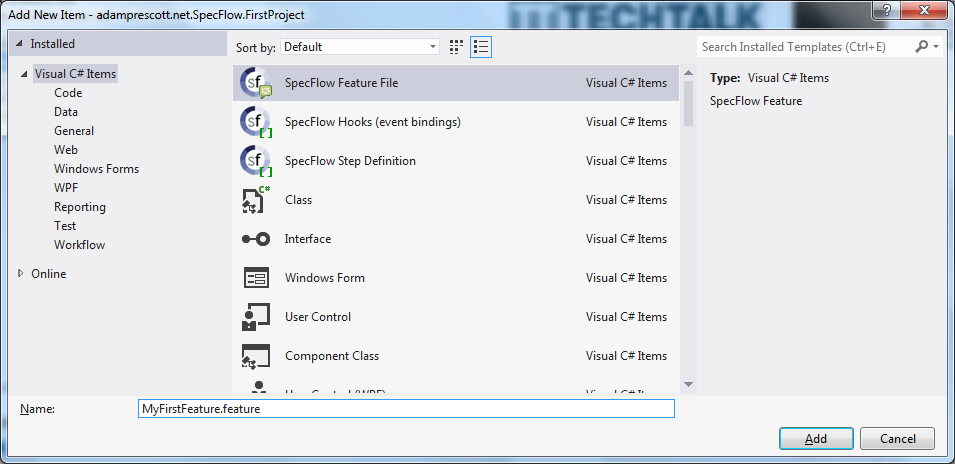
  3. Add a SpecFlow Feature to your project
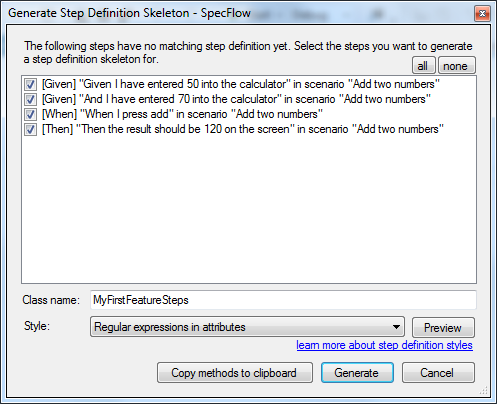
  4. Generate Step Definitions by right-clicking in your newly created feature file

  5. Run your scenario by right-clicking in the feature file

    • Right-clicking in the feature and choosing Run SpecFlow Scenarios produced an error for me; I’ll be looking into this
    • I instead ran the unit tests as usual, and that worked fine
  6. Implement your code/step definitions until you have a passing test
    • I added my class-to-be-tested to the same file as my step definitions for brevity
      namespace adamprescott.net.SpecFlow.FirstProject
      {
          using Microsoft.VisualStudio.TestTools.UnitTesting;
          using System.Collections.Generic;
          using System.Linq;
          using TechTalk.SpecFlow;
      
          public class AddingMaching
          {
              private List<int> _numbers = new List<int>();
              private int _sum;
      
              public int Screen
              {
                  get { return _sum; }
              }
      
              public void EnterNumber(int num)
              {
                  _numbers.Add(num);
              }
              public void PressAdd()
              {
                  _sum = _numbers.Sum();
              }
          }
      
          [Binding]
          public class MyFirstFeatureSteps
          {
              private AddingMaching _addingMachine;
      
              public MyFirstFeatureSteps()
              {
                  _addingMachine = new AddingMaching();
              }
      
              [Given(@"I have entered (.*) into the calculator")]
              public void GivenIHaveEnteredIntoTheCalculator(int p0)
              {
                  _addingMachine.EnterNumber(p0);
              }
      
              [When(@"I press add")]
              public void WhenIPressAdd()
              {
                  _addingMachine.PressAdd();
              }
      
              [Then(@"the result should be (.*) on the screen")]
              public void ThenTheResultShouldBeOnTheScreen(int p0)
              {
                  Assert.AreEqual(p0, _addingMachine.Screen);
              }
          }
      }
      
    • The example shows a simple AddingMachine class with implemented steps to pass the default feature scenario
      Feature: MyFirstFeature
      	In order to avoid silly mistakes
      	As a math idiot
      	I want to be told the sum of two numbers
      
      @mytag
      Scenario: Add two numbers
      	Given I have entered 50 into the calculator
      	And I have entered 70 into the calculator
      	When I press add
      	Then the result should be 120 on the screen
      

That’s it! Now you should have a passing unit test that verifies the business-language requirement. You can add more scenarios to your feature file with different values and/or steps. Note that if you add more steps, you’ll probably need to re-generate step definitions. When you do this, only new step definitions will be generated. I recommend using the Copy methods to clipboard button in the Generate Step Definitions dialog to avoid overwriting the previously created and implemented step definitions.