Calculated Fields in Excel Pivot Tables

Pivot tables in Excel are awesome. I love them. Drag, drop, slice, and dice data in seconds. Create charts and graphs. Amaze your friends. It’s all about the pivot tables, baby!

Occasionally, you need more than just the data, though. You need to know the difference between two numbers, or the percentage of one number relative to another. This is where Calculated Fields come into play. I haven’t had a huge need for them in my previous pivot tabling, so I never really knew about them. When I needed a calculated field, I would create a column with the calculation I needed in my source data, and that worked fine.

Today, though, I accidentally discovered Calculated Fields, and they are sweet. All you need to do to create a Calculated Field is click on the Fields, Items, & Sets menu in the pivot table ribbon, and select Calculated Fields…. This will open a new dialog box that allows you to create a named field generated from a formula you create from the already-available pivot table fields.

Once created, your Calculated Field is available in the Pivot Table Fields list for you to use as data in your pivot table!

A “Shim-ple” Tutorial With Microsoft Fakes

I’ve written previously about using Rhino Mocks to write unit tests for hard-to-test code, but with the release of Visual Studio 2012 comes a new way to work around those not-so-test-friendly areas: Microsoft Fakes. For those of you familiar with Microsoft Research’s Moles project, Microsoft Fakes is simply the next version. Fortunately, Microsoft decided this offering was valuable enough to be included in the latest version of Visual Studio.

What is Fakes, you might be grammatically-awkwardly asking yourself. If I had to describe Microsoft Fakes in a sentence, I’d say this: Microsoft Fakes allows you to intercept any method call and provide a substitute implementation, including calls to static and non-virtual methods. Sounds powerful, right? Well, it is.

Getting started with MS Fakes is refreshingly easy, too. The integration with Visual Studio allows you to skip the hard parts and get right to the meat: hooking up the fakes to work with the code you’re testing. This post will show you how to write a unit test for a simple FileReader class that has a single Read method that–you guessed it–reads a file. I’ll walk you through the entire process from scratch to hopefully avoid any confusion. So let’s do it!

  1. Open Visual Studio 2012
  2. Create a new Visual C# Class Library project
  3. Create the FileReader class:
    namespace adamprescott.net.FakesTutorial
    {
        using System.IO;
    
        public class FileReader
        {
            private readonly string _path;
            public FileReader (string path)
    	    {
                _path = path;
    	    }
    
            public string Read()
            {
                using (var fs = new FileStream(_path, FileMode.Open))
                {
                    var sr = new StreamReader(fs);
                    return sr.ReadToEnd();
                }
            }
        }
    }
    
  4. Add a new Unit Test Project to the solution
  5. Add a reference to the Class Library project from the Unit Test Project
  6. Create the fakes assembly by right-clicking System in the Unit Test Project’s References and selecting “Add Fakes Assembly”
  7. Create the FileReaderTest class:
    namespace adamprescott.net.FakesTutorial.Tests
    {
        using Microsoft.VisualStudio.TestTools.UnitTesting;
    
        [TestClass]
        public class FileReaderTest
        {
            [TestMethod]
            public void TestMethod1()
            {
                using (Microsoft.QualityTools.Testing.Fakes.ShimsContext.Create())
                {
                    // Arrange
                    const string path = "irrelevant";
                    const string expected = "contents";
                    var target = new FileReader(path);
    
                    // shim the FileStream constructor
                    System.IO.Fakes.ShimFileStream.ConstructorStringFileMode =
                        (@this, p, f) => {
                            var shim = new System.IO.Fakes.ShimFileStream(@this);
                        };
    
                    // shim the StreamReader constructor
                    System.IO.Fakes.ShimStreamReader.ConstructorStream =
                        (@this, s) => {
                            var shim = new System.IO.Fakes.ShimStreamReader(@this) {
                                // shim the ReadToEnd method
                                ReadToEnd = () => expected
                            };
                        };
    
                    // Act
                    var actual = target.Read();
    
                    // Assert
                    Assert.AreEqual(expected, actual);
                }
            }
        }
    }
    
  8. Run the test, and feel great about yourself!

There are a few important things to note about the use of Fakes in the test above. First, the fakes are wrapped in a ShimsContext. This makes sense since you’re intercepting system calls; you don’t want to accidentally affect other areas being tested outside of your test. Next, note that I’m using fakes to override two different constructors. I needed to override FileStream‘s constructor to open the file and StreamReader‘s constructor to read the file. In the StreamReader shim, I also provide a shim for the ReadToEnd method and configure it to return the fake text for my test. I probably could have opted to shim just FileStream, but the faking might be less straightforward since success would rely on knowing exactly which methods StreamReader will use when ReadToEnd is called.

For more information about getting started with Microsoft Fakes, check out this article at MSDN.

5 New Features I’m Looking Forward to in Visual Studio 2012

Last week, I attended a GANG meeting where Randy Pagels gave a presentation about what’s new in Visual Studio 2012. Prior to this, I had skimmed through the product guide, and I was expecting to see some nice new features. I didn’t expect to be blown away, but I left the meeting feeling completely geeked about the new version. And, since the RTM version was made available to MSDN subscribers last week, I wasted no time in getting it installed.

So what has me so stoked? Here’s a breakdown of the top 5 features that have me drooling:

  1. Code reviews
  2. Simplified code coverage (no more instrumenting DLLs!)
  3. Suspend/resume work
  4. Quick Launch
  5. Object Browser integration into Solution Explorer

I’ve only used VS2012 for a day or two now, and I haven’t had enough exposure to give an in-depth overview of these new features, yet. Unfortunately, the two that I’m most excited about–the new code review workflow and suspend/resume work–require a TFS upgrade, so I won’t be able to really test them until our IT department does that. I’m looking forward to using the other three right away, though!

Read more about What’s New in Visual Studio 2012 on MSDN.

Best Browser for Low Resource Computer

My wife and I keep a netbook in our living room for lightweight, everyday computing. It is used almost exclusively for checking email and general internet browsing. The specs on the netbook, like most netbooks, are not terribly impressive: 1.66 GHz CPU, 1 GB RAM. It’s been a good, little computer, but recently the performance has become a problem.

My wife and I both use Chrome as our primary browser. When I pick up the computer, and there are a bunch of tabs left open by my wife, I leave them open under the assumption that they were left open intentionally, and my wife gives me the same courtesy. I know that Chrome runs each tab as a separate process, and I suspected that the large number of tabs that were frequently open might have been causing our performance woes. I decided to do some resource testing with each of browsers installed on the netbook: Internet Explorer 9, Chrome, Firefox, and Safari.

For my test, I opened each browser with three tabs and browsed to my Gmail inbox with each. I wanted to see how many processes were created by doing this and how much total memory was used by each browser in doing so.

  • Chrome: 5 processes (for 3 tabs), ~40K memory each
  • Internet Explorer: 3 processes, ~30K memory each
  • Firefox: 1 process, ~115K memory
  • Safari: 2 processes (for 3 tabs), ~20K memory
    • …but also WebKit2WebProcess.exe: 1 process, ~120K memory

So, my hypothesis is that Chrome is actually the worst browser to use on a low resource machine since it spawns the most processes and uses the most memory per process. Internet Explorer and Firefox seem like they may be a push. My guess is that Firefox will outperform IE on a low-end machine since there is only a single process, but I have not tested this or even spent much time thinking about it. Safari seems like the wild card in the equation. It uses the least amount of memory per process, but it relies on the separate WebKit2WebProcess process which seemingly offsets the per-process memory savings.

This article seems to support my claim, stating that Firefox is the best choice for users with less than 2 GB of RAM. That article linked to another article on the same site about reducing Chrome’s memory usage, which would obviously improve Chrome’s performance on low-end hardware.

What the Best Developers Have in Common

I stumbled upon an interesting article this morning about the thing the best (and worst) programmers all have in common: their work environments. The study was conducted by giving an assignment to over 600 developers across 92 different companies. Each participant had a partner from the same organization, but they were not allowed to speak to each other about their assignments.

Here’s a summary of the results:

  • The best participants outperformed the worst by a ratio of 10:1
  • The top performers were 2.5 times better than the median
  • Experience, salary, and time spent completing the assignment had little correlation to outcome
  • Programmers who turned in “zero-defect” work took slightly less time than those who made mistakes

The interesting part of the study is that “programmers from the same companies performed at more or less the same level, even though they hadn’t worked together.” I found that to be fascinating. It makes sense, though. Essentially, developers are a product of their environment. A low-performing environment will produce low-performing developers. Good developers on bad teams will either improve their team or move on to a better team. Bad developers on good teams will not be tolerated and will be bumped (fired/transferred) to a lower-performing team that’s more tolerant of or suited to their lesser ability.

The message I got out of this is to not accept being a member of a poor performing team, or you fill find that you’ve become a poor performing developer. Steps must be taken to improve the team. This can really be done in one of two ways: help the team overcome its shortcomings or find a new team.

Office 2013 Preview Display Issues Resolved!

I’ve been using Office 2013 Preview since last week, and I’ve been generally happy with it. There have been a number of quirky display issues that have had me seriously considering reverting back to 2010, though. Scrollbars weren’t displaying properly, drop-down picklists weren’t showing up; there weren’t significant issues, but they were definitely usability problems.

I was sitting in on an educational lecture this morning and figured I’d use the time to install some updates. I’m currently using a Lenovo W510 laptop, and I run the Lenovo System Update utility from time to time to grab the latest drivers and system software. After installing several updates, all my Office 2013 display problems were resolved!

I can only speculate which update is responsible for fixing these issues, but I thought I’d include the list from my installation history in case others are experiencing similar display problems. (Click the image to see full size.)


Additional system info: Win7 64-bit, Office 2013 Preview 32-bit

A Simple WCF Service Callback Example

I’ve done a lot with WCF services over the past few years, but I haven’t done much with callbacks. I wanted to write a simple application to understand and demonstrate how a callback service works in WCF. The example described below was implemented in a single solution with two console application projects, one client and one server.

Create the server

The first thing we’ll do is create and host our WCF service. This will be done in five short steps:

  1. Create the service contract
  2. Create the service callback contract
  3. Create the service implementation
  4. Modify the endpoint configuration
  5. Host the service

To create the service contract, service implementation, and default endpoint configuration, you can use Visual Studio’s menu to choose Add New Item > Visual C# Items > WCF Service. I named my service MyService, and so my service contract is called IMyService. Visual Studio creates the service contract with a single method, DoWork. I decided that I wanted my service to have two methods: OpenSession and InvokeCallbackOpenSession will be used by the server to store a copy of the callback instance, and InvokeCallback will be used to trigger a callback call to the client from the client.

Here’s my complete IMyService contract:

using System.ServiceModel;

namespace CallbackService.Server
{
    [ServiceContract(CallbackContract = typeof(IMyServiceCallback))]
    public interface IMyService
    {
        [OperationContract]
        void OpenSession();
    }
}

Note that the service contract indicates the callback contract in its attribute. The callback contract, IMyServiceCallback, will have a single method, OnCallback. Here is the complete IMyServiceCallback interface:

using System.ServiceModel;

namespace CallbackService.Server
{
    public interface IMyServiceCallback
    {
        [OperationContract]
        void OnCallback();
    }
}

The third step requires us to implement our service. When OpenSession is called, I create a timer that will invoke the callback once per second. Note the ServiceBehavior attribute that sets the ConcurrencyMode to Reentrant. If you do not change the ConcurrencyMode to Multiple or Reentrant, the channel will be locked and the callback will not be able to be invoked. Here is the complete MyService implementation:

using System;
using System.ServiceModel;
using System.Timers;

namespace CallbackService.Server
{
    [ServiceBehavior(ConcurrencyMode = ConcurrencyMode.Reentrant)]
    public class MyService : IMyService
    {
        public static IMyServiceCallback Callback;
        public static Timer Timer;

        public void OpenSession()
        {
            Console.WriteLine("> Session opened at {0}", DateTime.Now);
            Callback = OperationContext.Current.GetCallbackChannel<IMyServiceCallback>();

            Timer = new Timer(1000);
            Timer.Elapsed += OnTimerElapsed;
            Timer.Enabled = true;
        }

        void OnTimerElapsed(object sender, ElapsedEventArgs e)
        {
            Callback.OnCallback();
        }
    }
}

When we added the new WCF service to the project, Visual Studio added the default endpoint configuration to the app.config. By default, wsHttpBinding is used as the binding. We want to change it to use wsDualHttpBinding which supports two-way communication. I also changed the URL to be friendlier, but that is not necessary. Here’s my final app.config:

<?xml version="1.0" encoding="utf-8" ?>
<configuration>
  <system.serviceModel>
    <behaviors>
      <serviceBehaviors>
        <behavior name="">
          <serviceMetadata httpGetEnabled="true" />
          <serviceDebug includeExceptionDetailInFaults="false" />
        </behavior>
      </serviceBehaviors>
    </behaviors>
    <services>
      <service name="CallbackService.Server.MyService">
        <endpoint address="" binding="wsDualHttpBinding" contract="CallbackService.Server.IMyService">
          <identity>
            <dns value="localhost" />
          </identity>
        </endpoint>
        <endpoint address="mex" binding="mexHttpBinding" contract="IMetadataExchange" />
        <host>
          <baseAddresses>
            <add baseAddress="http://localhost:8090/CallbackService.Server/MyService/" />
          </baseAddresses>
        </host>
      </service>
    </services>
  </system.serviceModel>
</configuration>

The final step is to simply host the service. Since my server is a console application, I do this in the Program.Main method. Here is the complete class:

using System;
using System.ServiceModel;

namespace CallbackService.Server
{
    class Program
    {
        static void Main(string[] args)
        {
            var host = new ServiceHost(typeof(MyService));
            host.Open();
            Console.WriteLine("Service started at {0}", DateTime.Now);
            Console.WriteLine("Press key to stop the service.");
            Console.ReadLine();
            host.Close();
        }
    }
}

Create the client

With the server complete, creating the client is a breeze. We’ll complete the client in just three steps:

  1. Add a service reference
  2. Implement the callback class
  3. Create the client proxy

To add the service reference, you must have the service running. I did this by simply running the server executable outside of Visual Studio. You can copy the URL from the server’s app.config. Right-click References in your client project, choose Add Service Reference, and paste the URL. I named my service reference MyServiceReference.

The service reference pulls in IMyServiceCallback, which will allow us to create our callback class. To do this, just add a new, empty class to the project. I named my class MyServiceCallback, and when the callback is invoked, it just writes a line to the console. Here is the complete implementation:

using System;
using CallbackService.Client.MyServiceReference;

namespace CallbackService.Client
{
    public class MyServiceCallback : IMyServiceCallback
    {
        public void OnCallback()
        {
            Console.WriteLine("> Received callback at {0}", DateTime.Now);
        }
    }
}

The client application is also a console application, so creating and using the proxy client will occur in its Program.Main. I added a pause to allow the server time to host the service, and then I invoke the remote procedure OpenSession. This will trigger the service to begin executing callbacks to the client application every second, resulting in a line written to the console. Here’s is the contents of my Program.cs:

using System;
using System.ServiceModel;

namespace CallbackService.Client
{
    class Program
    {
        static void Main(string[] args)
        {
            Console.WriteLine("Press enter to continue once service is hosted.");
            Console.ReadLine();

            var callback = new MyServiceCallback();
            var instanceContext = new InstanceContext(callback);
            var client = new MyServiceReference.MyServiceClient(instanceContext);
            client.OpenSession();

            Console.ReadLine();
        }
    }
}

Conclusion

And that’s all there is to it! This is clearly a simple, unorganized example with few complexities, but it demonstrates the core functionality provided by callbacks in WCF services. This capability allows for push updates and other real-time communication between client and server, and it really opens a world of possibilities. This is certainly a welcome option in my ever-growing development toolbox!

The Art of Agile Story Writing

Prioritizing user stories

Some of the core concepts of agile software development methodology revolve around converting business requirements into stories that can be tasked out and scheduled into iterations. Without good stories, development efforts can be severely hindered, and the development team’s performance will be less predictable. When the team consistently fails to complete stories and deliver on commitments, a cultural problem is presented.

I’m making the claim that complete, well-written stories are the backbone of a successful agile team. Coming up with these stories is something that teams I’ve been a part of have struggled with for many years, and I think the trouble has primarily come from two things: not understanding what constitutes a good story and not enough design time. We would have poorly written stories with no acceptance criteria handed off prematurely to developers. The developers are then faced with an uphill struggle. Assumptions and guesses are made and the lack of acceptance criteria gives no safety net.

In order to write a good story, you must first understand what the story must provide. Here are the key characteristics of a good story:

  • Describes the business need or value provided
  • Verifiable acceptance criteria
  • Complete-able within a single iteration/sprint

Describing the business need is important for several reasons. First, talking in terms of the business instead of specific implementation details or developer-speak will help when communicating with the non-developer stakeholders. It also keeps you from locking into a specific implementation. I was recently on a requirements gathering trip with my manager. My developer mind instantly jumped into how we’ll do it instead of what we’re doing. The next day, I came up with a better way of accomplishing the what. If we’d gone forward and made the implementation details part of the requirements, it would be a bigger hassle to change those details later in the development process. It was this moment that really opened my eyes to the importance of focusing on the business requirements when gathering requirements and resisting the urge to document implementation details as requirements.

Verifiable acceptance criteria is, perhaps, the most important aspect of a good story. With a complete list of acceptance criteria that can be verified, a developer will be able to overcome any other story shortcomings. The criteria must not be subjective and not open to interpretation. When I mentioned not enough design time previously, this is where that design time was missing. Our team wasn’t spending enough time coming up with the acceptance criteria and defining what it means to be done. Our open-ended stories were doomed to drag on through several sprints and become dumping grounds for miscellaneous tasks that arose because of missed requirements and afterthoughts. Before scheduling a story for development, ample time must be spent thinking about the measurable goals of the story. Those goals should be documented as acceptance criteria, and they should provide developers with a clear view of what “done” is.

The third point, stories must be complete-able within a single iteration, is about keeping stories scoped appropriately. When a story is too big, it’s bound to linger through many sprints. It needs to be broken into smaller stories. When a story is expected to be completed in a single sprint, it’s easier to hold team members accountable when they don’t. Each time a story is completed within its scheduled sprint, that’s a success. As successes begin to happen consistently, a culture change occurs. Once stories can be reliably completed within a sprint, the team becomes highly predictable. That’s a huge win on many fronts.

The symptoms that my team’s stories were suffering from were really a side-effect of having too many developers on teams without enough story writers to put in the necessary legwork to create a solid story. The result is that stories were turned over hastily in an effort to keep everybody busy and productive, but it came at a cost. The stories had loose requirements that were open to a lot of interpretation. Developers made guesses and assumptions, some of which proved to be incorrect. Those areas where the mark was missed likely resulted in buggy software or unsatisfied customers, which are equally undesirable. If you find yourself in a position like that where there are too many developers for the number of stories, it’s important to come up with a way to change that. Tap some of your senior developers and have them assist with story-writing.

Good stories won’t solve all of a development team’s problems, but it will sharpen execution. Before putting a story in the development backlog, review it. Does it describe the business need or value? Does it have well-written, complete, verifiable acceptance criteria? Can it be completed in a single sprint or iteration? If the answer to all three of these questions is yes, you’ve probably got a decent story. Go ahead and put it in the queue with confidence!

Fix OCS 2007 R2 Integration with Outlook 2013 Preview

As noted last week, I installed the Office 2013 Preview and was generally excited about it except for the fact that I wasn’t getting any presence information for contacts from Lync. I assumed this was because I was using an unsupported configuration with my 2010 Lync client connecting to an OCS 2007 server.

I decided that Office 2013 was more important than Lync 2010 and reverted to OCS 2007 in hopes that it would fix my woes, but it did not. After a bit of Googling and tinkering, though, I was able to find a solution to get things back on track.

There’s a registry key that lets Outlook know what the default IM provider is, and this value was set to Lync on my workstation. In looking at the two sub-keys, I could see “Lync” and “Communicator.” So, I took a guess and changed the value to “Communicator,” restarted Outlook, and–voila–I was in business!

Here’s the full registry key and value that I changed to fix it:

[HKEY_CURRENT_USER\Software\IM Providers]
"DefaultIMApp"="Communicator"

Just as a recap, here’s what I had going on:

  • 32-bit Office 2010 w/ Lync 2010 client and this registry hack on 64-bit Win7
  • Upgraded to 32-bit Office 2013 Preview
  • Uninstalled Lync 2010, installed Communicator 2007 R2
  • Removed the aforementioned registry hack
  • Made the registry changed noted above
  • Restarted Outlook, restarted Communicator

Update 10/26/2012:
I upgraded to the RTM version today, and OCS 2007 R2 is still functional.

First Look: Office 2013 Preview

Well, I did it. I took the plunge and upgraded to the Office 2013 Preview. So far, I’m pretty happy. It took me some time to get used to the bright white interface, but everything feels shiny and new now that my eyes have adjusted. I’ve had a few hours to play with it, and I wanted to offer my first impressions.

As noted previously, the first thing you’ll notice when you open any of the new applications is the white-on-white design. The lack of contrast is really distracting at first, and I’m not sure if this is a feature of the preview or if this is how it will look in the final product. Microsoft has introduced some themes that allow you to add a small embellishment to the ribbon area, but the themes don’t affect window color at all. I’m not that into any of the themes, but here’s a post that gives you a quick look at what’s available, if you’re curious.

The applications all have the same look & feel, but there were a few new suite-wide features. One of my favorites was the animated cursor. This was interesting to me, and modifying the cursor behavior is not something that ever would’ve occurred to me. It’s neat, though. When you type, the cursor slides to the right. When you hit enter, it slides down to the next line. It’s weird, but it makes typing in Word and Outlook feel like an enhanced experience.

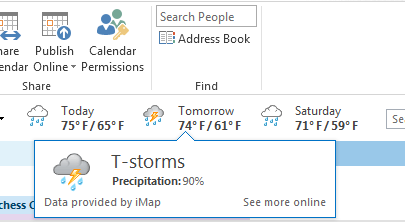
The next significant feature I came across was the weather in Outlook. You read that right: the weather. I was looking at my calendar and noticed temperatures and a graphical forecast. It’s hard to say how useful this will be since I’m not used to having access to weather in my calendar, but I’m excited about it! There’s a fade-and-slide-in effect that occurs when switching between areas in Outlook (Mail, Calendar, etc.) that feels slick, but I haven’t noticed much else that’s changed aside from the appearance.

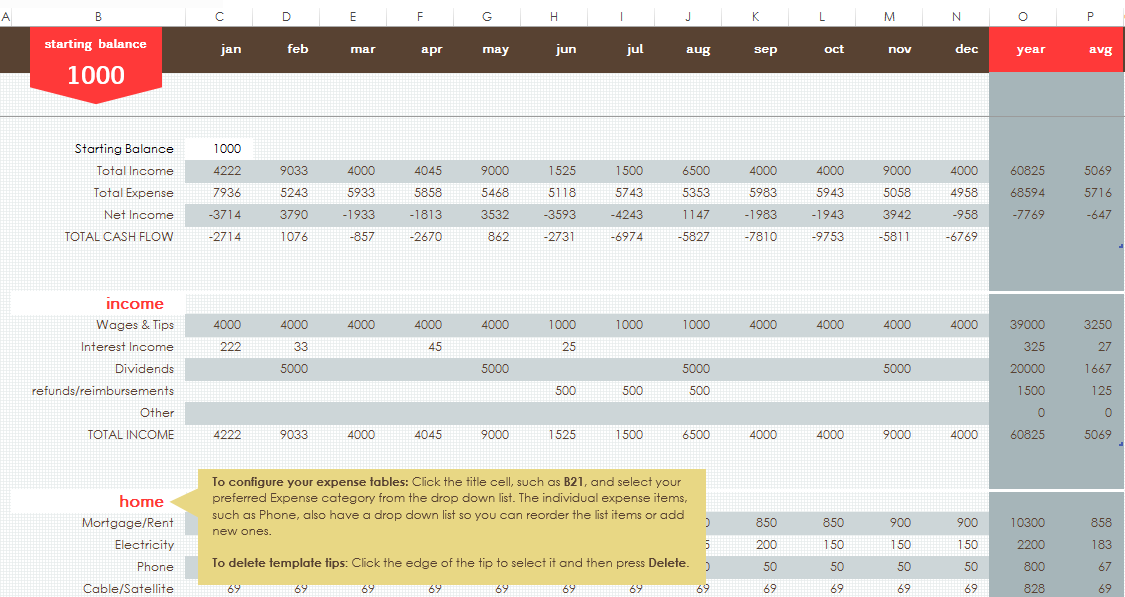
With both Word and Excel, I was most excited about the new document templates. In both applications, the templates presented allow you to create legitimately good-looking and functional documents. The screenshot below shows the “family budget” Excel template, which includes a worksheet for setting up categories, a worksheet for tracking income and expenses in the categories, and a dashboard worksheet that includes summary data complete with charts and graphs! This is way better than the budget spreadsheet I whipped up a few years ago.

What’s also great about the templates is that they walk you through how to use them effectively. For example, there’s a “student report” template in Word that has in-line instructions for adding graphics, adding a table of contents, and adding a bibliography. How cool is that?!

Another much-improved feature in Word is the comments. Comments now flow like a conversation. You can see who made what comments, and you can reply. Replies show as nested responses, so it’s easy to follow what’s been happening. This will be very helpful when passing documents back and forth for review.

OneNote has been arguably my favorite Office app since I started using it in 2007, and I’m happy to report that the improvements to OneNote in 2013 seem great. The first thing that happens when you open it for the first time is you’re asked to connect to SkyDrive. Sync everything to the cloud and make it available everywhere automatically? Yes, please! The colored tabs look nicer, and they actually work well with the new very-very white theme. Some screen real estate has been freed up by moving the notebook tabs on the left part of the screen to a drop-down next to the section tabs beneath the ribbon. Everything feels a little more polished except the cursor when you type; it doesn’t slide along like in Word and Outlook. That made me a little sad, but maybe they’ll get it into the final version.

OneNote does have some other cool features, though. I’m not sure if this was in the previous versions or not, but I was pretty impressed with the “Ink to Text” and “Ink to Math” features. These are what they sound like: draw some text or math with the mouse/stylus/etc., and OneNote converts it to what you meant. Very cool.

The only disappointment I’ve had with the new Office is that integration with Lync is broken. To be fair, I’m using an unsupported configuration (Lync 2010 client connected to OCS 2007 server), but it’s still unfortunate. My IM conversations are still recorded, but I’ve lost contact status in emails and meetings. I’m sure this will all be fine once we upgrade to Lync.

Overall, I’m pretty excited about the new version of Office. I’m looking forward to using it over the next few months and exploring the new features. Are there cool features that you’ve discovered with this new version of Office? Please share–I’d love to hear!