Unit Test Private Methods in Abstract Classes

I was sharing what I’d learned about unit testing private methods with some co-workers, and the idea of testing a private method of an abstract class was presented.

PrivateObject deals with this handily by allowing you to specify the type being tested in one of its constructors.

Here’s a simple example. Consider we have an abstract class, Mammal, and a derived class, Human.

public abstract class Mammal
{
    private void SecretMammalStuff()
    {
    }
}

public class Human : Mammal
{
}

We can test Mammal’s private method by doing the following:

var human = new Human();
var po = new PrivateObject(human, new PrivateType(typeof(Mammal)));
po.Invoke("SecretMammalStuff");

If we don’t specify the PrivateType argument in the PrivateObject constructor, we’re not able to access the base class’s private methods. This is the key to testing private methods in an abstract class.

Retrieve Active Directory User Photos in C#

Newer versions of Office (2010+) use Active Directory to retrieve and display user photos. It’s a useful feature that also adds visual interest. I can look quickly at the thumbnails at the bottom of an email or meeting request in Outlook to see who’s invited; this is much faster than reading through the semi-colon delimited list of email addresses.

I’m working on a TFS application that has some custom views. I thought it would be cool to display the user as a thumbnail instead of simply using their name. Doing this will add some pizzazz and, ultimately, result in a cleaner UI since vertical space is more abundant in my layout–it is less costly for me to show a 50×50 thumbnail than to display a 20×100 textbox.

So how do we do it? Like many tasks, the .NET Framework makes it relatively easy for us once we know what we’re doing. Here are the steps:

  1. Bind to a node in Active Directory Domain Services with the DirectoryEntry class
  2. Use the DirectorySearcher class to specify a search filter and find the desired user
  3. Extract the image bytes from the user properties
  4. Convert the bytes to a usable format

The method below accepts a username parameter, looks it up in AD, and binds the thumbnail to an Image. (Note that this is a WPF application, which is why I convert to the BitmapImage class. You may want to convert to a different type, like System.Drawing.Bitmap.)

private void GetUserPicture(string userName)
{
    var directoryEntry = new DirectoryEntry("LDAP://YourDomain");
    var directorySearcher = new DirectorySearcher(directoryEntry);
    directorySearcher.Filter = string.Format("(&(SAMAccountName={0}))", userName);
    var user = directorySearcher.FindOne();

    var bytes = user.Properties["thumbnailPhoto"][0] as byte[];

    using (var ms = new MemoryStream(bytes))
    {
        var imageSource = new BitmapImage();
        imageSource.BeginInit();
        imageSource.StreamSource = ms;
        imageSource.EndInit();

        uxPhoto.Source = imageSource;
    }
}

Rotate an Image in WPF Using Just XAML

One of the things that came along with WPF was the ability to create animations declaratively in XAML. I wanted to create a working-in-the-background spinner for a WPF application I was working on, and I thought that it would be a breeze with such powerful capability. However, I had a surprisingly difficult time finding a nice, simple example on the internet!

After a lot of looking and a bit of tinkering, I was able to come up with a solution that I’m mostly satisfied with. It’s a little more verbose than I was hoping for, but it’s still a XAML-only solution, which is what I was ultimately seeking.

Some notes about the solution:

  • The CenterX and CenterY properties of the RotateTransform element must be half of the image to make it rotate around the center of the image. My image is 24×24, so the X and Y centers are 12 and 12, respectively.
  • The DoubleAnimation will run on an infinite loop from angle 0 to 360 over a 1 second duration.
  • The storyboard will be active while the image’s IsEnabled property is set to True.
<Image Source="gear_24x24.png" Height="24">
    <Image.RenderTransform>
        <RotateTransform CenterX="12" CenterY="12" />
    </Image.RenderTransform>
    <Image.Style>
        <Style>
            <Style.Triggers>
                <Trigger Property="Image.IsEnabled" Value="True">
                    <Trigger.EnterActions>
                        <BeginStoryboard>
                            <Storyboard>
                                <DoubleAnimation
                                    Storyboard.TargetProperty="RenderTransform.Angle"
                                    From="0"
                                    To="360"
                                    Duration="0:0:1"
                                    RepeatBehavior="Forever" />
                            </Storyboard>
                        </BeginStoryboard>
                    </Trigger.EnterActions>
                </Trigger>
            </Style.Triggers>
        </Style>
    </Image.Style>
</Image>

You could also extract the animation code away into a resource. This will improve reusability and keep your XAML cleaner if you have multiple spinners, but it’s more of a preference when dealing with a single spinner.

<Window.Resources>
    <Style x:Key="Spinner" TargetType="Image">
        <Setter Property="Height" Value="24" />
        <Setter Property="Image.RenderTransform">
            <Setter.Value>
                <RotateTransform CenterX="12" CenterY="12" />
            </Setter.Value>
        </Setter>
        <Style.Triggers>
            <Trigger Property="IsEnabled" Value="True">
                <Trigger.EnterActions>
                    <BeginStoryboard>
                        <Storyboard>
                            <DoubleAnimation 
                                        Storyboard.TargetProperty="RenderTransform.Angle" 
                                        From="0" 
                                        To="360" 
                                        Duration="0:0:1" 
                                        RepeatBehavior="Forever" />
                        </Storyboard>
                    </BeginStoryboard>
                </Trigger.EnterActions>
            </Trigger>
        </Style.Triggers>
    </Style>
</Window.Resources>

<Grid>
    <Image Source="gear_24x24.png" Style="{StaticResource Spinner}" />
</Grid>

This solution is based on this post.

Unit Testing and Private Methods

So you’re a TDD developer.  You code along merrily, writing failing unit tests, implementing them to a point of success, and then you refactor. But then, with no notice–WHAM–a private method. Now what!?

There are different schools of thought for this scenario. One camp says that if it’s not publicly exposed, you shouldn’t be testing it. I think that’s valid, but it’s equally valid to write test code for private methods. Just because a method’s private doesn’t mean it doesn’t deserve the same special attention. And just because I want to test a method that happens to be private doesn’t mean I want to expose it to the rest of the world! Let’s not worry about the debate for now. I’m going to show you how you can override private methods with Microsoft Fakes and how call private methods with Microsoft.VisualStudio.TestTools.UnitTesting.PrivateObject.

Override private methods

Problem: You have a private method with behavior that’s disruptive to unit testing. Regardless of the cause of the disruption, you want to provide an alternate implementation.

Solution: Use Microsoft Fakes to shim the private method. (Need to know more about Fakes? Check out my tutorial!)

Here’s how you can do it:

  1. Create an instance of your class
  2. Create a shim from  your class
  3. Override the private method on the shim
  4. Invoke the test method

Here’s a code example:

[TestMethod]
public void SecretMethod_FunctionalityIsOverridden()
{
    using (ShimsContext.Create())
    {
        var target = new FileReader("foo");
        var shim = new ShimFileReader(target);

        bool calledShimMethod = false;
        shim.SecretMethod = () => 
        {
            calledShimMethod = true;
            return "bar";
        };

        target.Read();

        Assert.IsTrue(calledShimMethod);
    }
}

Call private methods

Problem: You want to test a private method, but you can’t because it’s private.

Solution: Use Microsoft Test Framework’s included PrivateObject class.

The only thing I don’t like about PrivateObject is that it (presumably) uses reflection for method names, which means method names will be coded as strings with no compile-time checks. It’s very easy to use, though, and if you need to invoke a private method, I haven’t seen a better way to do it!

Here are the steps:

  1. Create an instance of your class
  2. Create a PrivateObject from your class
  3. Use the PrivateObject‘s Invoke method

And here’s the code:

[TestMethod]
public void SecretMethod_ReturnsHumorousMessage()
{
    var target = new FileReader("foo");
    var privateObject = new PrivateObject(target);
    var actual = privateObject.Invoke("SecretMethod");

    Assert.IsNotNull(actual);
}

Putting it all together (useless, but fun!)

I was able to verify both of these capabilities by writing a single unit test that overrides the private method, then calls the private method. Check it out:

[TestMethod]
public void SecretMethod_FunctionalityIsOverridden()
{
    using (ShimsContext.Create())
    {
        var target = new FileReader("foo");
        var shim = new ShimFileReader(target);

        // override the private method
        bool calledShimMethod = false;
        shim.SecretMethod = () => 
        {
            calledShimMethod = true;
            return "bar";
        };

        // call the private method
        var privateObject = new PrivateObject(target);
        var actual = privateObject.Invoke("SecretMethod");

        // assert that calling the private method
        // used the overridden implementation
        Assert.IsTrue(calledShimMethod);
    }
}

Get Work Item Hyperlinks from the TFS SDK

So you’ve created an awesome application that uses the TFS SDK to do all kinds of amazing and interesting data access, but it sure would be nice if you could click on a work item and open it in Team Web Access. You’d think this would be easily accomplished by appending “id=123” to the end of a query string. It’s not quite that straightforward, but the TFS SDK makes it pretty simple.

Here’s what you need to do:

  1. Add the appropriate TFS SDK references
    • Microsoft.TeamFoundation.Client
    • Microsoft.TeamFoundation.Common
    • Microsoft.TeamFoundation.WorkItemTracking.Client
  2. Instantiate a TfsTeamProjectCollection
  3. Retrieve the hyperlink service from the team project collection object
  4. Retrieve the hyperlink from the hyperlink service by providing a work item ID

Here’s what the code will look like:

var tpc = new TfsTeamProjectCollection(
    new Uri("http://OurTfsServer:8080/tfs/OurCollection"));
var linkService = tpc.GetService();
var uri = linkService.GetWorkItemEditorUrl(workItemId);

BDD in .NET with SpecFlow

Yesterday, I was invited to sit in on a demo/discussion about behavior-driven development (BDD) with SpecFlow. As a self-proclaimed unit test enthusiast, I was excited right away.

I’ve been doing my own, made-up version of BDD for a while. For example, I would have a function that calls several sub-methods. I’d mock the sub-methods and write tests to verify that the sub-methods were called. Then I’d move to the next “layer” by implementing the sub-methods in a similar fashion, repeating until I hit the bottom layer, where the actual work happens.

The problem with that approach is that all tested behaviors relate to the code and not business requirements or real-world scenarios. SpecFlow fixes that by using a Gherkin parser, allowing you to write test scenarios using business-readable, domain-specific language instead of code.

Here’s how you can get started with SpecFlow and Visual Studio. This tutorial is basically a modified version of the Project Setup Guide on the SpecFlow site. I ran into a couple issues with their tutorial, though, and their tutorial also doesn’t get much into implementing the application logic to fix unit tests once they’re generated.

Installing SpecFlow

SpecFlow is included in the Visual Studio Extensions Gallery, so installing it is a breeze.

  1. Open Visual Studio, and go to Tools > Extensions and Updates (Extension Manager in VS2010)
  2. Select the Online gallery
  3. Search for “SpecFlow”
  4. Install it!

Nice, now you’re ready to create your first test project.

Creating your first test project

SpecFlow tests are defined as “features” that have multiple scenarios. There is a small amount of project setup that needs to be done, but it’s not too bad and you can be up and running in just a few minutes.

  1. In Visual Studio, create a new Unit Test Project
  2. Install SpecFlow via NuGet
    • PM> Install-Package SpecFlow
    • I had to manually add the unit test provider to my app.config:
      <?xml version="1.0" encoding="utf-8"?>
      <configuration>
        <configSections>
          <section name="specFlow" type="TechTalk.SpecFlow.Configuration.ConfigurationSectionHandler, TechTalk.SpecFlow" />
        </configSections>
        <specFlow>
          <unitTestProvider name="MsTest" />
        </specFlow>
      </configuration>
      
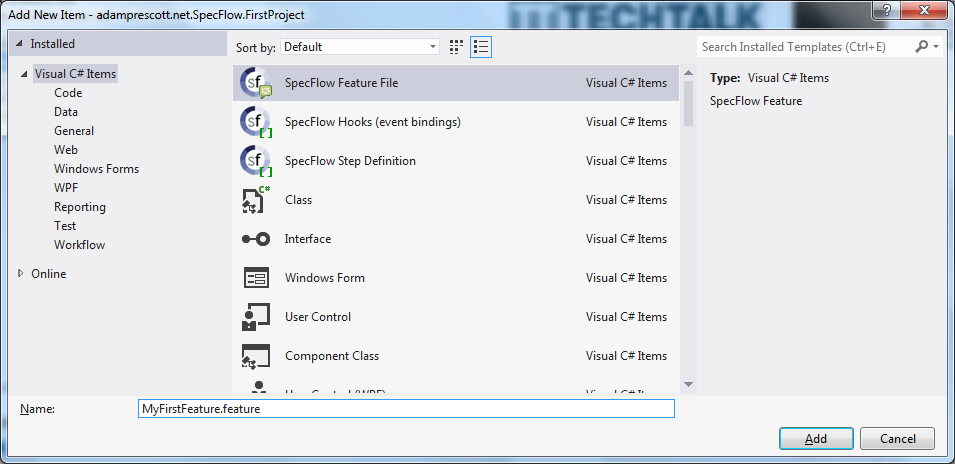
  3. Add a SpecFlow Feature to your project
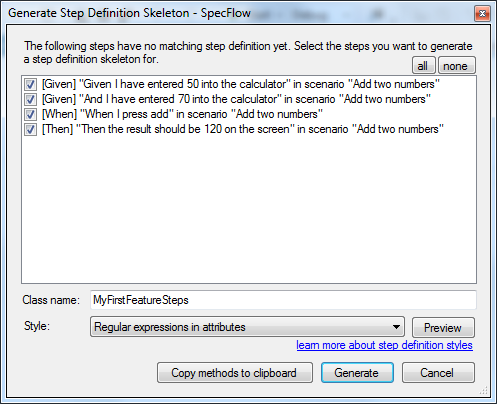
  4. Generate Step Definitions by right-clicking in your newly created feature file

  5. Run your scenario by right-clicking in the feature file

    • Right-clicking in the feature and choosing Run SpecFlow Scenarios produced an error for me; I’ll be looking into this
    • I instead ran the unit tests as usual, and that worked fine
  6. Implement your code/step definitions until you have a passing test
    • I added my class-to-be-tested to the same file as my step definitions for brevity
      namespace adamprescott.net.SpecFlow.FirstProject
      {
          using Microsoft.VisualStudio.TestTools.UnitTesting;
          using System.Collections.Generic;
          using System.Linq;
          using TechTalk.SpecFlow;
      
          public class AddingMaching
          {
              private List<int> _numbers = new List<int>();
              private int _sum;
      
              public int Screen
              {
                  get { return _sum; }
              }
      
              public void EnterNumber(int num)
              {
                  _numbers.Add(num);
              }
              public void PressAdd()
              {
                  _sum = _numbers.Sum();
              }
          }
      
          [Binding]
          public class MyFirstFeatureSteps
          {
              private AddingMaching _addingMachine;
      
              public MyFirstFeatureSteps()
              {
                  _addingMachine = new AddingMaching();
              }
      
              [Given(@"I have entered (.*) into the calculator")]
              public void GivenIHaveEnteredIntoTheCalculator(int p0)
              {
                  _addingMachine.EnterNumber(p0);
              }
      
              [When(@"I press add")]
              public void WhenIPressAdd()
              {
                  _addingMachine.PressAdd();
              }
      
              [Then(@"the result should be (.*) on the screen")]
              public void ThenTheResultShouldBeOnTheScreen(int p0)
              {
                  Assert.AreEqual(p0, _addingMachine.Screen);
              }
          }
      }
      
    • The example shows a simple AddingMachine class with implemented steps to pass the default feature scenario
      Feature: MyFirstFeature
      	In order to avoid silly mistakes
      	As a math idiot
      	I want to be told the sum of two numbers
      
      @mytag
      Scenario: Add two numbers
      	Given I have entered 50 into the calculator
      	And I have entered 70 into the calculator
      	When I press add
      	Then the result should be 120 on the screen
      

That’s it! Now you should have a passing unit test that verifies the business-language requirement. You can add more scenarios to your feature file with different values and/or steps. Note that if you add more steps, you’ll probably need to re-generate step definitions. When you do this, only new step definitions will be generated. I recommend using the Copy methods to clipboard button in the Generate Step Definitions dialog to avoid overwriting the previously created and implemented step definitions.

A “Shim-ple” Tutorial With Microsoft Fakes

I’ve written previously about using Rhino Mocks to write unit tests for hard-to-test code, but with the release of Visual Studio 2012 comes a new way to work around those not-so-test-friendly areas: Microsoft Fakes. For those of you familiar with Microsoft Research’s Moles project, Microsoft Fakes is simply the next version. Fortunately, Microsoft decided this offering was valuable enough to be included in the latest version of Visual Studio.

What is Fakes, you might be grammatically-awkwardly asking yourself. If I had to describe Microsoft Fakes in a sentence, I’d say this: Microsoft Fakes allows you to intercept any method call and provide a substitute implementation, including calls to static and non-virtual methods. Sounds powerful, right? Well, it is.

Getting started with MS Fakes is refreshingly easy, too. The integration with Visual Studio allows you to skip the hard parts and get right to the meat: hooking up the fakes to work with the code you’re testing. This post will show you how to write a unit test for a simple FileReader class that has a single Read method that–you guessed it–reads a file. I’ll walk you through the entire process from scratch to hopefully avoid any confusion. So let’s do it!

  1. Open Visual Studio 2012
  2. Create a new Visual C# Class Library project
  3. Create the FileReader class:
    namespace adamprescott.net.FakesTutorial
    {
        using System.IO;
    
        public class FileReader
        {
            private readonly string _path;
            public FileReader (string path)
    	    {
                _path = path;
    	    }
    
            public string Read()
            {
                using (var fs = new FileStream(_path, FileMode.Open))
                {
                    var sr = new StreamReader(fs);
                    return sr.ReadToEnd();
                }
            }
        }
    }
    
  4. Add a new Unit Test Project to the solution
  5. Add a reference to the Class Library project from the Unit Test Project
  6. Create the fakes assembly by right-clicking System in the Unit Test Project’s References and selecting “Add Fakes Assembly”
  7. Create the FileReaderTest class:
    namespace adamprescott.net.FakesTutorial.Tests
    {
        using Microsoft.VisualStudio.TestTools.UnitTesting;
    
        [TestClass]
        public class FileReaderTest
        {
            [TestMethod]
            public void TestMethod1()
            {
                using (Microsoft.QualityTools.Testing.Fakes.ShimsContext.Create())
                {
                    // Arrange
                    const string path = "irrelevant";
                    const string expected = "contents";
                    var target = new FileReader(path);
    
                    // shim the FileStream constructor
                    System.IO.Fakes.ShimFileStream.ConstructorStringFileMode =
                        (@this, p, f) => {
                            var shim = new System.IO.Fakes.ShimFileStream(@this);
                        };
    
                    // shim the StreamReader constructor
                    System.IO.Fakes.ShimStreamReader.ConstructorStream =
                        (@this, s) => {
                            var shim = new System.IO.Fakes.ShimStreamReader(@this) {
                                // shim the ReadToEnd method
                                ReadToEnd = () => expected
                            };
                        };
    
                    // Act
                    var actual = target.Read();
    
                    // Assert
                    Assert.AreEqual(expected, actual);
                }
            }
        }
    }
    
  8. Run the test, and feel great about yourself!

There are a few important things to note about the use of Fakes in the test above. First, the fakes are wrapped in a ShimsContext. This makes sense since you’re intercepting system calls; you don’t want to accidentally affect other areas being tested outside of your test. Next, note that I’m using fakes to override two different constructors. I needed to override FileStream‘s constructor to open the file and StreamReader‘s constructor to read the file. In the StreamReader shim, I also provide a shim for the ReadToEnd method and configure it to return the fake text for my test. I probably could have opted to shim just FileStream, but the faking might be less straightforward since success would rely on knowing exactly which methods StreamReader will use when ReadToEnd is called.

For more information about getting started with Microsoft Fakes, check out this article at MSDN.

A Simple WCF Service Callback Example

I’ve done a lot with WCF services over the past few years, but I haven’t done much with callbacks. I wanted to write a simple application to understand and demonstrate how a callback service works in WCF. The example described below was implemented in a single solution with two console application projects, one client and one server.

Create the server

The first thing we’ll do is create and host our WCF service. This will be done in five short steps:

  1. Create the service contract
  2. Create the service callback contract
  3. Create the service implementation
  4. Modify the endpoint configuration
  5. Host the service

To create the service contract, service implementation, and default endpoint configuration, you can use Visual Studio’s menu to choose Add New Item > Visual C# Items > WCF Service. I named my service MyService, and so my service contract is called IMyService. Visual Studio creates the service contract with a single method, DoWork. I decided that I wanted my service to have two methods: OpenSession and InvokeCallbackOpenSession will be used by the server to store a copy of the callback instance, and InvokeCallback will be used to trigger a callback call to the client from the client.

Here’s my complete IMyService contract:

using System.ServiceModel;

namespace CallbackService.Server
{
    [ServiceContract(CallbackContract = typeof(IMyServiceCallback))]
    public interface IMyService
    {
        [OperationContract]
        void OpenSession();
    }
}

Note that the service contract indicates the callback contract in its attribute. The callback contract, IMyServiceCallback, will have a single method, OnCallback. Here is the complete IMyServiceCallback interface:

using System.ServiceModel;

namespace CallbackService.Server
{
    public interface IMyServiceCallback
    {
        [OperationContract]
        void OnCallback();
    }
}

The third step requires us to implement our service. When OpenSession is called, I create a timer that will invoke the callback once per second. Note the ServiceBehavior attribute that sets the ConcurrencyMode to Reentrant. If you do not change the ConcurrencyMode to Multiple or Reentrant, the channel will be locked and the callback will not be able to be invoked. Here is the complete MyService implementation:

using System;
using System.ServiceModel;
using System.Timers;

namespace CallbackService.Server
{
    [ServiceBehavior(ConcurrencyMode = ConcurrencyMode.Reentrant)]
    public class MyService : IMyService
    {
        public static IMyServiceCallback Callback;
        public static Timer Timer;

        public void OpenSession()
        {
            Console.WriteLine("> Session opened at {0}", DateTime.Now);
            Callback = OperationContext.Current.GetCallbackChannel<IMyServiceCallback>();

            Timer = new Timer(1000);
            Timer.Elapsed += OnTimerElapsed;
            Timer.Enabled = true;
        }

        void OnTimerElapsed(object sender, ElapsedEventArgs e)
        {
            Callback.OnCallback();
        }
    }
}

When we added the new WCF service to the project, Visual Studio added the default endpoint configuration to the app.config. By default, wsHttpBinding is used as the binding. We want to change it to use wsDualHttpBinding which supports two-way communication. I also changed the URL to be friendlier, but that is not necessary. Here’s my final app.config:

<?xml version="1.0" encoding="utf-8" ?>
<configuration>
  <system.serviceModel>
    <behaviors>
      <serviceBehaviors>
        <behavior name="">
          <serviceMetadata httpGetEnabled="true" />
          <serviceDebug includeExceptionDetailInFaults="false" />
        </behavior>
      </serviceBehaviors>
    </behaviors>
    <services>
      <service name="CallbackService.Server.MyService">
        <endpoint address="" binding="wsDualHttpBinding" contract="CallbackService.Server.IMyService">
          <identity>
            <dns value="localhost" />
          </identity>
        </endpoint>
        <endpoint address="mex" binding="mexHttpBinding" contract="IMetadataExchange" />
        <host>
          <baseAddresses>
            <add baseAddress="http://localhost:8090/CallbackService.Server/MyService/" />
          </baseAddresses>
        </host>
      </service>
    </services>
  </system.serviceModel>
</configuration>

The final step is to simply host the service. Since my server is a console application, I do this in the Program.Main method. Here is the complete class:

using System;
using System.ServiceModel;

namespace CallbackService.Server
{
    class Program
    {
        static void Main(string[] args)
        {
            var host = new ServiceHost(typeof(MyService));
            host.Open();
            Console.WriteLine("Service started at {0}", DateTime.Now);
            Console.WriteLine("Press key to stop the service.");
            Console.ReadLine();
            host.Close();
        }
    }
}

Create the client

With the server complete, creating the client is a breeze. We’ll complete the client in just three steps:

  1. Add a service reference
  2. Implement the callback class
  3. Create the client proxy

To add the service reference, you must have the service running. I did this by simply running the server executable outside of Visual Studio. You can copy the URL from the server’s app.config. Right-click References in your client project, choose Add Service Reference, and paste the URL. I named my service reference MyServiceReference.

The service reference pulls in IMyServiceCallback, which will allow us to create our callback class. To do this, just add a new, empty class to the project. I named my class MyServiceCallback, and when the callback is invoked, it just writes a line to the console. Here is the complete implementation:

using System;
using CallbackService.Client.MyServiceReference;

namespace CallbackService.Client
{
    public class MyServiceCallback : IMyServiceCallback
    {
        public void OnCallback()
        {
            Console.WriteLine("> Received callback at {0}", DateTime.Now);
        }
    }
}

The client application is also a console application, so creating and using the proxy client will occur in its Program.Main. I added a pause to allow the server time to host the service, and then I invoke the remote procedure OpenSession. This will trigger the service to begin executing callbacks to the client application every second, resulting in a line written to the console. Here’s is the contents of my Program.cs:

using System;
using System.ServiceModel;

namespace CallbackService.Client
{
    class Program
    {
        static void Main(string[] args)
        {
            Console.WriteLine("Press enter to continue once service is hosted.");
            Console.ReadLine();

            var callback = new MyServiceCallback();
            var instanceContext = new InstanceContext(callback);
            var client = new MyServiceReference.MyServiceClient(instanceContext);
            client.OpenSession();

            Console.ReadLine();
        }
    }
}

Conclusion

And that’s all there is to it! This is clearly a simple, unorganized example with few complexities, but it demonstrates the core functionality provided by callbacks in WCF services. This capability allows for push updates and other real-time communication between client and server, and it really opens a world of possibilities. This is certainly a welcome option in my ever-growing development toolbox!

Credential-less Authentication in ASP.NET

There are times when you may wish to authenticate a user in an ASP.NET web application without requesting a password. For example, I was working on a client application that had a web counter-part. I needed to authenticate the user by using just their login. Fortunately, the .NET Framework gives us a simple way to accomplish this with the FormsAuthentication.SetAuthCookie method.

FormsAuthentication.SetAuthCookie("adam", true);

One nuance:

The forms-authentication ticket supplies forms-authentication information to the next request made by the browser.

This means you can’t call SetAuthCookie and then execute code that assumes an authenticated user on the next line. A simple workaround is to use a redirect.

Windows Workflow 4 Designer WPF Application

One of the coolest things about Windows Workflow Foundation is the workflow designer. It’s visual programming.  You drag and drop your components onto the design surface and configure the properties of each module to create a functional application. Microsoft makes it easy to re-host the workflow designer in your own applications, providing you with an easy way to include customization and configuration tools for your workflows.

I found a great bare-bones tutorial at MSDNRehosting the Workflow Designer.

There’s some important functionality missing from this tutorial, though. There are no mechanisms for opening or saving workflow files, and the toolbox is only populated with two controls. So, I’ve taken the MSDN tutorial, compressed the steps, and added some additional key functionality.

  1. Create a new WPF Application. I called mine “WorkflowEditor.”
  2. Add references
    • System.Activities
    • System.Activities.Core.Presentation
    • System.Activities.Presentation
  3. Copy/paste the XAML below into MainWindow.xaml
  4. Copy/paste the code-behind below into MainWindow.xaml.cs

That’s it! Once you’re this far, you should be able to run the program. If you’re looking for a more in-depth, step-by-step explanation of the code, follow the link above to the MSDN tutorial. The only differences below are that I added some reflection code to extract the “standard” workflow activities, and I added Open and Save buttons.

<Window x:Class="adamprescott.net.WorkflowEditor.MainWindow"
        xmlns="http://schemas.microsoft.com/winfx/2006/xaml/presentation"
        xmlns:x="http://schemas.microsoft.com/winfx/2006/xaml"
        Title="MainWindow" Height="500" Width="800">
    <Grid Name="grid1">
        <Grid.ColumnDefinitions>
            <ColumnDefinition />
            <ColumnDefinition Width="4*" />
            <ColumnDefinition />
        </Grid.ColumnDefinitions>
        <Grid.RowDefinitions>
            <RowDefinition Height="36" />
            <RowDefinition />
        </Grid.RowDefinitions>

        <ToolBar Grid.Row="0" Grid.ColumnSpan="3">
            <Button Click="OnOpenClick">Load</Button>
            <Button Click="OnSaveClick">Save</Button>
        </ToolBar>
    </Grid>
</Window>
using System;
using System.Activities;
using System.Activities.Core.Presentation;
using System.Activities.Presentation;
using System.Activities.Presentation.Toolbox;
using System.Activities.Statements;
using System.Linq;
using System.Reflection;
using System.Windows.Controls;
using Microsoft.Win32;

namespace adamprescott.net.WorkflowEditor
{
    public partial class MainWindow
    {
        private WorkflowDesigner _designer;

        public MainWindow()
        {
            InitializeComponent();
            RegisterMetadata();
            InitializeDesigner();
            AddToolBox();
        }

        private void AddDesigner()
        {
            _designer = new WorkflowDesigner();
            Grid.SetColumn(_designer.View, 1);
            Grid.SetRow(_designer.View, 1);
            grid1.Children.Add(_designer.View);
        }

        private void RegisterMetadata()
        {
            var dm = new DesignerMetadata();
            dm.Register();
        }

        private ToolboxControl GetToolboxControl()
        {
            var toolbox = new ToolboxControl();
            PopulateToolboxCategoryFromAssembly(toolbox, typeof(Assign).Assembly, "Standard");
            return toolbox;
        }

        private void PopulateToolboxCategoryFromAssembly(ToolboxControl toolbox, Assembly assembly, string categoryName)
        {
            var tools = assembly.GetTypes()
                .Where(t => t.IsSubclassOf(typeof(Activity))
                    && t.IsPublic
                    && !t.IsAbstract
                    && HasParameterlessContructor(t))
                .Select(t => new ToolboxItemWrapper(t.FullName, t.Assembly.FullName, null, t.Name))
                .OrderBy(t => t.DisplayName);

            var category = new ToolboxCategory(categoryName);
            foreach (var t in tools)
            {
                category.Add(t);
            }
            toolbox.Categories.Add(category);
        }

        private bool HasParameterlessContructor(Type t)
        {
            var ctors = t.GetConstructors();
            var parameterless = ctors.Where(c => c.GetParameters().Count() == 0)
                .FirstOrDefault();
            return parameterless != null;
        }

        private void AddToolBox()
        {
            var tc = GetToolboxControl();
            Grid.SetColumn(tc, 0);
            Grid.SetRow(tc, 1);
            grid1.Children.Add(tc);
        }

        private void AddPropertyInspector()
        {
            Grid.SetColumn(_designer.PropertyInspectorView, 2);
            Grid.SetRow(_designer.PropertyInspectorView, 1);
            grid1.Children.Add(_designer.PropertyInspectorView);
        }

        private void OnOpenClick(object sender, System.Windows.RoutedEventArgs e)
        {
            var dlg = new OpenFileDialog();
            if (dlg.ShowDialog().Value)
            {
                InitializeDesigner();
                _designer.Load(dlg.FileName);
            }
        }

        private void OnSaveClick(object sender, System.Windows.RoutedEventArgs e)
        {
            var dlg = new SaveFileDialog();
            if (dlg.ShowDialog().Value)
            {
                _designer.Save(dlg.FileName);
            }
        }

        private void InitializeDesigner()
        {
            AddDesigner();
            AddPropertyInspector();
        }
    }
}