Speaking Skills in Engineering Careers

I recently visited a local high school to speak with a teacher friend’s speech class. She’s trying to show her students that the skills they’re learning in her speech class are valuable in most careers. She gets a lot of pushback from her future engineers who believe they’ll be relying predominantly on their technical skills, not giving speeches.

I’m entering my tenth year of developing software. I use the presentation skills and techniques learned from my high school speech class almost every day. To an extent, I agree with my friend’s students: you can get by without these skills, but not having them will surely prove to be a significant career growth inhibitor. You might be an incredible [insert engineering career here], but in order to be fully effective, you must be able to communicate your ideas to others, compare and contrast options, and convince your audience–whether it’s your peers, boss(es), or customers–what’s best. This is where those skills come into play.

When I talked to the class, I gave several examples of how I use speaking skills everyday. I gave examples, starting with the most formal, speech-like events and moving to more common, everyday things.

The biggest and best example I have is presenting at my company’s annual customer conference. Customers pay to come to the conference and spend three days attending sessions presented by all sorts of different people, including developers like myself. This is a formal presentation and a direct application of skills taught in a speech class. Preparation is key. We’re required to submit outlines of our presentations months ahead of the event that are refined and built out as the conference draws nearer. At the conference, I’ll be behind a podium at the front of a room, possibly on a stage, giving a presentation or demo to an audience of 20 to 100+ attendees. I’m letting them know what’s new or how they can use my company’s products better. If I do a good job, customer’s get value from the conference. Their opinion of the company and it’s products improve, and maybe they purchase more software. If I do a poor job, the worst case is that a customer begins to question their decisions.

The conference is a wonderful example, but it only happens once a year. A more common scenario occurs when I have a good idea. I need to socialize that idea with my boss and peers, and that requires lots of small communication. I need to make them understand the value of my idea. If I do a good job, they might talk to others. At some point, I might get a call. “Hey, Adam. Remember that idea you were telling me about? I’ve got some people with me that want to hear more. Can you come talk to us?” That’s all the notice I get. I need to walk into a room with an audience that I don’t know and sell them on my idea. If I can talk about the idea enthusiastically and confidently, I might convince people that it’s worth doing and get it onto a project plan. If I don’t have good energy, or the audience doesn’t believe that I have what it takes to see it to fruition, the idea might die there.

A more common (and less dramatic) situation involves my peers. There could be a team working on a problem, and they need my input. Once I understand what they’re trying to accomplish, I use my technical skills to determine options and decide which will be best. From there, it becomes an ad-hoc presentation. I need to present options with their advantages and disadvantages to help my teammates understand what I’m suggesting and get them to buy into my recommendation. If my message isn’t clear, it could result in a bad solution or the need for rework.

And let’s not forget customers. When we create new products, it’s not uncommon to demo them to customers to get feedback. Good presentation skills help the customer understand the value that you’re delivering, and it gets them excited. Bad presentation skills destroy their confidence in you and the company. The same applies to training and conference calls. When you’re able to “speak their language,” customers will like you more and believe in you. I’ve been on calls with other software vendors that aren’t able to articulate their plans and ideas, and it can be really frustrating for all sides.

I certainly couldn’t do my job without the technical skills that I have, but a large percentage of every day is spent communicating with others. I couldn’t be as effective as I am without strong speaking and presentation skills. Those skills have given me growth and leadership opportunities that I wouldn’t have had without them. Standing in front of your classmates, telling them how to care for your dog may not seem like it’s going to be applicable to your career, but being able to explain a complex process to a group of your technical peers is an invaluable ability!
Create a Shortcut to Open a Website in a Non-Default Browser

In a perfect world, you’d be able to use your preferred browser to visit all your websites and browser-based applications. However, there are a number of applications–mostly intranet web applications–that do and don’t work with certain browsers. And unfortunately for me, my company has applications that require Internet Explorer and ones that require anything-but-Internet-Explorer.

Historically, I’ve kept track of various intranet sites by using bookmarks in my browser of choice. The fact that I’m forced to use different browsers to visit different sites throws a wrinkle in the plan, though. So what to do!?

The first step is to create a shortcut for the browser-specific website. The trick is to create a shortcut to the browser executable and pass the URL as a parameter. Follow these steps to create the shortcut:

  1. Right-click on your desktop or in a folder in WIndows Explorer and choose New > Shortcut
  2. For the “location of the item,” enter the path to your browser’s executable followed by the URL. Example: “C:\Program Files\Internet Explorer\iexplore.exe” http://www.msn.com

Using this technique, I can create shortcuts that launch different browsers and keep them in a folder on my desktop. By putting them into a common folder, I can keep all my shortcuts in one place. Of course, the annoying part of doing this is that I’ll have some work to do as browsers and applications evolve. I’ll need to manually update shortcuts if an install path changes or an application no longer needs the specific browser. But hey–it’s an imperfect solution to solve a problem caused by imperfect application.

Multiple Google Calendars

Using multiple Google calendars is a terrific way to share and maintain separate schedules for different groups of people. It’s easy to create them, and you can share them by specifying a list of people, providing a link, or simply making the calendar public/searchable. In this post, I’ll walk you through the steps necessary to create a new public calendar, retrieve its URL, and create events for your subscribers.

Create a New Calendar

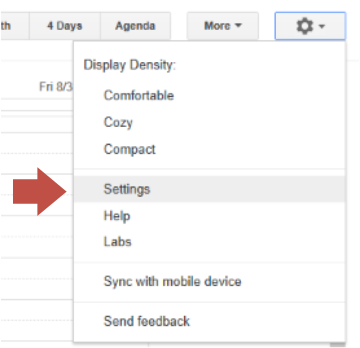
All of your calendar management needs can be found in Google Calendar Settings. Calendar Settings are accessed by clicking the gear drop-down and selecting Settings. Then, go to the Calendars tab and click the Create new calendar button to create a new calendar.

GoogleCalendar_Settings

There are a few important settings related to sharing when creating a new calendar. The first is whether you’d like the calendar to be public. Public calendars are visible to everyone and can be found by searching, so you shouldn’t use a public calendar for anything you don’t want to be public. (Duh.) Note, however, that there is a sub-option to hide the event details on your public calendar. This allows you to publicly share your availability without letting the world know exactly what you’re up to. You can also list specific people you wish to share your calendar with and specify what permissions they have. If you have a large group, this can be cumbersome, but it’s your bet for sharing a non-public calendar.

Share Your Public Calendar

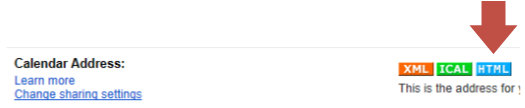
So, you’ve created your public calendar, and you want to share it with the world. Your easiest option is to provide people with the URL. Getting the URL is simple but not so obvious. Head back to the Calendars tab in Calendar Settings, and click your public calendar to edit its details. Toward the bottom, you’ll see a section labeled Calendar Address with colored buttons for XML, ICAL, and HTML. Each button is a link to the calendar in a different format.

GoogleCalendar_Url

Click the desired link, and you’ll get a pop-up with the URL for you to distribute. If you’re sharing with other Google Calendar users, I suggest using the HTML link. When users browse to the calendar, there’s a little + Google Calendar button in the bottom-right corner. Clicking the button will prompt them to add the calendar to their own Google Calendar.

GoogleCalendar_AddToCalendars

(Pro tip! Use a URL shortener like bit.ly or goo.gl to make your gnarly calendar link more palatable.)

Create Events

You’ve got the calendar. You’ve got subscribers. What’s left? How ’bout some events!?

Adding an event to one of your many calendars is as easy as you’d hope: click the drop-down indicator next to the calendar and choose Create event on this calendar. Enter the event details and save. Boom. Done.

GoogleCalendar_AddEvent

Smart Sizing for Remote Desktop Connections

I just stumbled across another life-changing morsel of knowledge: how to enable smart sizing for remote desktop connections. It sounds like this is something that’s been around since Windows XP, but it’s relatively unknown and completely undiscoverable.

Here’s the secret: you need to create a .rdp shortcut for your connection and add the following line using your favorite text editor:

smart sizing:i:1

That’s it. With this miracle-line in your file, the remote desktop will scale as you resize the window. Want to know more? Go here.

Access SharePoint Document Libraries from Windows Explorer

SharePoint is a great way to share documents across a team. You can upload documents, track version history, and control access via checkouts. The document libraries on the website have a few shortcomings, though. You can’t move a file, for example. Copying the file to another location is painful, too.

You can make things better by accessing the document library through Windows Explorer. It can be accessed as a UNC path. To get the UNC path, just convert the URL like so:

SharePoint document library URL UNC path
http://mysharepoint/foo/documents \\mysharepoint\foo\documents

Using this little trick, you get all of the Windows functionality you’re used to with none of the restrictions of the SharePoint website. You can rename, drag & drop, and copy/paste just like you would with any network share. Using the SharePoint site isn’t bad, but this provides a better experience.

Delete Another User’s Workspace in TFS

I’ve run into this problem several times. A build blows up for some reason and creates an orphaned workspace. Other builds then fail with the message The path […] is already mapped in workspace […].

tfsbuild_alreadymapped

The way that I’ve dealt with this in the past is to simply delete the workspace, which you can do easily enough by using the tf workspace command.

tf workspace /delete someworkspace;somedomain\someuser

When you run the command, you’ll be warned that deleted workspaces cannot be recovered and prompted to confirm.

tfsbuild_reallydeleteworksp

Type “Yes” and the deed is done. Run another build, and you should be good!


Get Cute with Predecessors in Microsoft Project

I’ve known about Microsoft Project for a long time, but I’ve never really done anything with it until recently. There are several Project aficionados around the office. I’ve taken a peek here and there at their projects, but I just didn’t see the value. I don’t think I was ready for it. My team recently adopted Project as its primary planning tool, though, and so I’ve been using it more frequently. Little by little, I’m learning and becoming more comfortable with it, and I’m liking it more each day. I’m not a zealot yet, but I may very well be on my way.

The coolest feature I’ve learned about is the Predecessors field for tasks. If you’ve seen project at all, you’ve probably seen this. It allows you to say, “Task A must be finished before Task B, and Task B must be finished before Task C.” That makes sense, but it’s not all that impressive. What’s cool about it, and much less obvious, is that you can specify the dependency type for a predecessor. You can also specify lead time and lag time. These two features allow you to plan for more complex–and realistic–scenarios: “Task A must be finished before Task B, and Task C should start two weeks after Task B is completed.”

Dependency Type Description
FS (Finish-to-Start) Start the day after the predecessor finishes
FF (Finish-to-Finish) Finish the day the predecessor finishes
SS (Start-to-Start) Start the day the predecessor starts
SF (Start-to-Finish) Finish the day the predecessor starts

That’s all good and well, but how is any of this useful? Well, by using these different dependency types, you can pick the task or milestone that’s most important to your project and build a plan around it. Then, if the date of that all-important item changes, the rest of your plan can adjust automatically.

My team is responsible for creating small, custom projects for our customers. We have a backlog of work, and we want to schedule our development work based on a projected deployment date. We enter the deployment task first and build the plan backward from that. In order to deploy, development needs to be done two weeks before. In order for development to begin, we need a completed design. To create a design, a requirements document must be signed by the customer. And so on.

In Project, that plan might look like this. Note that the dates in italics are calculated from the predecessors.

ID Task Duration Date Predecessor
1 Requirements 1 wk 5/6/13 2SF-1 wk
2 Design 1 wk 5/20/13 3SF-1 wks
3 Develop 4 wk 6/3/2013 4SF-2 wks
4 Deploy 1 wk 7/15/2013

To create this plan, I picked my targeted deployment date. The development task’s predecessor says, “The deployment task’s start date should be my finish date with 2 additional weeks of lead time.” Similarly, the design task should start so that it will be finished 1 week before the development task is scheduled to start, and the requirements task should be done 1 week before the design task begins.

Now let’s throw a curveball at the plan. Say that something comes up, and the customer needs an upgrade before I can do my deployment. I can insert a new task, and make it the deployment task’s predecessor. Everything else adjusts automatically.

ID Task Duration Date Predecessor
1 Requirements 1 wk 5/27/13 3SF-1 wk
2 Design 1 wk 6/10/13 4SF-1 wks
3 Develop 4 wk 6/24/2013 5SF-2 wks
4 Customer upgrade 0 days 8/5/13
5 Deploy 1 wk 8/5/2013  4

That’s so awesome! I just shifted the entire project plan to reflect a new milestone that nobody ever saw coming.

Fill-In Field Prompts in Word 2013

I was creating a Word document template for my team to use, and I wanted to include a reference number in the header to make it appear on each page. I initially created a field for the user to click and enter the value. The problem with using a simple entry field and sticking it in the header is that it’s grayed-out and easily forgotten.

So, instead of using a textbox field, I decided to prompt the user for the value by using a fill-in field. It’s an easy thing to do, and users of the template will never forget to enter the value. (Of course, they might choose to ignore the prompt, but that’s a different problem!)

To create a fill-in field in Word 2013, do the following:

  1. Put your cursor in the document where you want the field to appear
  2. In the INSERT bar in the ribbon, choose Quick Parts > Field…

    Word2013_FIllIn_QuickParts

  3. In the Field dialog, choose Fill-In as the field name, enter the prompt text, and click OK

    Word2013_FIllIn_FieldPrompt

  4. Be sure to save your document as a Word Template

    Word2013_FIllIn_SaveAs

That’s all there is to it. When you create a new document from the template, you’ll be prompted, and the value will be filled in.
Word2013_FIllIn_ValuePrompt

Good stuff!

Life-Changing Shortcuts: Windows Key + Arrow

Multiple screens are a must-have these days. I have just two, and I’m constantly throwing windows back and forth. Windows 7 introduced some nice docking features that make this easy and efficient. I can drag a maximized window by the title bar, and it will un-maximize. If I then “push” it to the top of my other screen, it will re-maximize.

Windows 7 also lets you drag windows to the sides of your screen to half-maximize it; the window will use the entire vertical space but only half of the horizontal space, as if it were docked to the side of the screen to which it was dragged. Great. I love it.

But there’s a problem. There are no edges between my screens. Ugh… I guess I’ll just resize the window to make it half-screen sized, and then manually position it along the crack like a caveman. I mean, there’s no better way to do this, right?

That’s what I might’ve said if this were 2012. I know some things now that I didn’t know then. That’s right, I’m talking about the Windows key + arrow shortcut. Use this amazing shortcut to reposition windows by jumping through the different docking options. Here’s the summary:

Shortcut Description
Windows + ↑ Maximize a normal or left/right-docked window
Windows + ← Left-dock a window; cycle through side-dock positions
Windows + → Right-dock a window; cycle through side-dock positions
Windows + ↓ Un-maximize or un-dock a window; minimize a normal window

Toggling maximize and minimize are no big deal, and neither are dock-left and dock-right. What is useful, however, is that dock-left and dock-right respect the boundary between displays. OMG–life changed! This is easily my favorite new shortcut of 2013. So, you probably won’t use this shortcut to maximize or minimize windows, but remember it for the next time you’re trying to look at four things all at the same time. I bet you’ll fall in love.

Create Permanent Custom Styles in Outlook

One of my peeves in Outlook is the formatting of code snippets that I send in email. Nine times out of ten, I’m copying and pasting from Visual Studio. That works pretty well; you get keyword highlights and all that fun stuff. Life is good–unless you happen to have a dark background. I like the dark theme for Visual Studio 2012, but I can’t stand that pasted text comes with a black highlight! It’s not that I mind the black background, but the highlighted text looks like a disaster.

DarkBackgroundCodePasteIntoOutlook

At this point, you’ve got three options: go back to a light-background theme in Visual Studio, deal with it, or adjust the formatting in Outlook. It looks too ugly for me to ignore, so option #2 is out. Until know, I’ve been exercising option #1, living in a default-themed world. I decided to go in a different direction today, though. I created a style that I can use to quickly format my pasted code. (An easy solution that I considered using for a while was to use LINQPad as a formatting buffer. I’d copy/paste code from Visual Studio to LINQPad and then re-copy/paste from LINQPad to Outlook. It works.)

The key to making this as painless as possible is getting the style configured correctly. Here are the steps I used to create my new style in Outlook 2013:

  • Choose “Create a Style” from the Styles gallery (FORMAT TEXT > Styles)
  • Change paragraph spacing options
    • After: 0 pt
    • Line Spacing: Single
  • Modify borders and shading
    • Border Setting: Box
    • Border Color: White
    • Border > Options > From text (all sides): 12 pt
    • Shading Fill: Custom Color (RGB: 30, 30, 30)

To ensure the style sticks around for future emails, do the following:

  1. Change Styles > Style Set > Save as a New Style Set…
  2. Change Styles > Style Set > Set as Default
  3. Restart Outlook for the new default style set to take effect

When I paste code from my dark themed Visual Studio, it still looks ugly. I can make it prettier by simply selecting the text and applying my new style. As a final beautification, I select the text and remove the black highlight from the text. (The removal of highlighting wouldn’t be necessary if I were content to use a black background, but I think 30/30/30 gray looks nicer, and so I will remove the highlight.)

DarkBackgroundCodePasteIntoOutlook_Better

It’s definitely a few extra clicks anytime I’m sending code, but the end product looks good!