PivotTable Limits in Excel

Yesterday morning, I was creating a sweet pivot table to measure our development teams’ velocity over time. I had a track-everything spreadsheet that has all the User Stories and Tasks from our TFS Team Project. When I created my pivot table, I wasn’t getting all the values, though!

I did some quick Googling and quickly learned that Excel has limits to the amount of data that can be crunched in a pivot table. Who knew!?

I’m using Excel 2013, and I wasn’t able to find information about the exact limit. Earlier versions of Excel were limited to 32,000 fields across all rows and columns. The specification for Excel 2010 vaguely states that it’s “limited by available memory.” I’m not sure what that means, but I had 22 fields and over 4,000 rows, so I assumed that was my problem.

In order to test this theory, I created a new, smaller query with just the fields I needed for my pivot table. Sure enough, with the smaller data set, everything showed up. And I guess that’s the moral of this story: if you’re missing data from your pivot table, and you’ve got a pretty big data set, you’re probably exceeding the limits.

Guide Me, O Phone Gods

It’s been about a year and a half since I switched from Windows Phone 7 to Android. I was happy with Windows Phone, but I felt like I was missing out on a big part of the smartphone experience: the apps. WP7 was so new that there weren’t a lot of apps. The biggest and most popular apps generally came out for iOS first, followed by Android, and then, sometimes, they’d make their way into the Windows Phone store. I switched to Android, and I felt like I was joining the rest of the world in terms of apps.

In addition to the apps, it was the ability to “unlock” features like mobile hotspot by installing custom ROMs that drew me to Android. The free mobile hotspot is the main reason I’m considering sticking with Android, too. I know that other carriers give you free mobile hotspot with a metered data plan, but I’m sticking with Sprint’s unlimited data for the foreseeable future.

Upon making my switch, I had been running a very stable, very good Gingerbread ROM, and I ran it for over a year. It started to feel stale, and I upgraded to Jelly Bean. I love the updated look and feel of JB, but I’ve had unreliable GPS, poor battery life, and other assorted problems as I’ve hopped from ROM to ROM in search of stability. It’s a tough spot to be in. On one hand, I’m free to upgrade as quickly and frequently as I like. On the other hand, there are always defects, and the quality is ultimately at the mercy of the development community for my specific phone. My phone’s not getting any younger, either, so that community that I depend on is shrinking each day. Getting back to a stock ROM isn’t an option. The phone–a Galaxy SII–is too old, so there won’t be any updates coming from Sprint, and I can’t go back to Gingerbread or even Ice Cream Sandwich after getting a taste of Jelly Bean. And there’s no way I’m going to exchange my mobile hotspot for a bunch of Sprint bloat.

Windows Phone and iPhone are looking like better and better options. I’ve been really happy with my Surface, and I liked my Windows Phone 7. But will I again be dissatisfied with the amount of apps available to me? My wife has an iPhone, and it always seems to “just work.” There aren’t a lot of people that I know who don’t like their iPhones, but what if iPhone has peaked? Is joining in the post-Jobs era a bad move?

My friend that originally convinced me to move to Android tells me that I just need a new phone, and maybe that’s the case. And, to his credit, I’d be pretty happy if everything always worked on my Jelly Bean phone. If I stick with Android, I’ll probably keep it stock–I’m just not interested in keeping up with custom ROMs and the defects that come with them. I’m worried that I’ll be happy out of the gate but grow frustrated with the lack of updates over time.

I’ve still got a few more months before I’m eligible for a new phone, so I have time to sort it out. I’m confused, vulnerable, and directionless. Maybe I’ll just get a BlackBerry.

Wireless Connection Lost

One of the drawbacks of Surface RT is that you can’t install applications that aren’t in the Windows App Store. I primarily use my Surface at home and work, though, where I always have access to other PCs. So, when I need access to one of those non-Windows-Store apps, I just remote into a different workstation.

Using this technique, I ran into a rather frustrating issue while using Remote Desktop to connect to my laptop from my Surface at work. I usually keep the wireless adapter on my laptop enabled, which I don’t think is unusual or wrong. I also keep my laptop docked at work, meaning I have two active network connections. The problem I was running into was that my wireless connection would be lost upon connecting to my laptop using the laptop’s name (i.e., the host name resolved to the wireless adapter’s IP). This would typically result in a frozen Welcome screen, and I would be unable to reconnect.

It wasn’t a connectivity, firewall, or DNS issue, because Remote Desktop would resolve and connect right away. But then I’d be stuck, unable to reconnect except through the wired adapter’s IP address, which can’t be used since it’s dynamic. I thought I fixed this previously by connecting through the wired adapter’s IP to re-enable the wireless connection, but that appears to be only a temporary solution.

So, to recap the issue:

  • If I connected using the wired adapter’s IP address, I would have no problem.
  • If I connected using the wired adapter’s IP address, I would also see the wireless connection go away.
  • While connected through the wired adapter, I could reconnect the wireless connection, disconnect from the wired connection, reconnect through the wireless adapter, and everything would work.

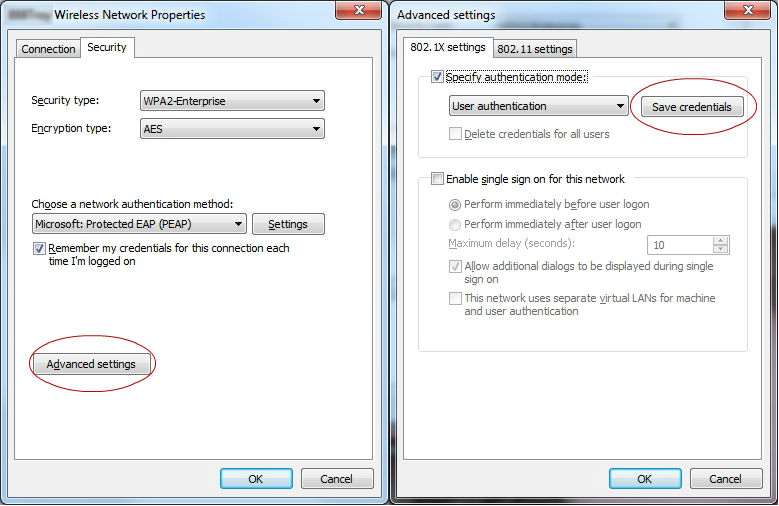
Today, I think I found a good long-term solution. The secret for me was to save the credentials for the wireless connection. To do this, click the wireless connection from the Network and Sharing Center. When the properties window appears, click Advanced Settings on the Security tab. Then click Save Credentials in the advanced settings window.

WirelessProperties_SaveCredentials

Once I did that and saved my credentials, I no longer had issues connecting to Remote Desktop through the wireless adapter. Hooray!

An Unfortunate Tale of Data Lost but Mostly Recovered: Best Practices for Working on Production Databases

Last Friday, a co-worker came up to me and asked if there was a way to rollback an update because they accidentally updated all the records in a table in a customer’s live database.

Blurgh.

After consulting our DBA, we decided to restore a backup and update the values in the live database from the backup. But guess what? The customer’s maintenance plan was disabled and backups hadn’t been created in over a week.

Blurgh.

Well, at least we could still update the records using the week-old database. Before we did that, we figured we should probably create a backup of the database, though. So, I executed the backup maintenance plan, and it completed. With a “good” backup saved (successfully created but containing the erroneous update), we set out to restore the week-old backup, but it was gone. The maintenance plan was configured to delete backups more than one week old.

Blurgh!

No problem, our DBA has a tool that can extract data from the transaction logs to create an undo query. We just need the transaction logs, but–of course–those were also lost with the full backup.

BLURGH!

Luckily, the field that was lost was a timestamp, and we were able to reasonably reconstruct the values based on timestamps in related tables. That was our final option, and in the end it worked out okay. The field was of low importance to the customer, and they were more-or-less indifferent about the potential loss of data. If this had been a more important field, this could have been a catastrophic sequence of events, though. The worst part is that this entire data-scare was simply the result of unawareness and recklessness that could have been completely avoided by employing safer practices. And so, with that, I present to you my best practices for working with production databases.

Best Practices for Working on Production Databases

Certain data within a customer’s production database can be critical to their day-to-day operations, and there are few things less pleasant than telling them that you accidentally changed some of their data and are unable to get it back. Knowing how to work safely in a production database is the first step to avoiding finding yourself in that position. Mistakes do happen, though, so it’s a good idea to be prepared with multiple recovery options, should one of your precautions fail. Here is a list of best practices that you can employ to help ensure no critical data is lost while working with a production database.

Work in a Test Environment

The safest way to avoid production database mishaps is to not work with the customer’s production database. This may not be an option for what you’re trying to accomplish, but it is clearly the safest choice when viable.

Make Sure You Have a Database is Backup

Check the customer’s maintenance plan history to ensure that an up-to-date backup exists. This is your disaster recovery plan. If you find that the backup job has either been failing or not running at all, do not update the customer’s database. Work with the customer to create a successful backup before proceeding.

Backup the Table(s) You’re Working With

Also backup individual tables by using a simple SELECT-INTO statement. Append “_Backup” to the table name along with a date stamp to create a unique and descriptive name for your backup.

SELECT * INTO SomeTable_BackupYYYYMMDD FROM SomeTable

This backup will not have the same triggers and indexes, but it will provide you with the data you need in the event that records are unintentionally modified.

Be sure to clean up once you’re sure you no longer need the table backup.

DROP TABLE SomeTable_BackupYYYYMMDD

Backup the Stored Procedure(s) You’re Working With

If you’re working with stored procedures, you can back them up by saving a .sql script. To do this, locate the stored procedure in SQL Server Management Studio’s (SSMS) Object Explorer, right-click > Modify or Script Stored Procedure as > ALTER To > File …, and save the script to the desired location.

You can also get the current stored procedure by using the sp_helptext command. Note that the result of sp_helptext is subject to SSMS’s character limit.

sp_helptext 'someProcedure'

Copy the results to a new query, and save it to your backup location.

Be Aware of Table Triggers

If you are modifying records in a table that has data manipulation language (DML) triggers, there is the potential for the query to get stuck in a suspended state. If the process is then killed while suspended, it could put the transaction in a killed/rollback state for an extended period of time, which could hinder customer operations.

You can easily check for triggers on a table by using the sp_helptrigger command.

sp_helptrigger 'SomeTable'

In cases of multi-row updates on tables with DML triggers, it is best to consult a DBA if you are unsure what the impact will be.

Use Transactions

At the top of your query, start a new transaction by using the BEGIN TRAN command. Execute your queries and verify the results. If you wish to keep the results, complete the transaction by using the COMMIT command. If you wish to discard the results, use the ROLLBACK command.

Here is a suggested workflow for applying changes within a transaction:

  1. Begin transaction
  2. Query to establish how many rows should be affected
  3. Query to update/insert/delete
  4. Query to verify results
  5. Rollback transaction
  6. Once results have been verified in the transaction, modify #5 to commit the transaction

Note that tables will be locked while once they are modified in a transaction until the transaction is committed or rolled-back.

Movie Rentals on Surface RT

I haven’t done much travelling since getting my Surface RT, but this weekend I had a pair of good, long flights. I decided to occupy myself with movie rentals from the Surface/Xbox video app. I can’t really articulate why, but I’ve been hesitant to rent movies to watch on devices in the past. Maybe it’s just because I didn’t I didn’t have a good device for viewing. Regardless, I decided to give it a shot, and I’m pretty happy with the result.

What I Liked

My actual viewing experience on the plane was awesome. The picture was great, and I had an okay pair of noise-cancelling headphones that did an admirable job of drowning out the sounds around me. (Other co-workers on the flight were complaining about a screaming kid that I was completely unaware of.)

I rented two movies, one for $4.99 and one for $5.49. Five bucks seems like a reasonable price for relatively new releases, so I was happy with that, too. I also liked that I was given a rental period of 5 days or 24/48 hours after viewing began. That allowed me to download the movies to my device well ahead of time so they could be ready and available when I needed them on my flights.

What I Didn’t Like

My only complaints are ones not actually related to the device. When you go to rent a movie through the Xbox video store, you’re presented with 4 options and 4 costs: HD streaming, HD download, SD streaming, and SD download. I’d rather have just two choices (HD and SD) and be given the option to stream or download based on my situational needs, which may change. For example, maybe I’d like to re-watch a previously downloaded movie that’s been deleted via streaming. Regardless, I needed one of the download options since I was planning on watching from a plane, and I opted for HD. At some point, I’ll probably try an SD download just to see what the quality difference looks like. I suspect I’d be happy with SD but didn’t want to regret not spending the extra $1. I have the 32 GB Surface with approximately 10 GB of free space available. Downloading an HD rental for offline viewing takes up about 7 GB, so I can really only have one movie at a time. So HD vs. SD is more about the download time and disk space than saving money. I should probably just pick up a MicroSD card, though.

Remote Desktop Over Wifi

I’ve been having a problem for the past few months with Remote Desktop Connection when connecting through the wireless network at work. I didn’t think it was a configuration problem because I had no problem connecting through the wired connection. Actually, I could connect through the wireless adapter with no problem, too. As soon as I logged in, though, the session would freeze, and I’d get disconnected.

Today, I was googling around looking for a solution, and I came across this forum post. One responder said that they’d had the same issue, and it was a problem with the Wifi network profile. It was created for one user and not for everyone. I had seen this solution before and had verified that the network availability for my wireless connection was “All users.” The responder went on to say that it needs a different profile even when you log on with the same account.

I decided to give it a shot. I logged in through Remote Desktop Connection using the computer’s wired IP and found that the wireless adapter was not connected! I reconnected from the remote session, and guess what? Now everything works! I’m having trouble wrapping my brain around why the wireless adapter would disconnect when I log in remotely, but I’m happy to have it working.

Mail, Calendar, People, and Messaging App Update

When I hopped on my Surface this morning, I noticed there was an update available to the Mail, Calendar, People, and Messaging app. I love getting updates, particularly to core system apps that I use every day. I wanted to know what actually changed, though!

I headed to the internet and found this post from on the Windows Experience Blog. It’s got the information I was looking for, but it wasn’t in the format I wanted. I just wanted a bulleted list, not a narrative about how apps can be used that I need to read through to pick out changes. So, I’ve done the legwork for you—here’s what’s new.

  • Filter mail to see only unread emails
  • Create and delete mail folders
  • Select all mail items in a folder and move or delete them
  • Flag emails
  • “Smart contact suggestions” in the To line when composing emails
  • Draft messages show at the top of inbox
  • Add, edit, and delete hyperlinks and edit numbered or bulleted lists in emails
  • Search server email messages
  • View Exchange details for contacts
  • Solid blocks of color removed from calendar; now colored bar is used to determine which calendar
  • “Work week” view added to calendar
  • Forward invitations and email all attendees from calendar
  • Improved navigation in people app by swiping from the top
  • Filter “What’s New” by source (e.g., Facebook, Twitter)

The article makes it sound like there may be more than this, but these were the changes that I’m now aware of. Let me know if there’s more that I missed.

Microsoft Flash Policy Reversed in Windows 8 and RT

Hooray! This week, Microsoft reversed its very conservative Flash policy for Windows 8 and Windows RT. The previous policy required Flash developers to certify their applications and have them added to Microsoft’s Compatibility View List. This was frustrating to me as a Surface RT early-adopter. Many Flash sites didn’t work. And I’m not talking about small-time Flash sites from random developers. I’m talking about large-scale, reputable sites like LogMeIn.com.

Luckily, Microsoft decided to convert its Compatibility View List from a white-list to a black-list. Now, all Flash websites will work in IE10 in Windows 8 and RT unless they have been explicitly banned.

In the long-term, I don’t think this is big news, as I see Flash being replaced slowly and surely by HTML5. I definitely see this as a win for RT in the short-term, though. Not being able to install alternate browsers or software really puts RT users at the mercy of Microsoft, and while it obviously had the best of intentions, the certification process was causing more harm than good. Kudos to Microsoft for realizing this and easing the restriction. As a Surface RT user, I appreciate it!

Read more about the policy change here.

Registry Hack for Flash in Win RT

One of the measures Microsoft has taken to improve security in Windows RT is to only play Flash content from sites on their Compatibility View (CV) list. Over time, I doubt this will be much of an issue as more and more sites are moving to HTML 5 and away from Flash, but it causes some pain now because there are sites I want to use that haven’t found their way onto Microsoft’s list.

Let’s ignore the problem with other sites for a moment and focus on a different problem. What if you’re a Flash developer, and you want to get your application approved by Microsoft and onto the CV list? You need a way to test your application, right? Microsoft has published an article about a registry entry that will override the CV requirement for a single domain.

The short version is that you just need to add the domain to the following registry value:

[HKEY_LOCAL_MACHINE\Software\Microsoft\Internet Explorer\Flash\DebugDomain]

The article adds some important notes about the value to enter:

  • Direct URLs to a page or resource are not supported (for example, contoso.com/xyz). Any value containing ‘/’ is not supported, including: http:// (or https://).
  • Do not use “www.” prefix, which is stripped (for example, http://www.movies.yahoo.com loads as http://movies.yahoo.com).
  • Only a single domain is supported.

So, using this same trick intended for developers, we can override the restriction for individual sites. I tried this out on my Surface RT with a site that I had problems with previously, and it worked like a champ. Here’s the step-by-step version of what I did:

  1. Go to Desktop Mode
  2. Open a Run prompt by pressing Windows key + R
  3. Run “regedit”
  4. Browse to HKEY_LOCAL_MACHINE > Software > Microsoft > Internet Explorer
  5. Right-click Internet Explorer and choose New > Key; name the new key “Flash
  6. Right-click Flash and choose New > String Value; name the new value “DebugDomain
  7. Double-click DebugDomain and enter the domain; I used “digital.olivesoftware.com”
  8. Close Registry Editor
  9. Open Internet Explorer, browse to the site, and enjoy Flash content!

This works great, but it’s annoying that you can only do one domain at a time. An idea for making this slightly less painful is to export the Flash registry key to create shortcuts. To do this, right-click “Flash” in Registry Editor and choose Export. You’ll be prompted to save the key to a file, and you can update the key by double-clicking the file that is created. Using this method, you can create several shortcuts for sites that you visit frequently. It’s obviously not ideal to need to update your registry before browsing to a site, but, hey, it’s better than not being able to use your favorite sites, right!?

Excel Football Squares Pool Generator

Update: You can find a downloadable version of the spreadsheet here.

The Super Bowl is right around the corner, and you know what that means: it’s time for some low-stakes office gambling! Yep, football squares. In case you aren’t familiar, the idea is that you blindly buy squares in a 10 by 10 grid. Once all the squares are sold, the rows and columns are randomly assigned values from 0 to 9. One team is assigned to the row values and the other to the column values. The last digit of each team’s score at the end of each quarter is then used to pick a square, and whoever owns that square wins some percentage of the proceeds.

What’s that, you say? Grids? Random numbers? This sounds like a job for Excel!

You can probably come up with a few different ways to do this, but I chose to generate two sets of ten random numbers. I then assign values to the rows and columns based on the row index of the 1st largest, 2nd largest, 3rd largest, etc. number in the list.

This is what my numbers grid looks like:

1 0.95708204 0 1 0.96026041 6
2 0.60117232 9 2 0.11468243 0
3 0.17740544 6 3 0.60526773 7
4 0.22298474 4 4 0.76106966 8
5 0.89427173 1 5 0.76476649 4
6 0.41933546 5 6 0.6840864 3
7 0.89535015 3 7 0.97857437 5
8 0.05144228 2 8 0.93037023 2
9 0.17105286 8 9 0.90558099 9
10 0.95489495 7 10 0.21003331 1

The first and fourth columns are just hand-entered values from 1 to 10. The second and fifth columns are just random numbers generated by =RAND(). The third and sixth columns are where the magic happens. The formula, shown below, finds the Nth largest value, where N is the hand-entered number from the first or fourth column, and then uses the MATCH function to return the index of that value in the grid. The indexes are 1-based, so I subtract 1 to ensure that my values range from 0 to 9. Here’s what the formula looks like:

=MATCH(LARGE(B$1:B$10,A1),B$1:B$10,0)-1

Now that I have two sets of random numbers, all I need to do is assign them to my squares grid. I did this just by adding a function to each cell (=C1, =C2, etc.). Bam, that’s all there is to it. No more drawing cards or pieces of paper out of a hat: just hit F9 to have Excel recalculate its formulas and generate the whole thing at once.

bar
foo 6 0 7 8 4 3 5 2 9 1
0
9
6
4
1
5
3
2
8
7